Steps
-
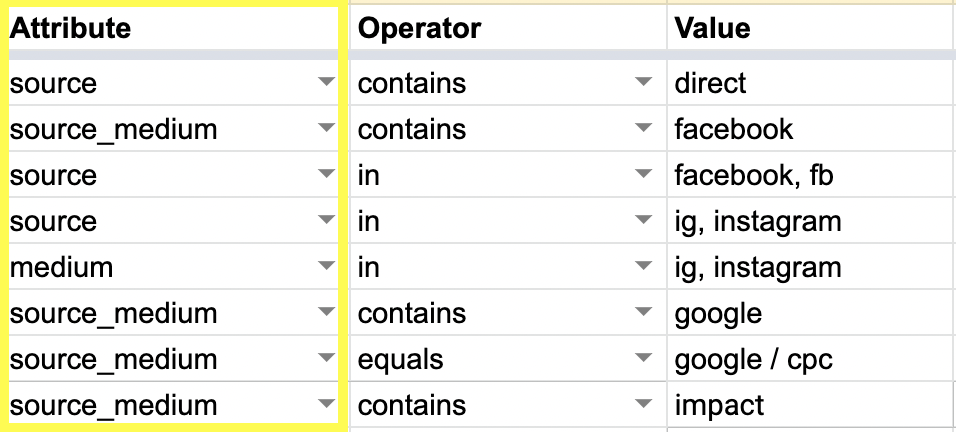
Set Attribute. This is the main source of attribution that you would like to track such as Source/ Medium (Google/CPC) or a marketing campaign through discount codes.
-
Set Operator. This is the matching mechanism that determines how your Value will be picked up within your selected Attribute.
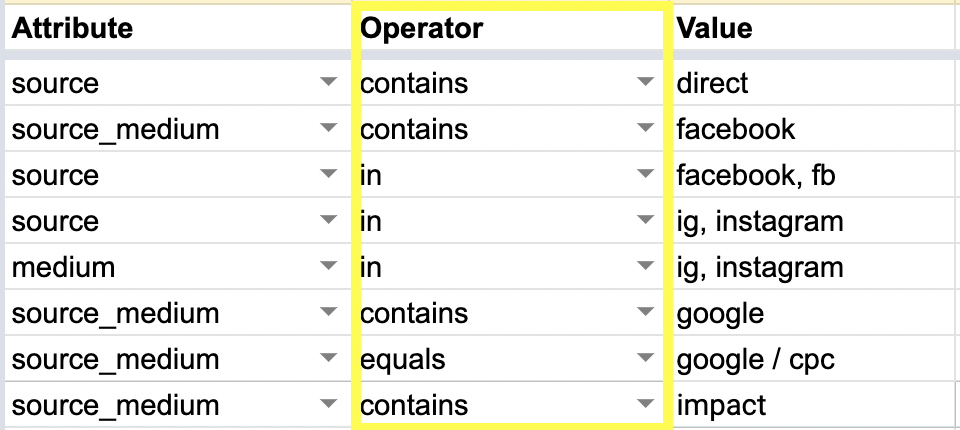
- Equals is a 1-to-1 match of the Value, meaning SourceMedium will only search for what specifically is inserted in the Value column.
- Contains is a partial match, i.e. you have a set of discount codes that all have
influencerin them but can be influencer50, influencer100, etc. This will match all that containinfluencer. - In allows you to match against a comma-separated list of values, i.e. there are 10 different podcasts that you would like to track under 1 podcast grouping
-
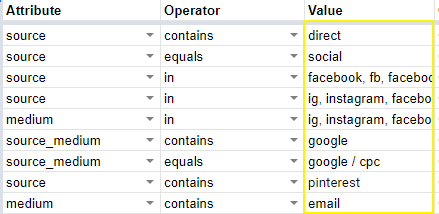
Set Value. This selects the value within the Attribute.
- What type of order are you looking to group?
- Set Channel. This is where you can add a sales channel that you want specific orders (influenced by Attribute and Value) attributed to, such as wholesale, retail, Amazon or, in most cases, Online DTC.
-
(Optional) Set Sub-Channel and Vendor
-
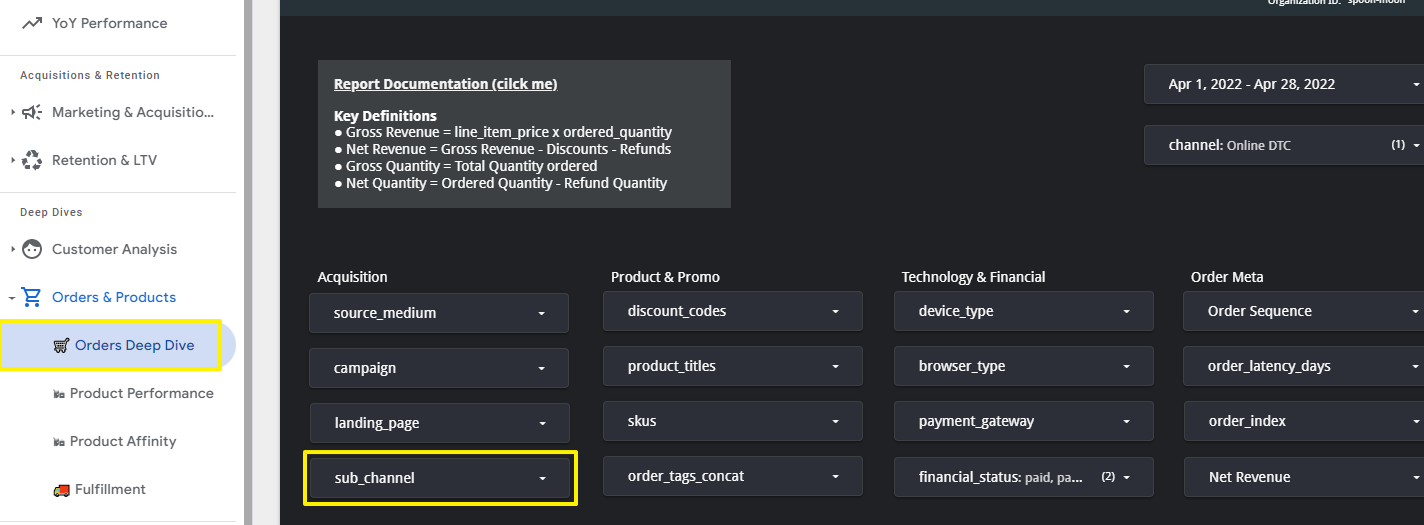
Sub-channel is a value that you will see surfaced in your dashboard. It can be set using the Configuration tab and then selected from the dropdown box. When a Sub-channel is added in the Configurations tab, you will automatically see an option to use this naming as another way to segregate where orders will be attributed to.
- This dimension is available for use on the Retention & LTV modules, Orders Deep Dive, both Customer modules, and the Product Performance module.
-
Vendor is another way to further segment your orders. We do not surface this filter by default as we’ve found most of the time sub-channels are more than enough although. This grouping can also be created in the Configuration tab. Ask your account manager or integrations@sourcemedium.com to enable it.
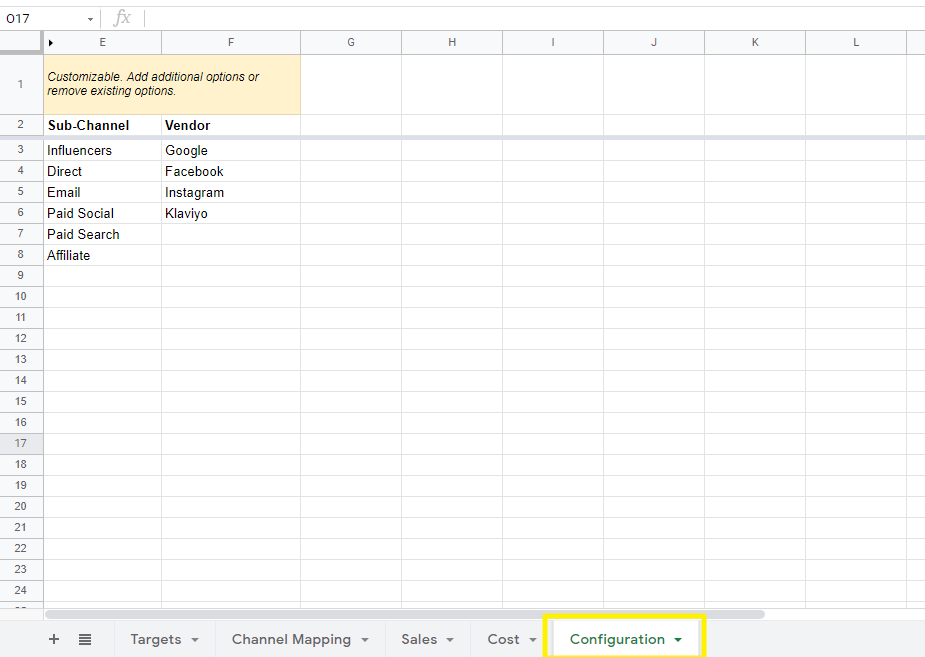
-
Sub-channel is a value that you will see surfaced in your dashboard. It can be set using the Configuration tab and then selected from the dropdown box. When a Sub-channel is added in the Configurations tab, you will automatically see an option to use this naming as another way to segregate where orders will be attributed to.
-
After the configuration sheet is integrated into your dashboard, your sub-channels will be available for filtering in your dashboard. Changes are picked up on the next refresh for the report or table that uses that configuration.