

- The discount code used by the influencer
- The amount spent for that influencer
- The dates you want to amortize that spend across
Steps
-
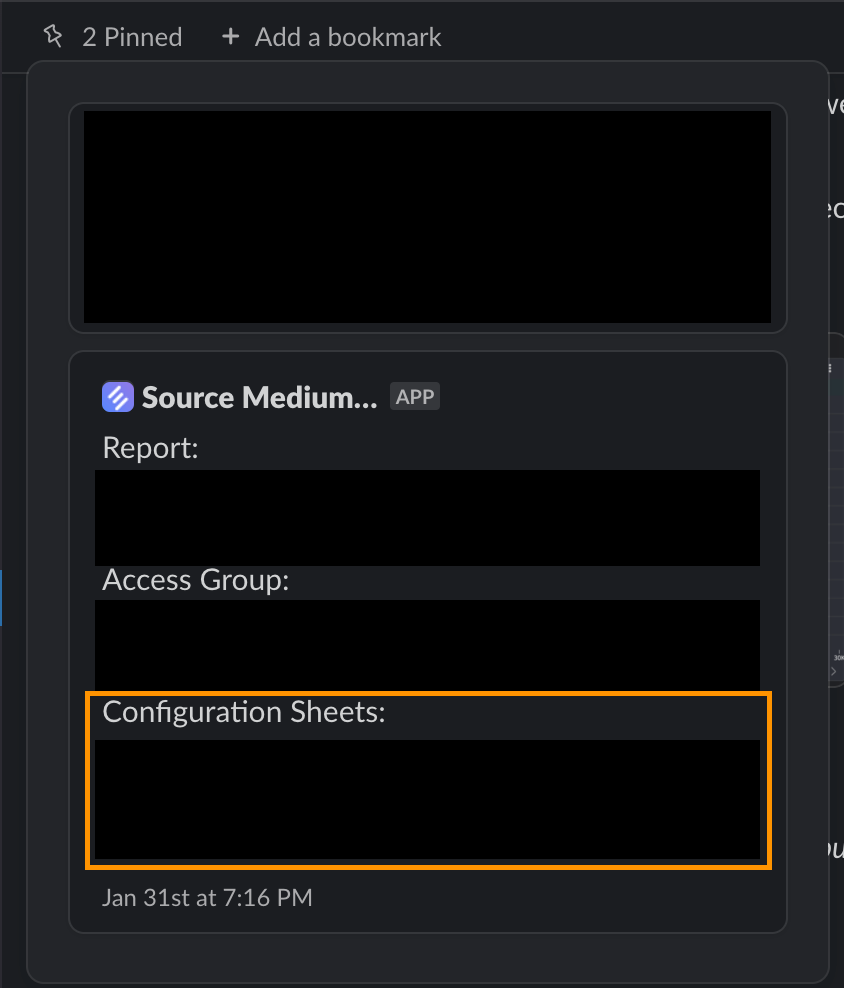
Open your Configuration Sheet from your store in the SourceMedium workspace with Open sheet. (Other ways to find it)
-
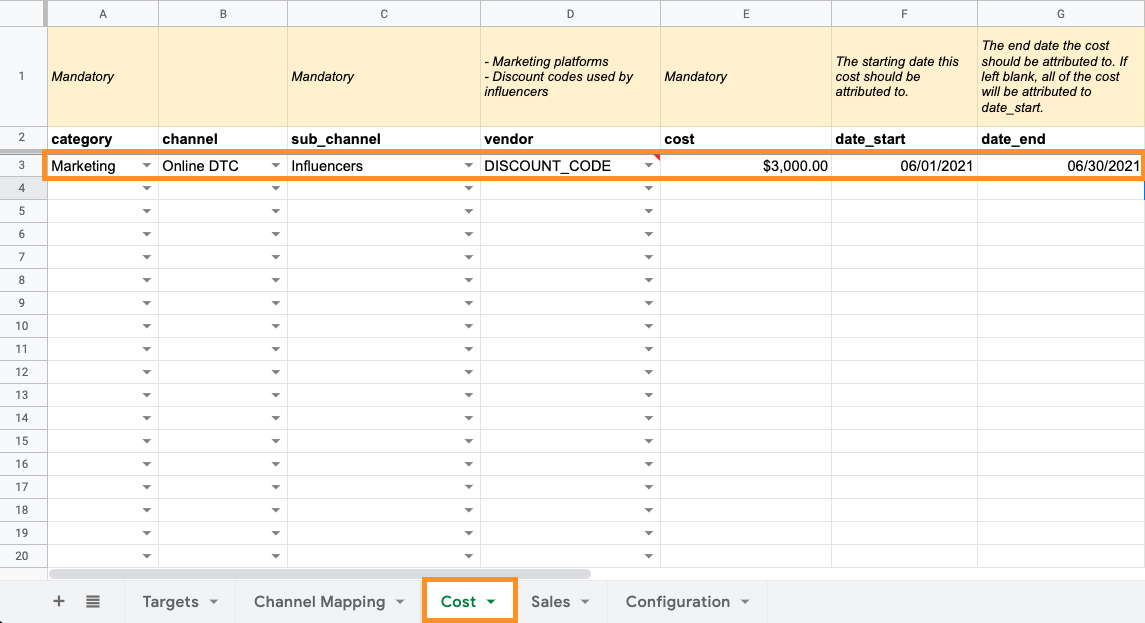
These settings should be set in the first 3 columns of your Cost tab:
category --> marketing,channel --> Online DTC,sub_channel --> influencers -
Under vendor column, enter the discount codes used by the influencer
- IMPORTANT: If this is the first time entering a specific discount code, add it under the vendor column of the
Configurationtab first
- IMPORTANT: If this is the first time entering a specific discount code, add it under the vendor column of the
- Under cost column, enter the amount paid to the influencer
-
date_start and date_end will amortize the cost for that influencer across the range of date_start to date_end. e.g. $3,000 spend from 6/1/2021 - 6/30/2021 would tack on $100 spend for each day. If no date_end is provided, all cost is attributed to date_start.
- If this is your first time using the Cost tab, tell your account manager or integrations@sourcemedium.com so we can enable custom costs for your account.