

Product cost is the main component of your Cost of Goods Sold (COGS). SourceMedium reads it at the variant level, so it can report at the customer, order, and product (line-item) levels.
We recommend entering landed product cost: the blended cost of your product including inbound shipping to your warehouse. This gives you true product gross margins.
Steps
- Enter product costs in Shopify under Products:
- Select a product
- Click the variant
- Enter the
Cost per item
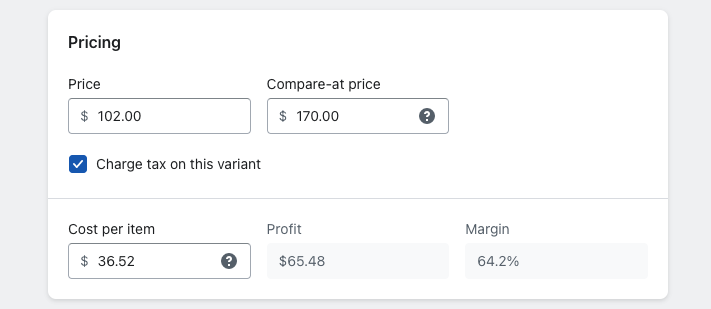
- Tell your account manager or integrations@sourcemedium.com that costs are entered so we can enable them for your account. After that, changes are picked up automatically.
Additional information
What other components are part of COGS?
What other components are part of COGS?
Shipping, fulfillment, merchant processing fees, and operating expenses are entered in the Financial Cost tabs of your Configuration Sheet. See Costs and COGS in the Configuration Sheet.
How should I handle changes in my product cost over time?
How should I handle changes in my product cost over time?
Update the cost in Shopify when it changes. SourceMedium keeps the history, so orders placed after the change use the new cost and earlier orders keep the old one.
Will I see numbers change immediately in my dashboard?
Will I see numbers change immediately in my dashboard?
In the LTV dashboard, which uses the product cost slider, your “Adjusted LTV” numbers may change to reflect the product costs in Shopify.
Can I enter product costs that are not in Shopify, or override the Shopify cost?
Can I enter product costs that are not in Shopify, or override the Shopify cost?
Yes. Use the Product COGS tab of your Configuration Sheet for non-Shopify channels, historic backfills, and overrides. See Costs and COGS in the Configuration Sheet.
Where does product cost show up in my dashboard?
Where does product cost show up in my dashboard?
Product cost surfaces on the Executive Summary, Lifetime Value & Retention, and Product Performance modules.