

Why Google Groups?
Joining a SourceMedium workspace does not need a Google Group. Invite people from Team instead, which covers the workspace, the warehouse, and your configuration sheets: see Giving dashboard access to a teammate. Use this guide to share the reports and sheets your team owns, including your Looker Studio dashboard.
- Looker Studio dashboards (viewer or editor)
- Google Sheets (config sheets, exports)
A group only opens what you shared with the group. Adding someone gives them everything shared with it and nothing else, and Google can take a little while to catch up. It does not make them a member of your SourceMedium workspace.
Quick Start: Create a Group
1
Go to Google Groups
Navigate to groups.google.com and sign in with your organization account.
2
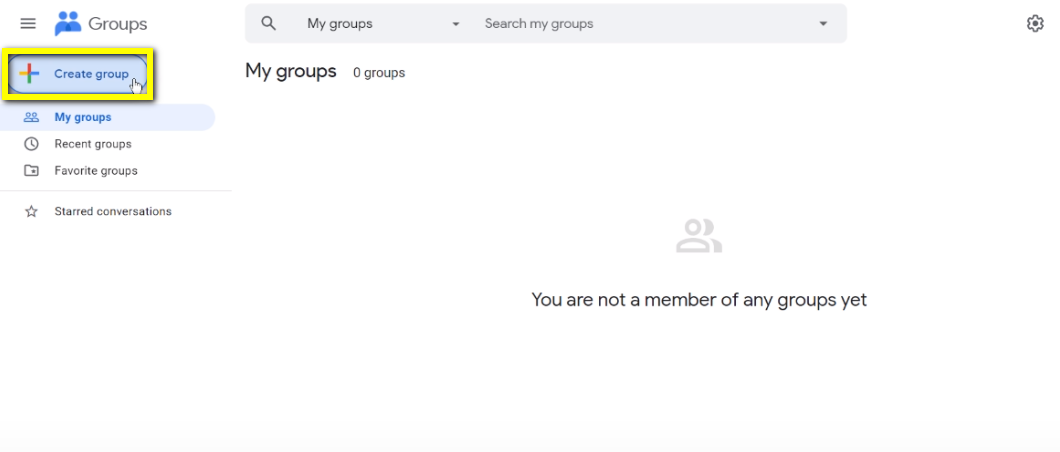
Click Create Group
3
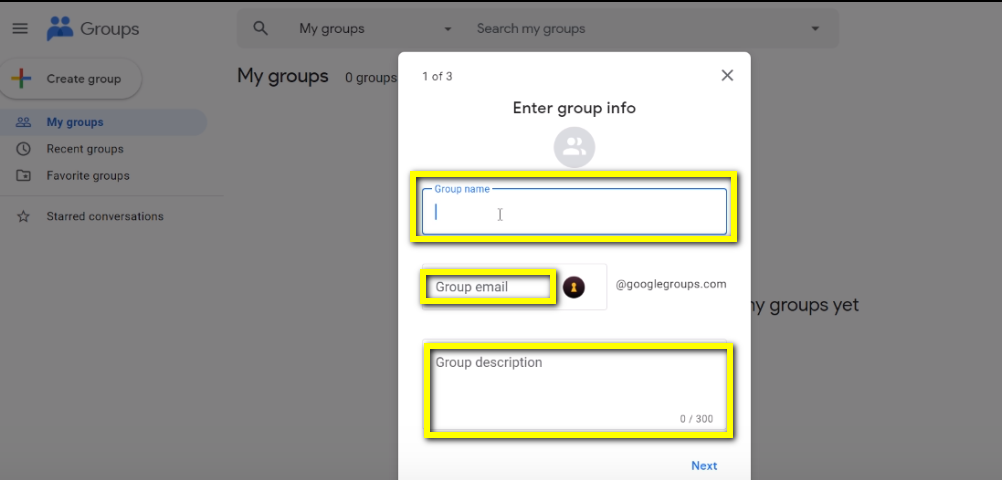
Configure group details
- Group name: Descriptive name (e.g., “Acme Analytics Team”)
-
Group email:
acme-analytics@googlegroups.com -
Description: Who should be in this group and what they access
4
Set privacy settings
Choose who can find and join the group. For internal teams, “Only invited users” is recommended.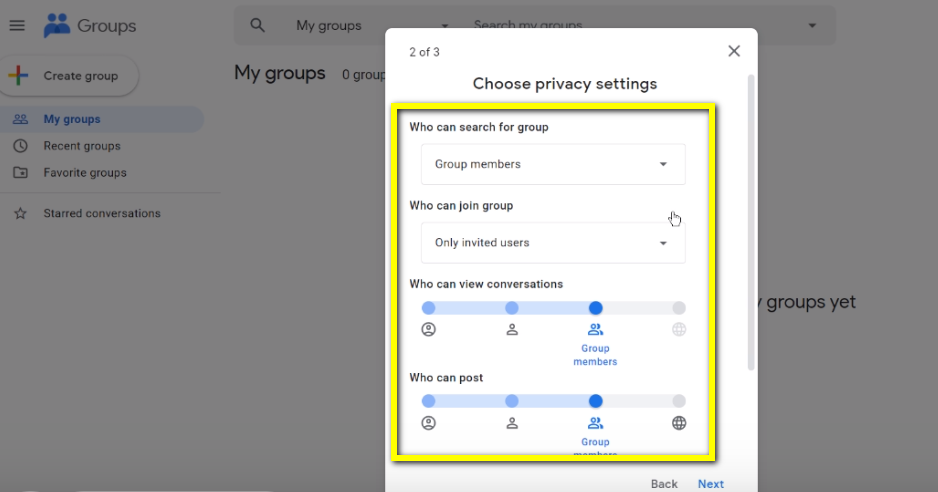
5
Add members and create
Enter email addresses for initial members, then click Create group.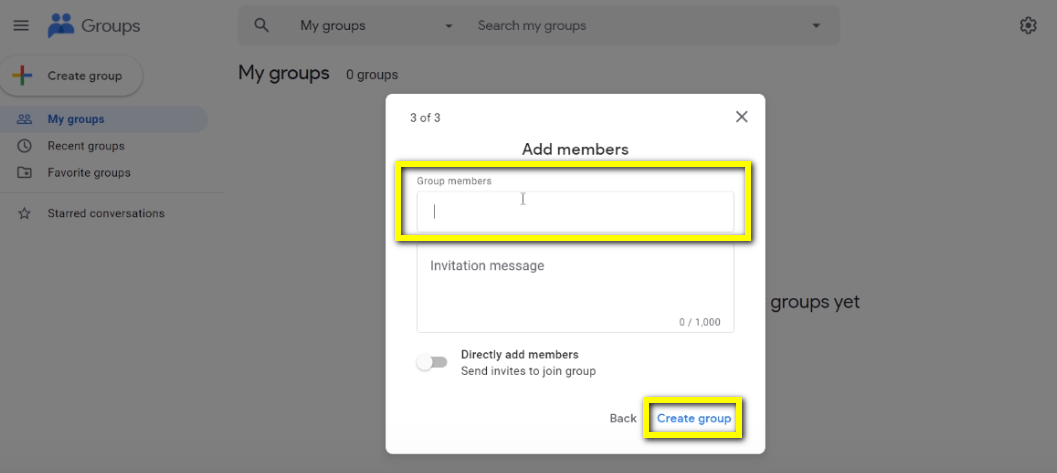
Managing Group Members
Add members
Click Add Members at the top of your group page.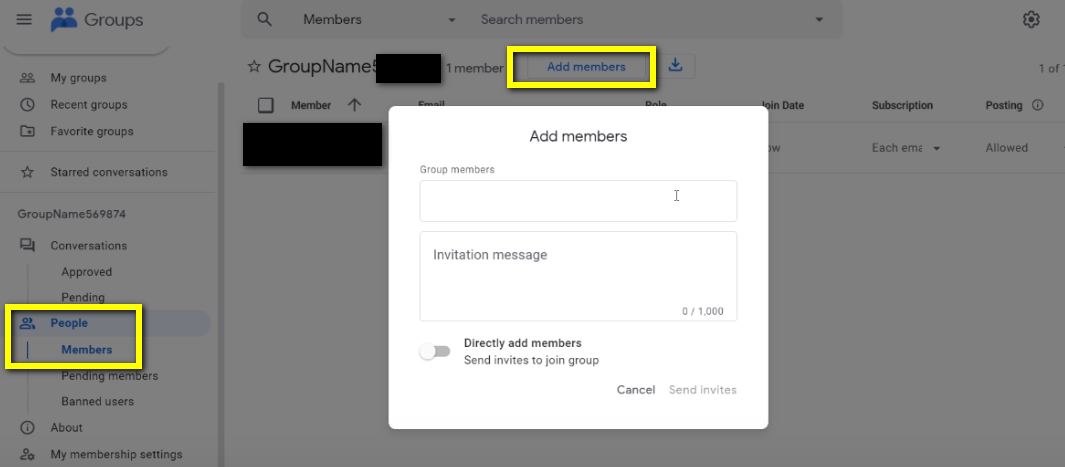
Adjust permissions
Go to Group Settings to modify who can post, view members, or join.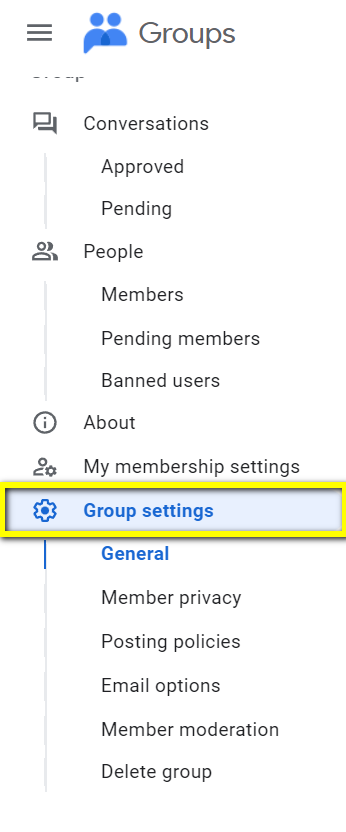
Allow external members
If you need to add people outside your organization, enable this in Group Settings: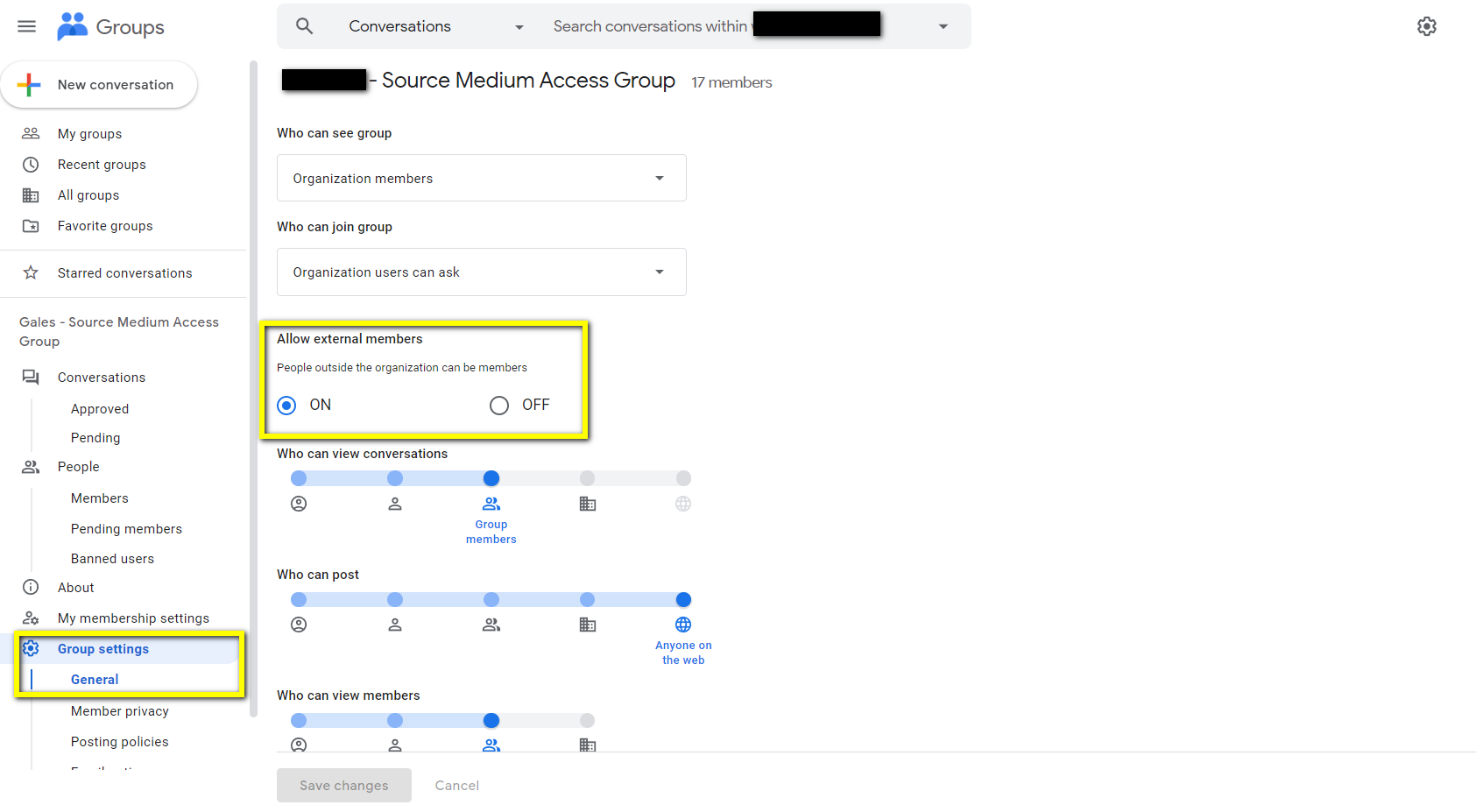
Sharing Resources with Your Group
Once your group exists, use the group email to grant access across Google products.Looker Studio Dashboards
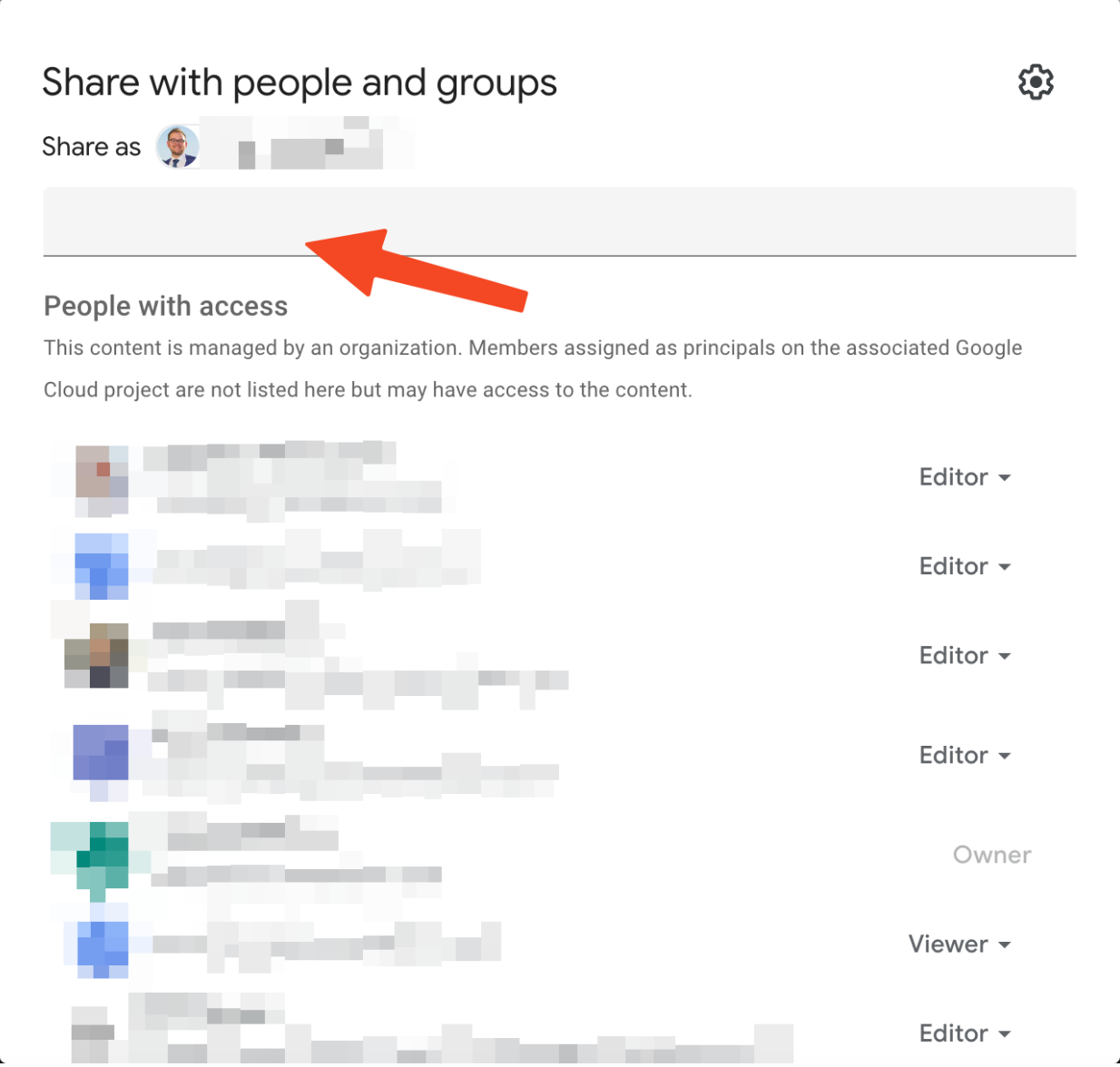
- Open your dashboard and click Share (top right)
- Enter the group email address
- Choose permission level:
- Viewer: Can view and interact with filters
- Editor: Can modify the dashboard
Google Sheets (Config Sheets)
- Open the sheet and click Share
- Enter the group email
- Choose permission level:
- Viewer: Read-only
- Commenter: Can add comments
- Editor: Can modify content
BigQuery Datasets
SourceMedium sets warehouse access up from Team, not from a group, so invite people there. If you want one of your own groups to query BigQuery as well, ask us first so the permissions are right.Recommended Group Structure
For most teams, we recommend two groups:Troubleshooting
”You don’t have access” error
Check group membership
Check group membership
Verify the user is actually in the group at groups.google.com.
Wait for propagation
Wait for propagation
Permission changes can take time to propagate across Google services. If you just added someone to the group or shared a resource, have the user sign out and back in, then try again.
Check the correct email
Check the correct email
Ensure the resource was shared with the group email (e.g.,
team@googlegroups.com), not an individual.External domain restrictions
External domain restrictions
If adding external users, ensure “Allow members outside your organization” is enabled in Group Settings.