

1. Get your data sources
During onboarding, the SourceMedium team creates the Looker Studio data sources the base template uses and grants you access to them.2. Copy the report
Open SourceMedium's base template dashboard
Open SourceMedium's base template dashboard
- Open the SourceMedium Looker Studio base template dashboard
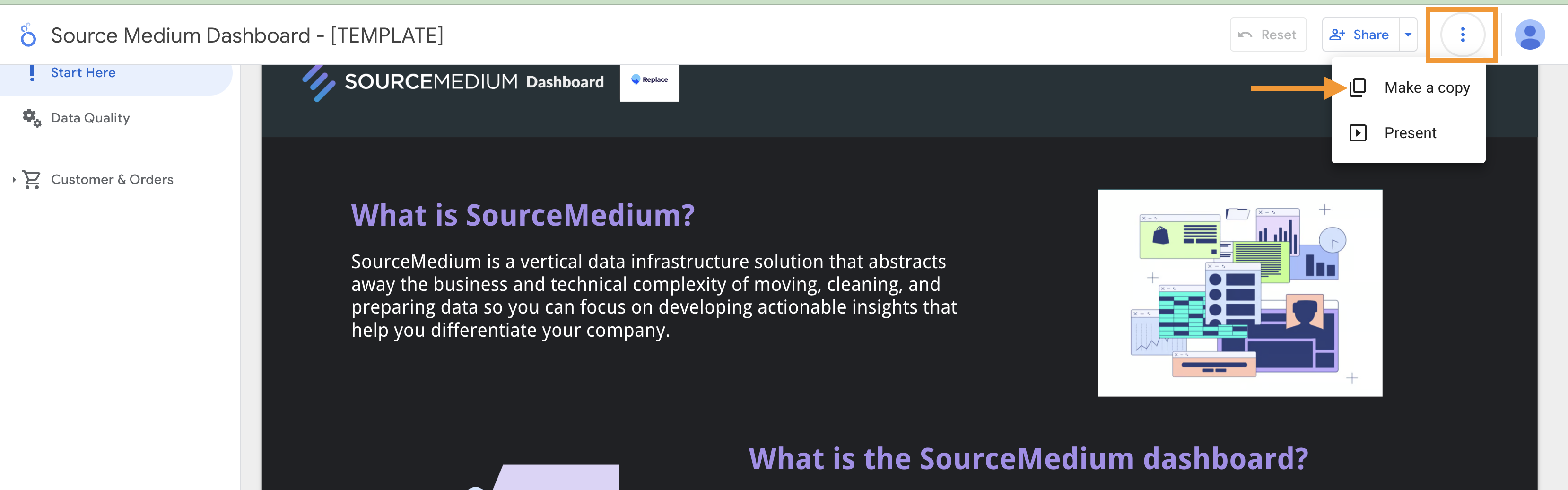
- Hover near the top of the page until the top navigation bar appears, click the three vertical dots (“More options”), and select “Make a copy”
Map your copied data sources
Map your copied data sources
- A dialog opens asking you to “Select the data source(s) to be added to the new report”
- For each “Original Data Source” on the left, select the matching data source on the right
- For example, for
[DEMO] Orders OBT(left), select the[MyBrand] Orders OBTdata source the SourceMedium team created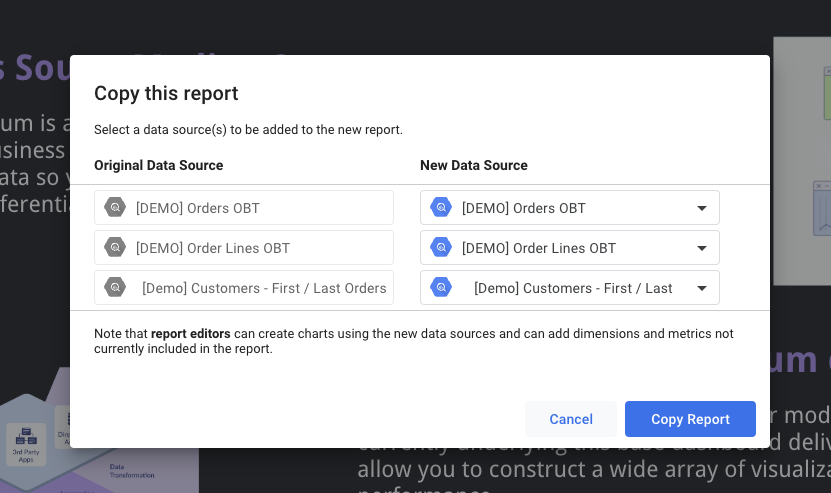
- For example, for
- Once every original data source is mapped, press “Copy Report”
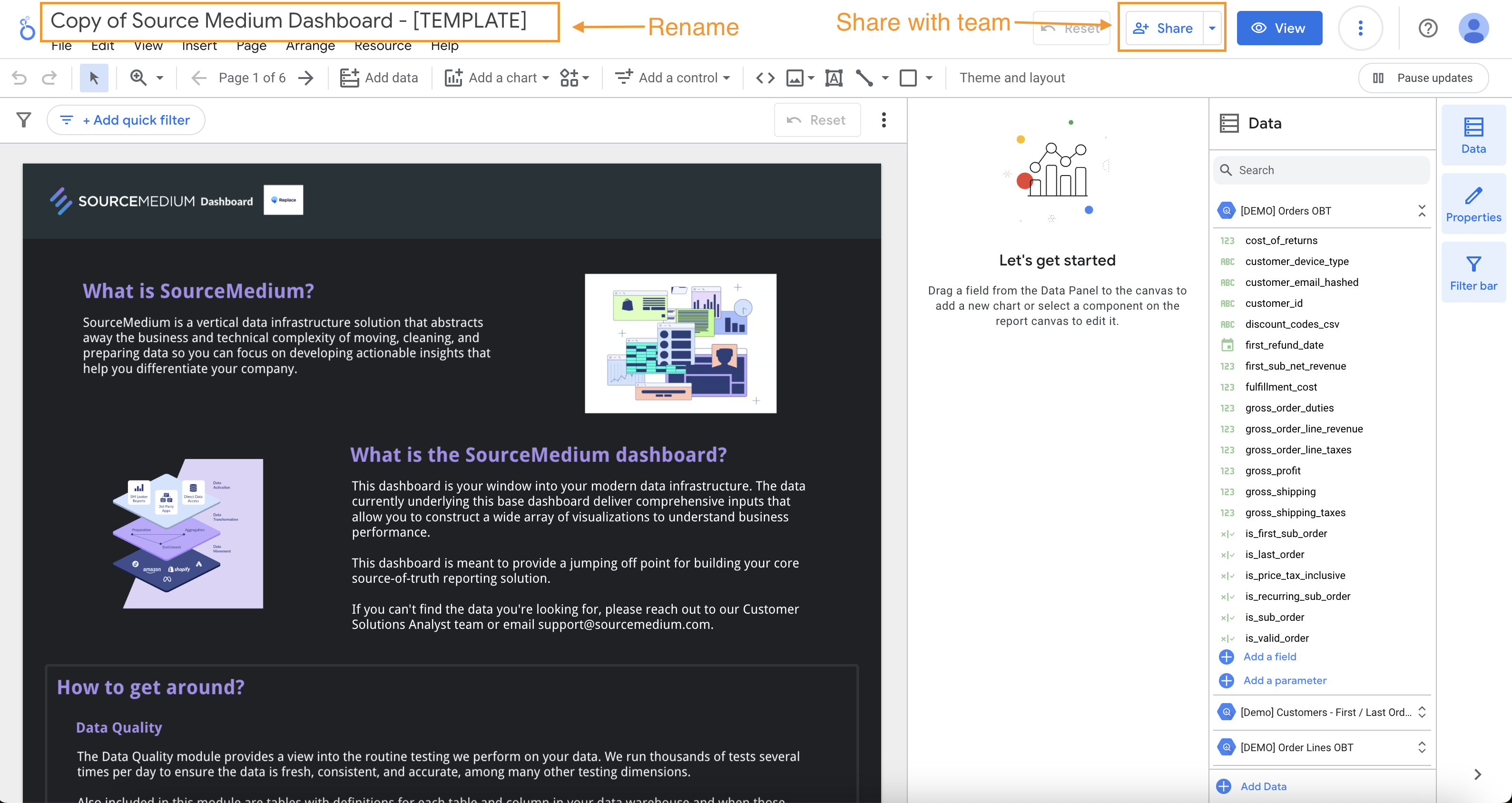
- Rename your new report and share it with the users who need access
- We recommend a Google Group for managing team access; see Google Groups for access control
- We recommend a Google Group for managing team access; see Google Groups for access control
3. Check the copy before you customize
- Give the copied report a distinct name that includes your brand and the date.
- Confirm the data sources first: check that dates and key metrics look right before styling or rearranging pages.
- If you copy a single data source template on its own, map it to your account’s dataset and check field types (dates, numbers, booleans) before building charts.