

- Report: Get the same numbers and comparisons, such as revenue, orders, and ad spend, daily, weekly, or monthly.
- Daily briefing: Get an AI answer to your saved question every day, such as what drove yesterday’s change in acquisition cost.
- Alert: Check a condition daily, such as a sharp drop in product sales, and receive a notification when it finds something.
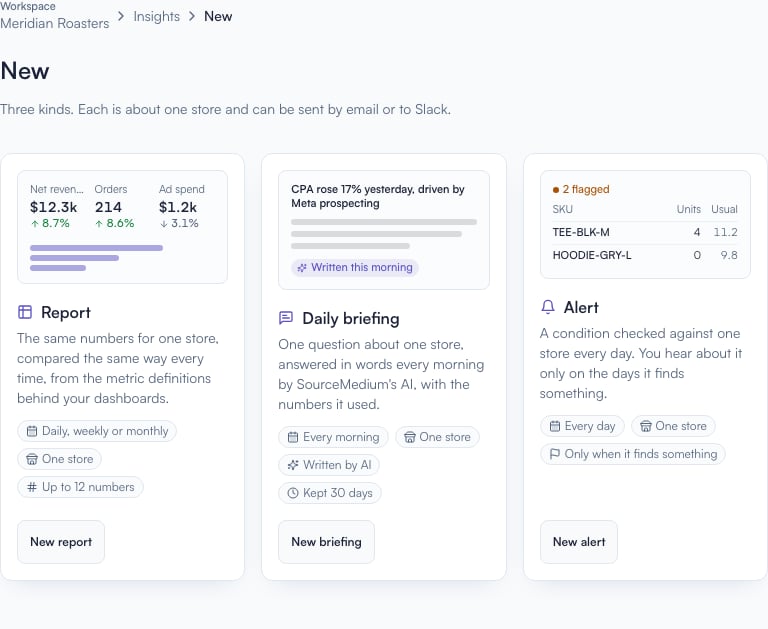
Choose a report, daily briefing, or alert. Screenshots use an example workspace.
Set up a report
- In Insights, choose New, then New report. Pick a template or start your own.
- Select a store and name the report. Choose the numbers you want, what to compare them with, and any breakdowns. For example, add orders by campaign to see which campaigns brought in sales.
- Under When, choose the schedule and time. Times use your store’s reporting timezone.
- Under Send to, add the people or channels that should receive it. You can leave this empty and read the report in Insights.
- Choose Create report. Select Send the first report now if you want one before the next scheduled time.
Set up a daily briefing
Choose New, then New briefing. Select your store and write the question you want answered each day. Be specific about the metric and the comparison:How did cost per acquisition change yesterday across Meta and Google campaigns, and which campaigns drove it?Choose a time, add any recipients under Send to, and choose Create briefing. Get the first briefing now requests an answer right away.
Set up an alert
Choose New, then New alert. Describe what needs attention. Include a cutoff and leave out items too small to matter:Which products sold less than half their average daily units yesterday, compared with the previous seven days? Only include products that averaged at least 10 units a day.Choose the store, time, and recipients, then select Create alert. SourceMedium first prepares an answer and uses it to set up the daily check. Alert, setup pending means this step has not finished. Open the answer for the reason if setup cannot complete. Once set up, the alert tells you when it finds matching items. All clear means it found none. Data not ready means it could not check yet.
Turn an existing briefing answer into an alert
Turn an existing briefing answer into an alert
Open the answer and choose Set up an alert, if offered. Review the condition, schedule, and any dates shown, then choose Create alert. Fixed dates stay fixed, so use a condition that describes a moving period such as yesterday for ongoing monitoring.Days to wait for late data controls how old the data is when checked:
0 checks yesterday; 1 waits another day. You can also ask for an AI explanation when the alert finds something.Send results to your team
Use Send to during setup or on the Insight’s page. Choose an email address, a teammate by email, a teammate in Slack, or a Slack channel, then select Add.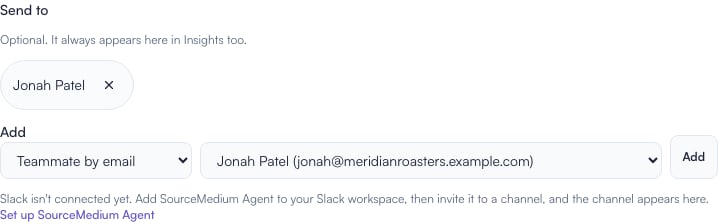
Add each recipient under Send to. This example has a teammate added by email.
- Workspace members can receive email without confirming again.
- Other email recipients must confirm through the email SourceMedium sends them first.
- Slack destinations must be available for that store. If your channel is missing, check SourceMedium Agent setup or contact support.
Find results and change the schedule
Findings shows results. Tracking lists your saved reports, briefings, and alerts. Open one to read its history, edit it, pause it, or run it now.Schedules, limits, and late data
Schedules, limits, and late data
- Daily reports cover yesterday. Weekly reports cover the previous Monday through Sunday. Monthly reports cover the previous calendar month.
- Reports allow up to 12 numbers, 2 comparisons, and 6 breakdowns. Daily and weekly comparisons with last year align weekdays by going back 52 weeks; monthly comparisons use the same calendar month.
- Reports wait up to 8 hours for data known to be late, then include a note if it is still incomplete. Check the notes and any unavailable numbers before using the report.
- Your workspace has 20 AI analyses per rolling 24 hours. Briefings, the first answer that sets up an alert, and optional alert explanations use this allowance. Metric reports do not.
- Results and attached files are kept for 30 days. Download files you need to keep longer.