

get_data_context tells it. Every chat needs the same rules again: what “sales” means, which window an MMM question covers. Claude and ChatGPT both have projects, a folder of chats that share one set of instructions and files. Put the rules there once. Every chat in the project inherits them.
The project does not connect SourceMedium. Connect it first, following the Claude or ChatGPT tab on Connect your own agent.
Claude
1
Create the project
In claude.ai, open Projects and click New project. Name it for the block you will paste, such as “Customers and orders”.
2
Paste the instructions
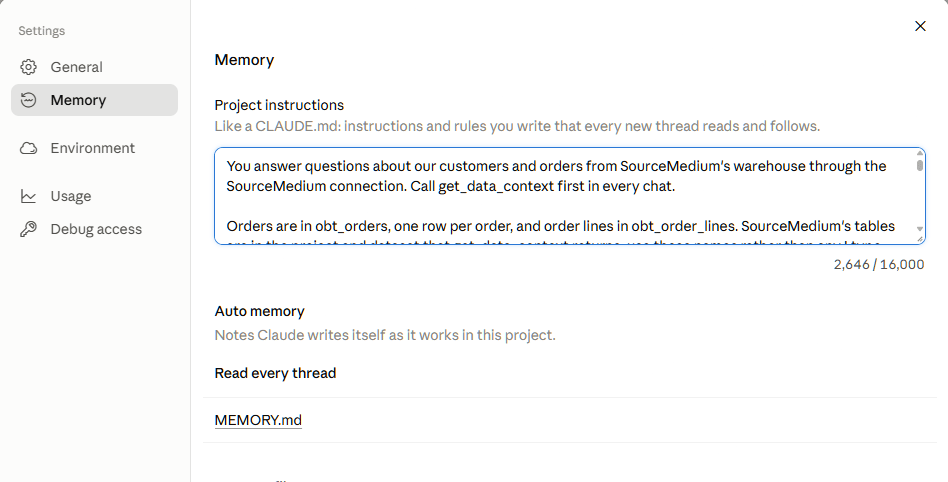
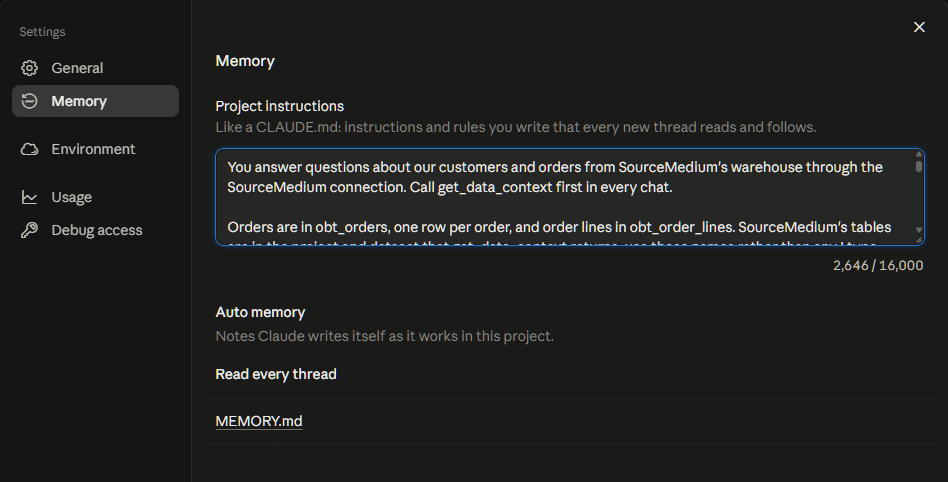
Open the project’s Settings → Memory. Paste one of the blocks below into Project instructions. The field holds 16,000 characters.
3
Check the connector's tools
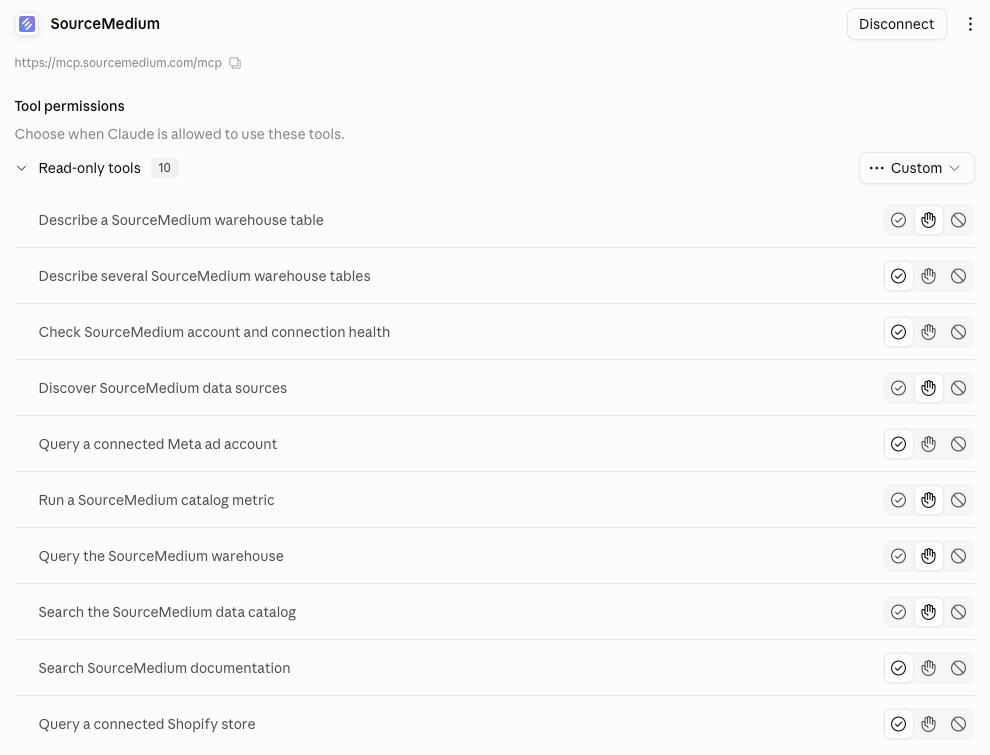
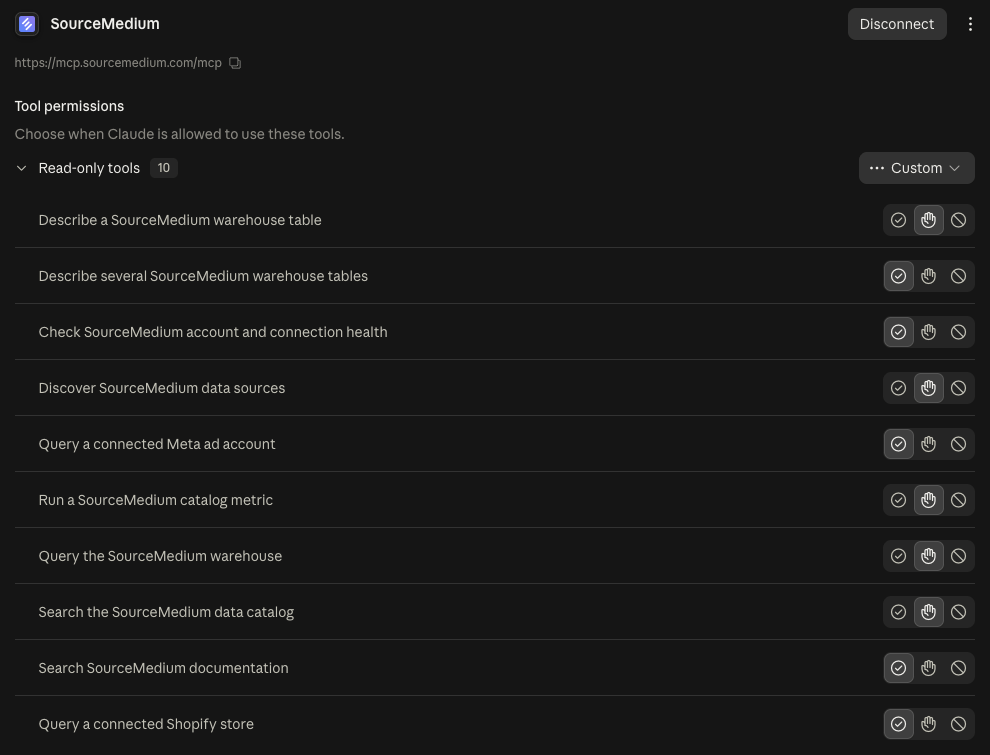
SourceMedium has to be connected in Claude already (the Claude tab on Connect your own agent). From a chat in the project, open the SourceMedium connector and confirm its tools are not blocked (Allowed or Needs approval both work).
ChatGPT
1
Create the project
In the sidebar, select New project and name it.
2
Paste the instructions
Open the project’s ••• → Project settings and paste one of the blocks below into Instructions. Project instructions apply only inside the project.
3
Switch the plugin on
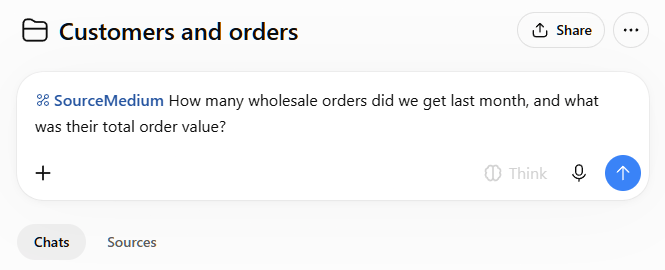
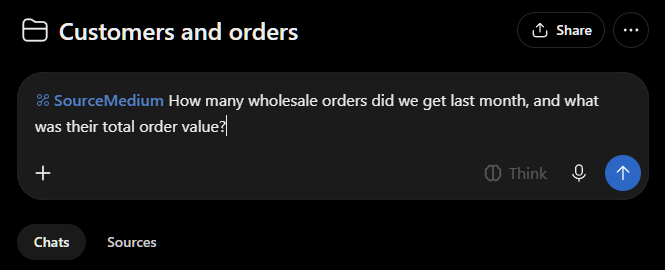
The plugin has to be added once, following the ChatGPT tab on Connect your own agent. In each chat inside the project, switch SourceMedium on in the composer before you ask.
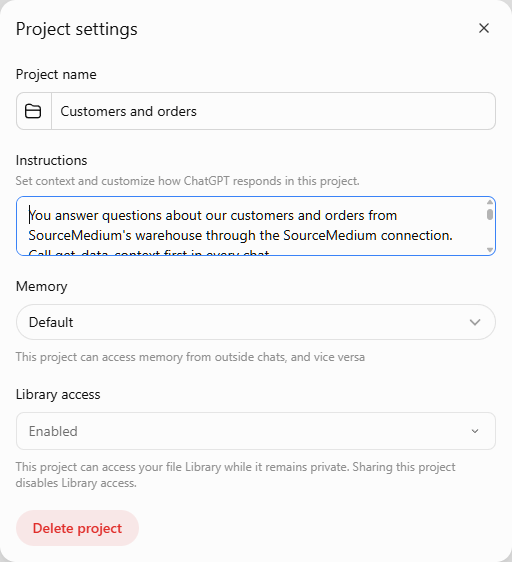
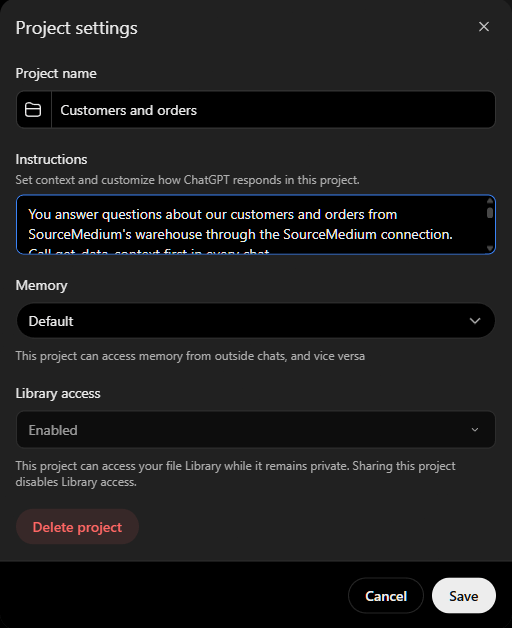
Instructions to paste
Each block is written for one kind of project. Delete any line that does not apply. The rules are collected from Asking questions and Connect your own agent, and every table and column named is in the data dictionary. The blocks name tables without a project or dataset, because those differ by customer and plan.get_data_context tells the agent the real ones, and each block says to use them. On Pro, add your own tables to whichever block fits, in the pattern from Your own tables.
Customers and Orders: retail and wholesale
Retail and wholesale are values ofsm_channel on obt_orders and obt_order_lines. This block tells the agent which channel you mean, and what “sales” means when you do not name one. As written it means every valid channel, which is what the dashboards report. Change that line if your team means one channel. The channel values are the ones on Sales channel.
Marketing and MMM
For the standard SourceMedium tables, with the media mix model answered the way that matches the vendor’s paid figures.Customer Support
For a help desk connected to SourceMedium.When the project does not help
- The agent cannot reach SourceMedium. The project does not connect it. Follow the Claude or ChatGPT tab on Connect your own agent, and in ChatGPT switch the plugin on in that chat.
- The agent names a table you do not recognize. It searched the catalog by your words. Repeat the table name from the instructions in your question.
- A number disagrees with a dashboard. Ask which table, dates, timezone and filters it used, then follow Reading results.
Related
Connect your own agent
Connection URL, sign-in, and how to prompt on your own tables.
Asking questions
Prompts by domain, including the MMM and customer support groups the blocks draw on.
MCP tool reference
Every tool, and the order that gets correct answers.
Agent connection troubleshooting
Sign-in errors, source denials, and what to send support.