

Any workspace member can connect. Sign in with your membership email. The session is read-only and sees only what you already can.
The connection URL
/mcp. The AI Agents page in your workspace has it ready to copy and confirms when your agent connects. Another MCP client may work with the same URL; these are the ones we keep steps for.
Chat apps
- Claude
- ChatGPT
On Team or Enterprise, an Owner first adds SourceMedium under Organization settings → Connectors → Add → Custom → Web. Members then connect it under Customize → Connectors.Vendor guide: Claude custom connectors
1
Open connectors
In claude.ai, go to Customize → Connectors.
2
Add the connector
On Free, Pro, or Max, click + and choose Add custom connector. On Team or Enterprise, click Connect on the connector your Owner added and skip the next step.
3
Paste the URL
Paste
https://mcp.sourcemedium.com/mcp, click Add, then Connect.4
Sign in
Sign in with your SourceMedium account and approve.
5
Ask
In a chat, click +, open Connectors, switch SourceMedium on, and ask.
Claude’s Free plan allows one custom connector.
On paid plans the live pages Claude builds can read SourceMedium through this connection. Each viewer needs their own SourceMedium connection to refresh live charts. Check Claude’s sharing options for your plan and workspace. On Team or Enterprise, an Owner may first need to turn on Dashboards (Organization settings → Artifacts) and artifact connectors (Organization settings → Capabilities).
Agents
- Claude Code
- Codex
- Grok Bot
- Muse
- Hermes
- Cursor
1
Add it
2
Sign in
Start Claude Code, run
/mcp, pick sourcemedium, and sign in.3
Ask
Ask a question about your data.
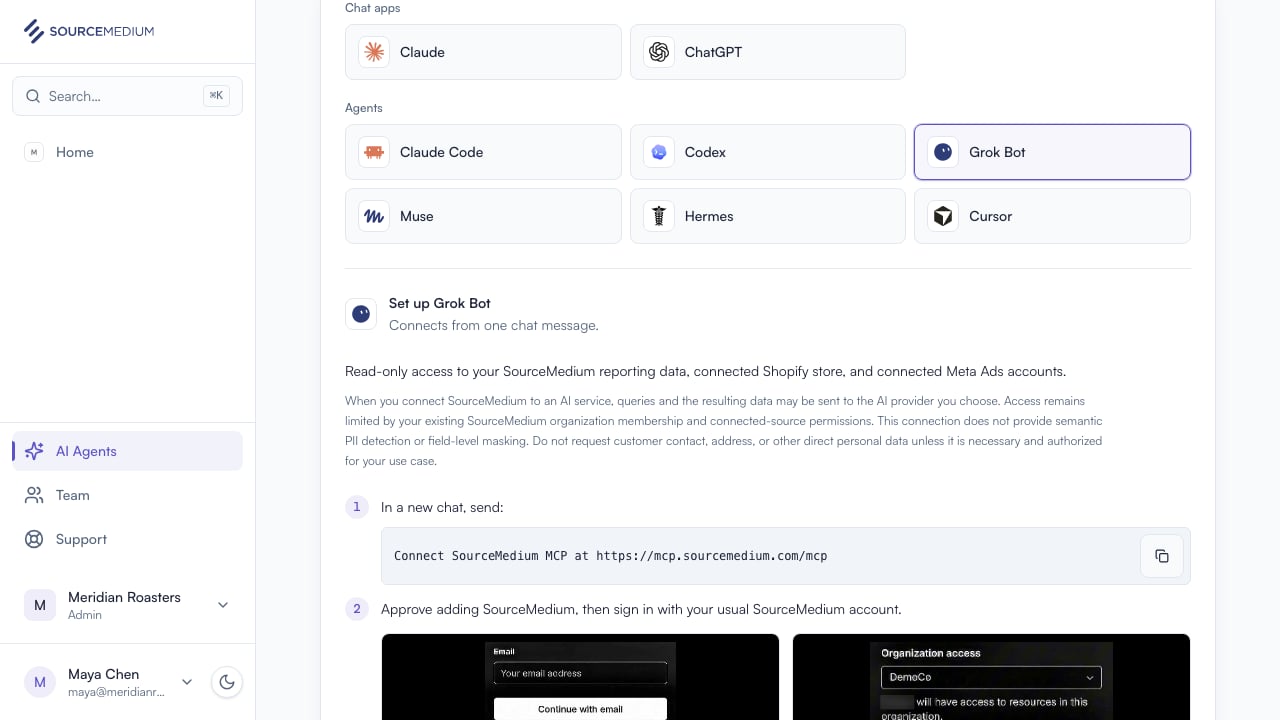
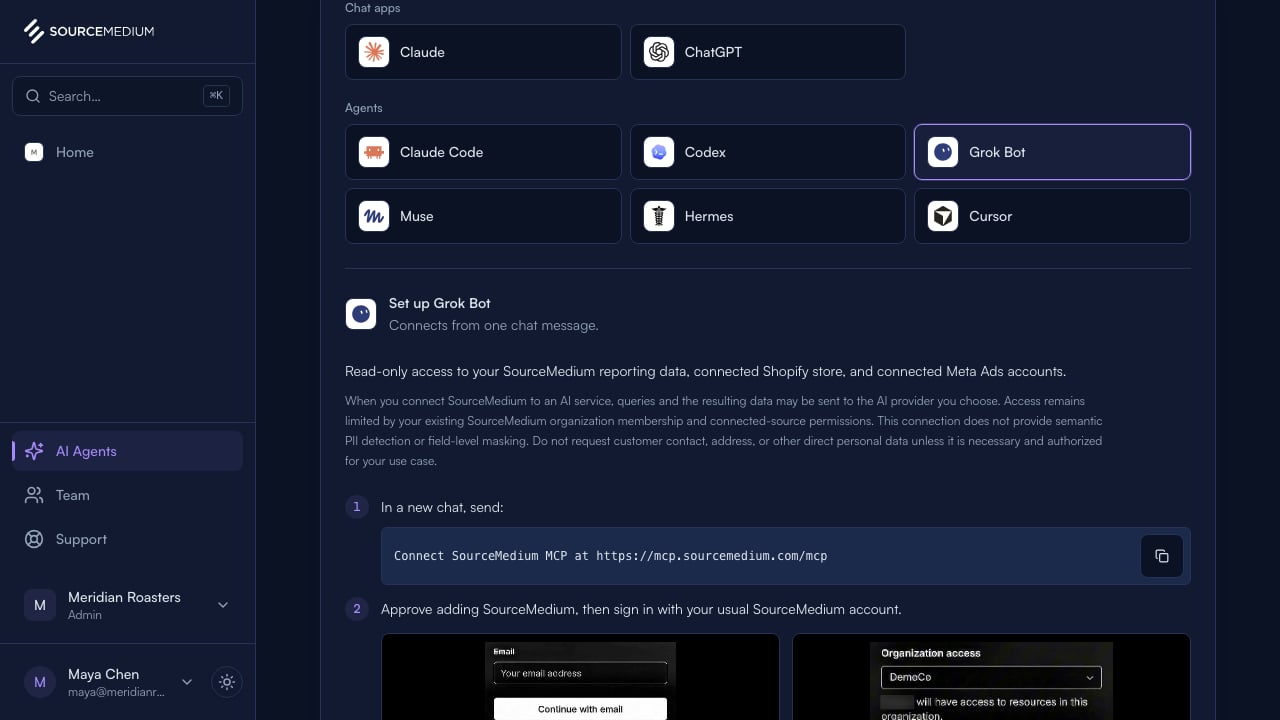
gcloud login.
When your agent opens SourceMedium
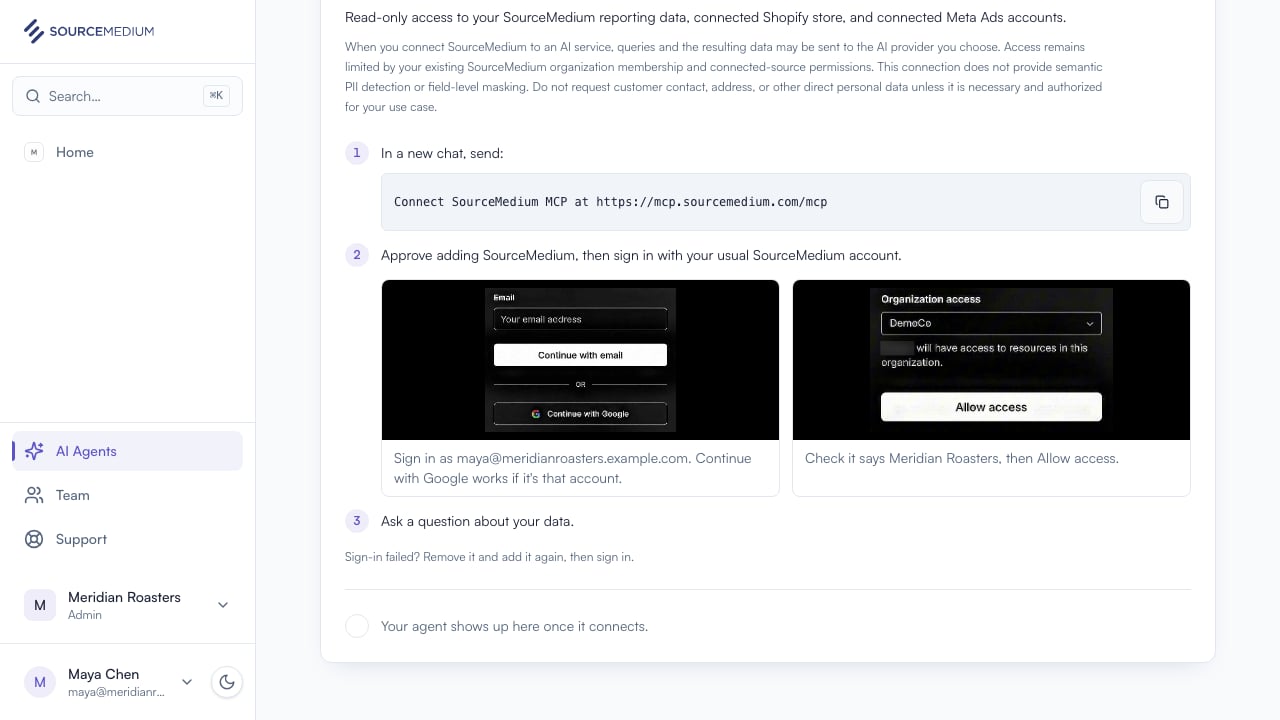
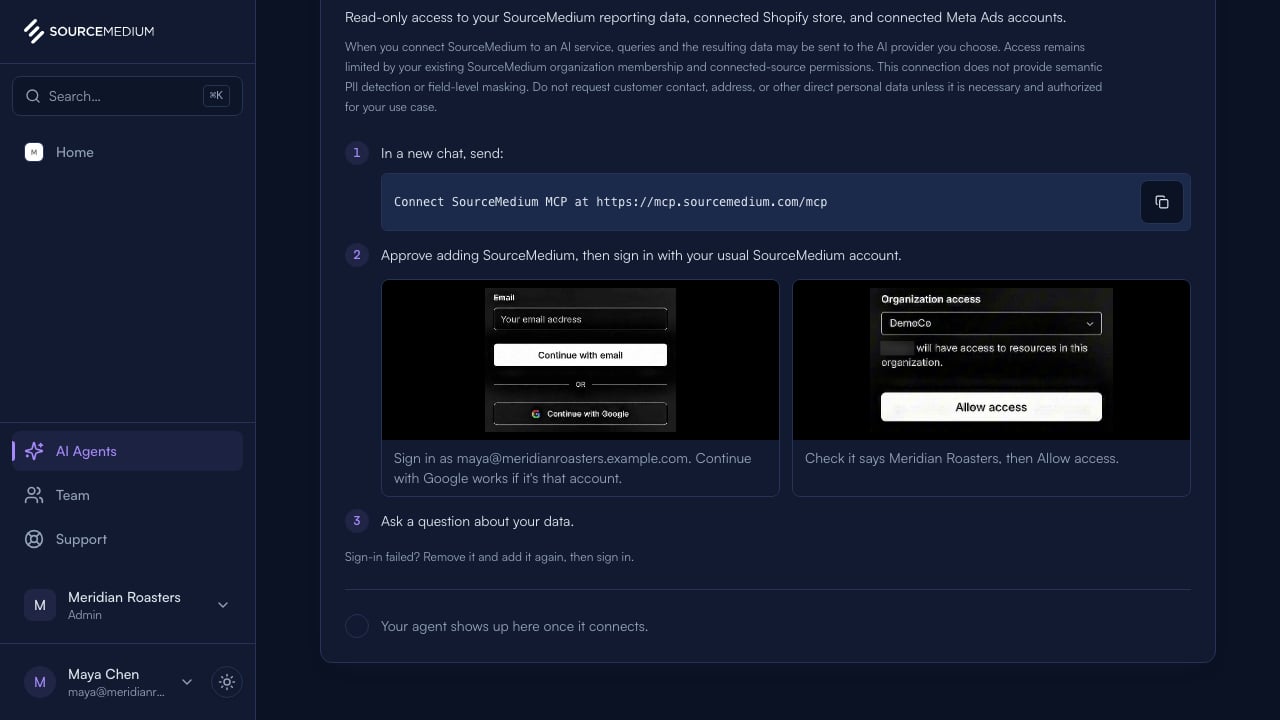
Every agent above sends you to the same SourceMedium sign-in at its sign-in step:- Continue with Google, or enter the email you use for SourceMedium. Use the same account you use in your workspace.
- Click Allow access. One connection reaches one organization. If you belong to more than one, pick it under Organization access. To use a different organization later, open a private window and connect again.
If connecting fails
- Sign-in failed? Remove SourceMedium, add it again (or resend the message), then sign in.
- Claude Code? Run
claude mcp logout sourcemediumbefore adding it again. - 401,
ACCESS_DENIED, or the wrong organization? See Agent connection troubleshooting.
After you connect
One connection is one organization. In several workspaces? Pick one at sign-in. To switch, open a private window, connect again, and pick the other organization. A normal sign-out keeps the previous choice. In Claude Code, runclaude mcp logout sourcemedium before adding the server again so the old token is gone.
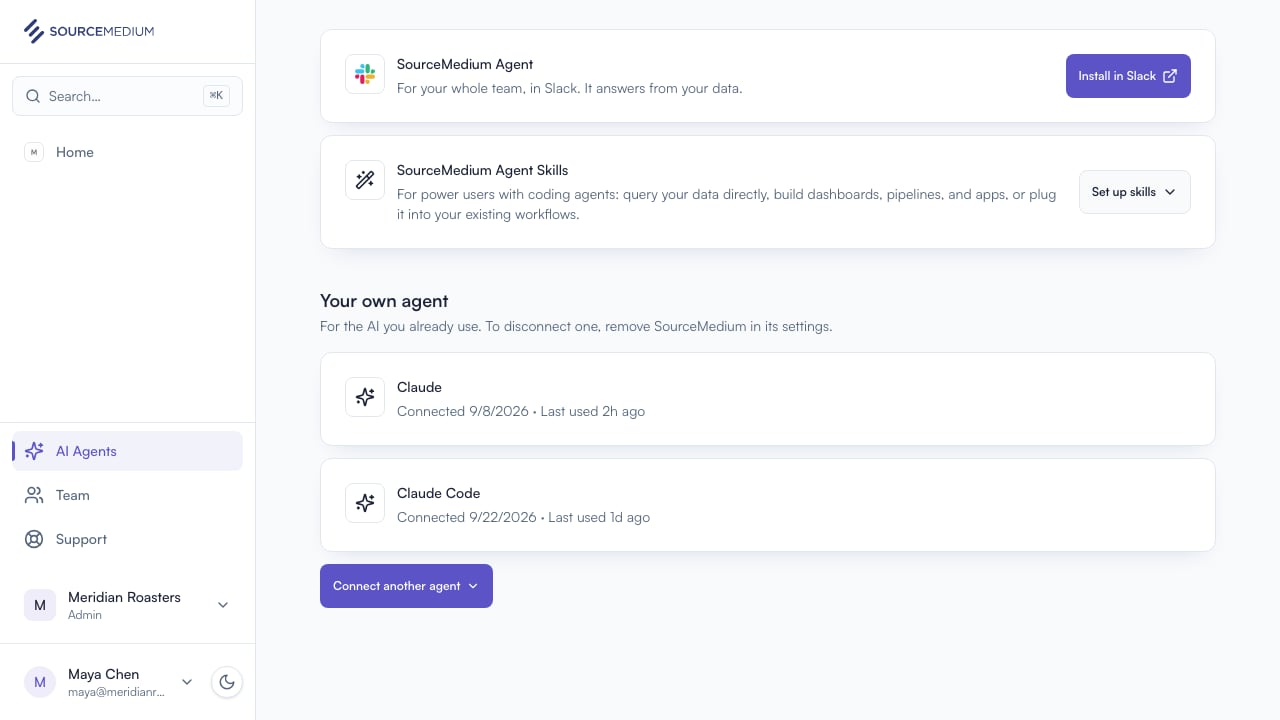
The AI Agents page lists every agent you’ve connected, and when it was last used:
What it can reach
Not connected? That tool answers
SOURCE_UNAVAILABLE, and warehouse questions still work. Agency partners with a live grant can connect too; a brand- or store-scoped grant sees only those stores and can’t run raw SQL.
Google Sheets tables
A Google Sheet connected to your BigQuery project as a table works like any other table, once SourceMedium can open the sheet. A sheet starts out unshared. SourceMedium opens sheets as one address for your organization and checks each one for you.- Open AI Agents in SourceMedium. The Google Sheets section lists every Sheets table in your warehouse as Ready, Needs sharing, or Couldn’t check. Copy the address shown there.
- For each table that needs sharing, click Open sheet, then Share.
- Paste the address, choose Viewer, untick Notify people, and click Share.
- Back on AI Agents, click Check again. The table shows Ready.
get_data_context tells your agent which tables it can’t read yet.
Only someone who can share the sheet can do this. Not yours? Ask its owner. A sheet in a SourceMedium shared drive is shared by your SourceMedium team. If your Google Workspace blocks sharing outside your company, your admin has to allow the address first.
If your agent queries a sheet before it is shared, it gets PROVIDER_PERMISSION_DENIED. The error links the sheet and gives the address, so the agent can tell you exactly what to share.
Your own tables
Your own tables are reachable in a dedicated project when you are a direct member of it, and the agent queries only the datasetsget_data_context lists. A dedicated project comes with Pro; on Foundation your data lives in a shared BI project, and the agent reaches SourceMedium’s tables only (Foundation and Pro). The MCP tool reference explains how the catalog reports a table it can see but has no definition for.
Your own tables have no SourceMedium definition, so the agent cannot find them by what they mean. Name the table in the question:
According to ops.store_sales, how many units did we sell in September 2026, by store?
Give the dataset and table, without the project: every query runs in the project get_data_context names for your organization, so ops.store_sales is enough. A question that only describes the table (“our stock table”) sends the agent to the catalog, and it may land on a SourceMedium table that covers similar ground. If you do not know the exact name, ask for it by part of the name first (“find the table with inventory in its name”).
Example prompts. Each names the table, states the window, asks for the figure, and adds the one caveat its table needs:
get_data_context, then search_data_catalog with the table name, which reports the table as live and uncatalogued, then read its columns (search_data_catalog with the table as dataset.table, or on the earlier tool set INFORMATION_SCHEMA.COLUMNS through run_bigquery_sql), and then the query runs. If the answer does not include a check (rows against distinct keys, nulls, a second method that should agree), ask for one.
The numbers carry no SourceMedium validity filter. When you reconcile one of your tables with a SourceMedium table, ask for the match by store, day and SKU, and expect two differences: SourceMedium’s figures apply is_order_sm_valid, so draft, cancelled and refunded orders drop out, and your table may not; and SKU case can differ between the two.
Four things can trip a question up, and all four come from how the data was loaded:
- Fixed-width status values. Some system exports pad status values to a fixed width, so an exact match on
Opencan return nothing. If a status count comes back as zero, ask the agent to trim the values first. - Sync copies. A table replicated from a database can keep every sync, so a count of rows is a count of copies. Say “this table keeps a copy of every sync” in the question, and ask for the latest copy of each record with soft-deleted rows left out. If the answer does not mention duplicates, ask whether it checked.
- Daily snapshots. A snapshot table holds one row per item per day, so a sum over it means nothing. Ask for “the most recent date in the table” and the figures on that date, as the inventory prompt above does.
- UTC freshness. Load and rebuild times come from the warehouse clock, marked “UTC”. Ask for times in your store’s timezone if that is what you compare against.
Your first question
Paste this in:Compare net revenue for the last complete week against the week before, using SourceMedium’s own metric definition (query_metrics). Tell me which stores, dates, and timezone you used, and show the definition and any filters.A good answer names your stores, the right dates, and the definition it used. Checking it against a dashboard? Match dates, timezone, stores, and filters first. The MCP tool reference explains every tool.
Limits
Related
MCP tool reference
Every tool, and the order that gets correct answers.
Agent connection troubleshooting
Sign-in errors, source denials, and what to send support.
Set up a project for your data
Name your tables once in a Claude or ChatGPT project, with instructions to paste.
SourceMedium Agent
Ask in Slack and let SourceMedium write the SQL and charts.