

Select and save tables
- Open Browse. Connected sources appear first. Search by source or table name, and expand a table to see its columns.
- Select the tables you want. The selection covers your workspace’s connected stores. If the source is not connected yet, connect it first.
- Choose Review changes, check the additions and removals, then choose Save changes. Until you save, you can choose Discard to cancel your changes.
- Open Selected to follow delivery. Once a table arrives, use its Open in BigQuery action or copy its full table name.
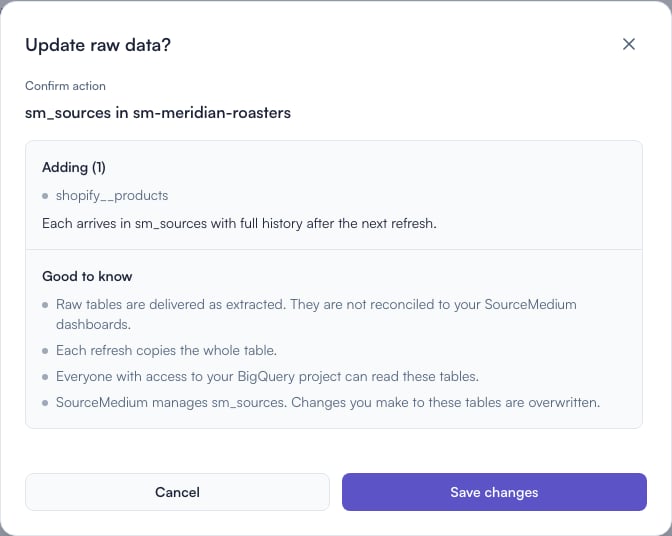
Review the tables being added or removed, then save your changes. This example adds Shopify products.
When the data arrives
Selected tables land inyour_project.sm_sources after the next refresh. They refresh after SourceMedium’s reporting builds, at least twice a day on weekdays.
The first copy includes the history SourceMedium has already collected for your stores. Selecting a table does not extend the platform’s history window or finish a backfill immediately. Check the source’s integration guide for its limits.
Check delivery status
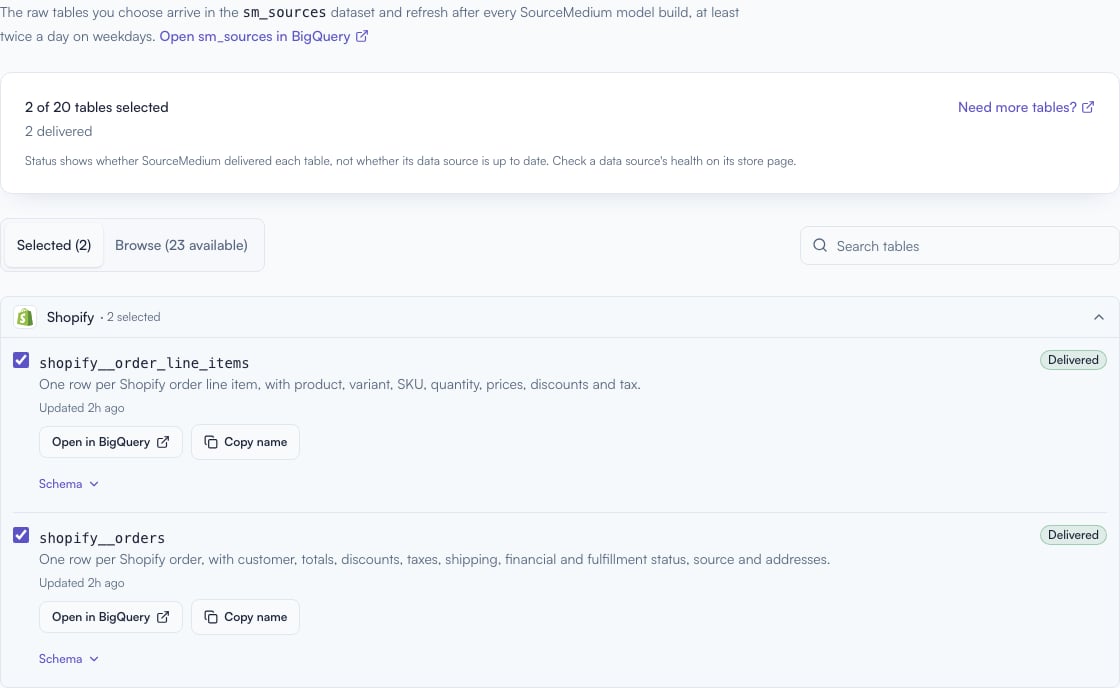
Selected shows each table's status and its BigQuery link. This example has two delivered Shopify tables.
Select a status count to filter the list. A source can be connected while its first warehouse delivery is still pending.
Remove a table
Deselect it, choose Review changes, and save. This stops updates and leaves the existing table in BigQuery. If you also want to delete the copy, do that in BigQuery. Disconnecting a source stops new collection. To stop updates to its delivered tables as well, remove them from your Raw data selection. See Data retention and deletion for the separate rules on data SourceMedium has collected.Before building with raw tables
Before building with raw tables
Raw tables contain extracted source values. For numbers that follow SourceMedium’s dashboard definitions, use sm_transformed_v2.SourceMedium replaces each selected table on refresh, so edits to it will be overwritten. Build your own tables and views in a separate dataset. Access follows your BigQuery permissions.Expand a table’s columns in the workspace to check any excluded personal identifiers or nested records before you build with it.