

TL;DR
- Metabase connects to BigQuery with a service account key file. An editor or admin downloads one from Dashboards & Apps in your SourceMedium workspace. No Google Cloud setup is needed.
- In Metabase, add a BigQuery database with that file and your two dataset names. Leave both project ID fields blank.
- Install the foundation dashboards from the Metabase template with a coding agent or one command. Their numbers use SourceMedium’s published metric definitions.
- No agent or command line? Build the three starter questions by hand.
The template supports Metabase 0.64 and 0.65, tested with v0.64.1 (which includes security fixes) and v0.65.0-beta. Its installer checks the version before it changes anything.
1. Run Metabase
Any edition and any host works.- Fastest: start a Metabase Cloud trial.
- Free: run the open-source edition yourself, for example with Docker.
2. Download a key file
- In your SourceMedium workspace, an editor or admin opens Dashboards & Apps and clicks Connect Metabase.
- Use
Metabaseor a name you will recognize, then press Create key and confirm. - When the one-time panel appears, click Download key file. The two dataset names you need below are listed beside it.
- Confirm the file has saved, then check I saved the key file somewhere safe before clicking Done. Closing the panel loses access to this key.
3. Add the database in Metabase
In Metabase, go to Admin → Databases → Add a database and enter:
For the template’s installer and reusable metrics, also add your
SM_METADATA_DATASET_ID to the dataset list, separated by a comma, so the metric catalog and dim_data_dictionary are visible. This is optional for the three manual starter questions alone.
To explore models from other delivered datasets, add their exact dataset_name values from dim_data_dictionary to this list too. Preserve any existing entries and use only datasets your key can read. The template’s installer creates models from this dictionary inventory and reports documented tables that are unavailable in the connection; metric support does not limit which models it creates.
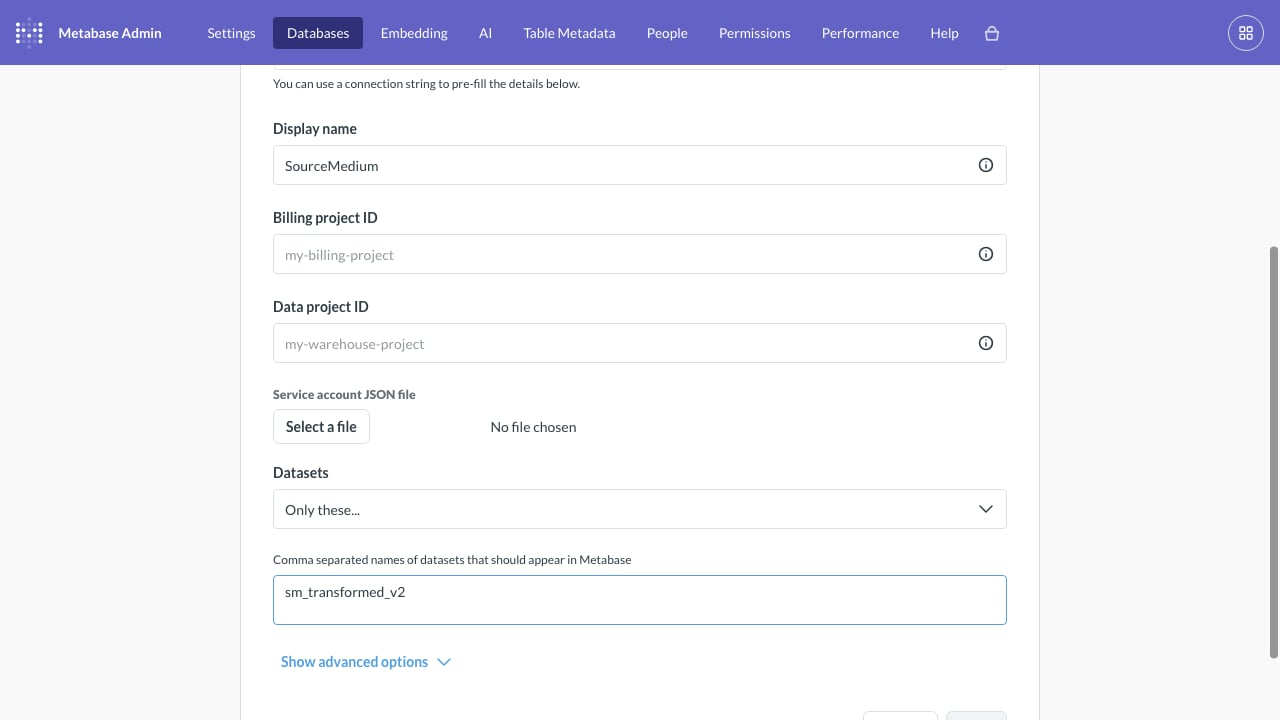
BigQuery connection fields in Metabase v0.64.1. Both project IDs are blank; copy your own dataset name from Dashboards & Apps.
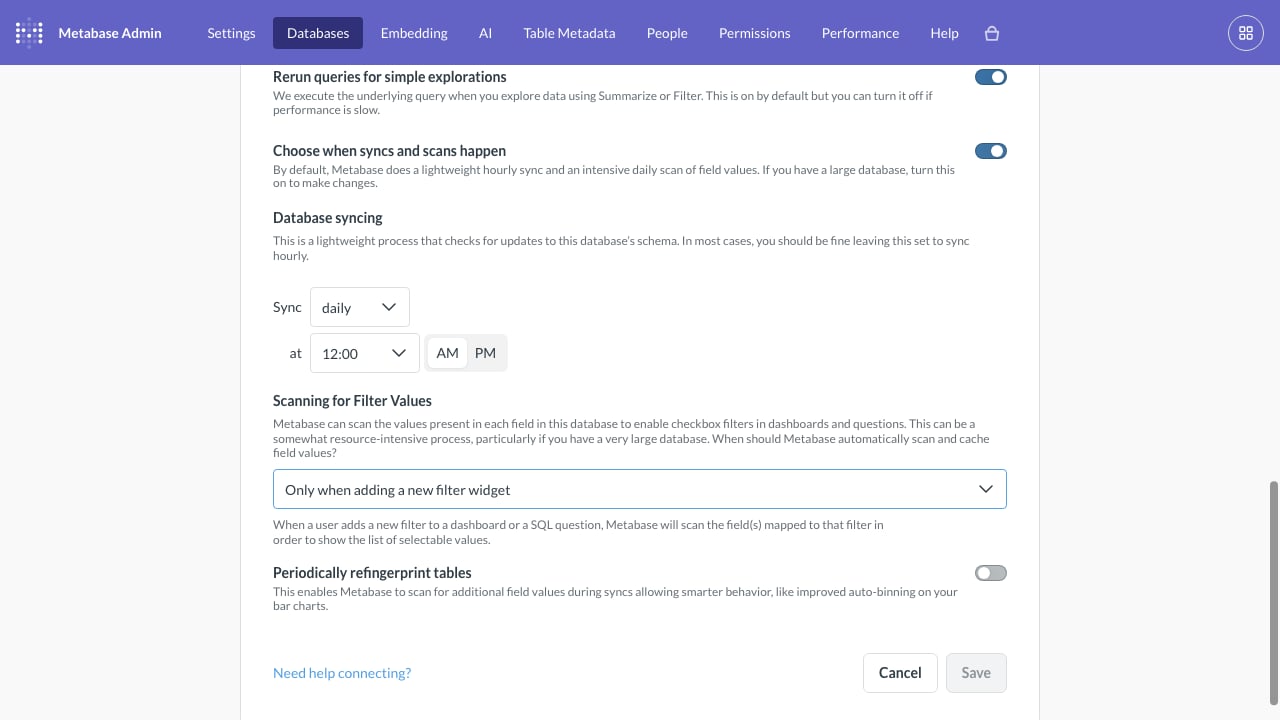
Scan filter values when adding a widget instead of on a daily schedule.
4. Install the foundation dashboards
The Metabase template installs the foundation: Overview with period comparisons, Business review, Performance tables, All stores, Paid marketing, Creatives, Products, Retention, Geography, Orders and Data, plus models, catalog metrics and shared SQL snippets. It runs on your computer with a Metabase API key and changes nothing until you approve its plan.- With a coding agent: in Dashboards & Apps, open Manage on your Metabase row and copy a prompt into Codex or Claude Code. It clones the template and follows its instructions.
- With one command: follow Install by hand in the template’s README.
Build the starter by hand
Without an agent or command line, build the executive summary from three SQL questions onrpt_executive_summary_daily, the same table behind the Looker Studio Executive Summary. For each one, choose New → SQL query, pick the SourceMedium database, and paste the SQL from the template file. Replace DATASET with your transformed dataset name. Configure the variables below, run the question and format its columns, then save it with the name and visualization shown here.
The template’s SQL files share their comparison periods: a line
-- @include periods stands for include/periods.sql. Replace that line with the file’s contents before you paste the query.
Set up the variables
When you paste a query, Metabase opens a sidebar for each{{variable}}. Set Variable type to Field Filter for these three:
For Channel, click Enter a default value…, select
online_dtc, then Add filter. Leave Always require a value off so you can clear Channel to see all delivered channels.
The other variables are values the SQL reads. Set their Variable type to Text, turn on Always require a value, and give each its default:
- Date default
- Channel default
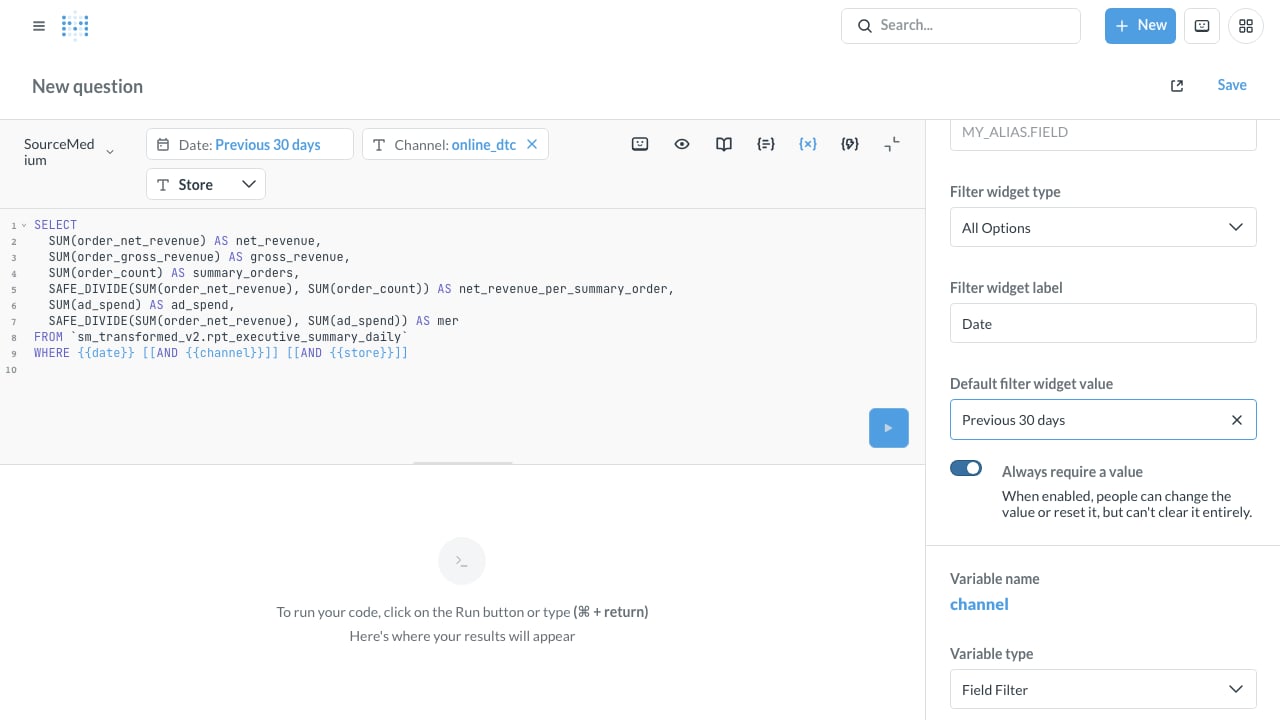
Date is required and defaults to Previous 30 days.
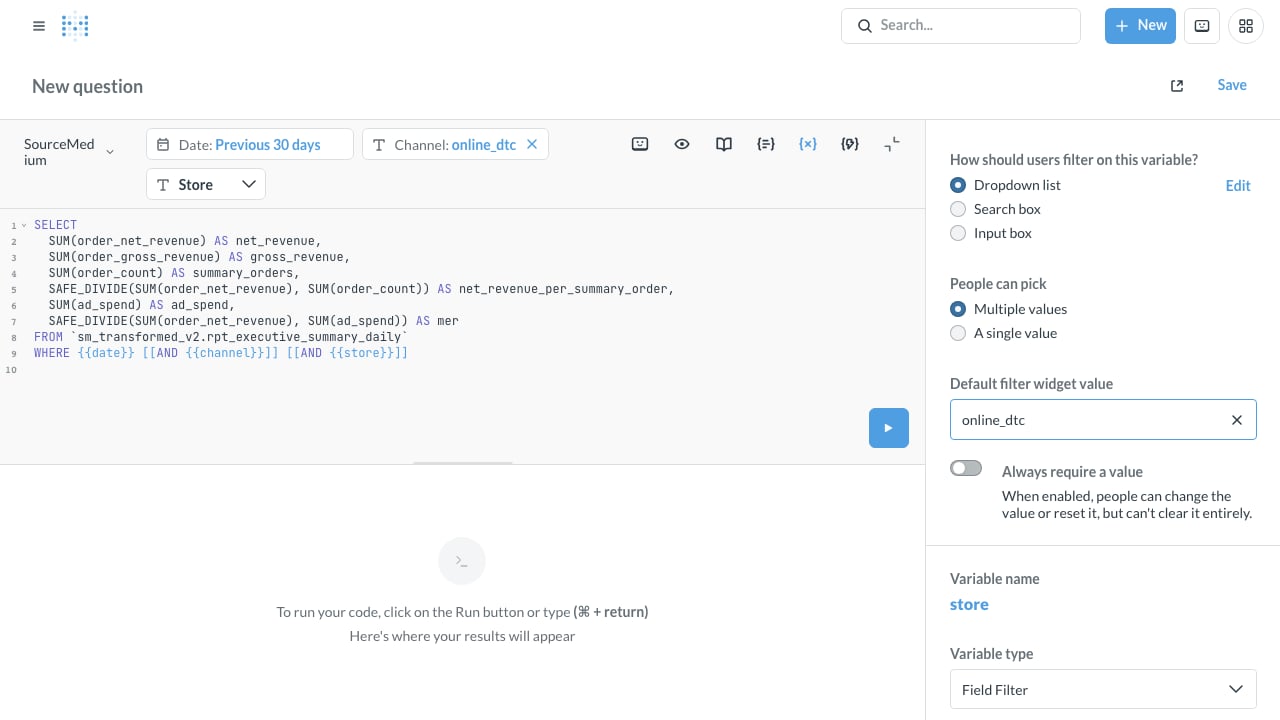
Format the columns
Before saving each table question, click the gear beside Visualization, then Columns. Open the gear beside a column and set:- Money columns (
net_revenue,period_net_revenue,net_revenue_per_summary_order,ad_spend,period_ad_spend): Number of decimal places 2. Leave the style as a number. Order money and ad spend are not always in one currency, so a currency symbol can label a mixed amount. summary_orders,period_summary_ordersandsessions: Number of decimal places 0.merandperiod_mer: Number of decimal places 2. Keep them plain numbers, rather than percentages or currency.- The
_changecolumns: Style Percent.
mer follow the display units SourceMedium publishes. The template’s installer applies those automatically.
Click Done and save the question. If you already saved it, choose Replace original question when Metabase asks whether to replace or save as new.
Assemble the dashboard
- Create a dashboard named SourceMedium executive summary and add the three questions, top to bottom.
- Click Edit dashboard → Add a filter or parameter to add a date filter, and text filters named Channel, Store, Compare with, Second comparison, Trend values and Period.
- Wire each filter to the matching variable on every card that has it. Give the date filter the default Previous 30 days, Channel the default
online_dtc, and the other filters the defaults above. Leave Store blank, or select one store when comparing numbers. - Paste the methodology note below into the dashboard description.
foundation/sql folder. Paid marketing questions use an ad_platform variable instead of channel, and retention uses an as_of_month date variable instead of date. Every variable and its default is in the template’s src/filters.mjs, and Customize the foundation explains them.
What the numbers mean
The starter uses SourceMedium’s executive summary formulas over the selected channels, stores and dates. Its default Channel is Online DTC (online_dtc), matching the Looker Studio dashboards’ default channel filter. Compare tools with the same store, absolute date range, time zone and channel selection.
Order measures count SourceMedium’s valid sales channels: online_dtc, amazon, retail, wholesale and tiktok_shop. Clear Channel to sum all five. Rows under any other channel value, such as excluded, draft_orders, exchanged or *_via_shopify, add nothing to revenue or order counts. Ad spend and sessions count every row. These totals are not guaranteed to match Shopify’s Sales report, whose source exclusions and reporting settings can differ.
Ratios are computed from totals, never by averaging daily ratios. When the denominator total is zero, the ratio shows blank. A zero numerator with a nonzero denominator shows zero. An empty date range shows blanks, not zeros.
Methodology note for the dashboard description:
Online DTC by default; clearing Channel sums the valid sales channels (online_dtc, amazon, retail, wholesale, tiktok_shop), and other channel rows add no revenue or orders. Revenue follows the sales report: refunds and exchanges count on the day they happen. Summary orders count placed orders under source-specific and configured exclusions; later cancelled or refunded orders can remain. MER is net revenue divided by all ad spend in the selection, not attributed ROAS. Sales events use store reporting dates; sessions and ad spend can follow their source reporting calendars. Some ad platforms report spend in the ad account’s currency, so totals across stores or channels with different currencies are not meaningful. Days that only carry targets show zero.
Who can see what
- Anyone you allow to write SQL against this database in Metabase can query all of that data.
- Store and channel filters are for navigation, not security.
- Metabase’s paid row and column security does not apply to SQL questions.
- Set Metabase’s own permissions to match who should see your data.
Cost
Jobs run in theBIGQUERY_JOB_PROJECT_ID shown by Copy dataset and project names. Dedicated warehouses use the tenant project; shared warehouses use SourceMedium’s shared query project. Jobs share that project’s billing, reservations and applicable query limits. Dashboards & Apps does not set a separate per-app spending cap.
With on-demand billing, query cost depends on bytes processed. With capacity billing, queries consume the project’s assigned slots and can compete with other workloads or increase autoscaling use. Byte counts alone do not estimate capacity charges, and daily byte quotas apply only to on-demand queries.
- On the small demo warehouse, each uncached starter query billed 10 MiB (10,485,760 bytes), so three queries billed 30 MiB. Larger scans can bill more; cached queries can bill zero. Sync and filter-value jobs add to those query costs.
- Scheduled filter-value scans can add costs that grow with the fields and tables scanned. Setting Scanning for Filter Values to Only when adding a new filter widget avoids the daily rescan.
Replace or revoke the key
- Replace: in Dashboards & Apps, open Manage on the Metabase row and click Replace key, download the new key file, and upload it in the Metabase database settings. The old key can no longer create access tokens. Tokens already issued from it may keep working until they expire; replacement reuses the app’s identity.
- Revoke: Revoke access disables the app identity, removes its keys and grants, then deletes the identity, preventing new warehouse queries. Pausing or offboarding your organization also disables app identities. SourceMedium does not cancel a query that is already running.
- Removing someone from your SourceMedium workspace does not revoke the key or remove their Metabase permissions. Remove their access in Metabase separately. For routine rotation, replace the key. For a compromised key, revoke the credential and create a new one for the connection; revoking deletes the old identity.
Troubleshooting
- Access denied right after issuing the key: Google can take a minute or more to activate a new key. Wait, then sync again.
- “Unrecognized name” on a starter question: with this guide’s mappings, use
`DATASET.rpt_executive_summary_daily`exactly. For custom SQL with an alias, configure Metabase’s Table and field alias to match it. - “Not found: Dataset”: the dataset name is wrong. Copy it from the app’s Manage → Copy dataset and project names.
Related pages
Other BI tools
Connect Tableau, Power BI, and other tools that read BigQuery.
Executive summary table
Every column in
rpt_executive_summary_daily.