> ## Documentation Index
> Fetch the complete documentation index at: https://docs.sourcemedium.com/docs/llms.txt
> Use this file to discover all available pages before exploring further.

# Understand your workspace

> Tour the SourceMedium workspace: your store, your data sources, and how to spot a connection that needs attention.

Watch the short narrated walkthrough, or follow the written steps and
screenshots below.

<Frame>
  <video controls className="w-full aspect-video" src="https://mintcdn.com/sourcemedium/vJWhKdrmNWXiJXVp/images/product-tours/workspace-overview/demo.mp4?fit=max&auto=format&n=vJWhKdrmNWXiJXVp&q=85&s=9bda8d8821ae732c560d2aca34db0d46" poster="/images/product-tours/workspace-overview/01-open-your-workspace.png" data-path="images/product-tours/workspace-overview/demo.mp4" />
</Frame>

<Steps>
  <Step title="Open your workspace">
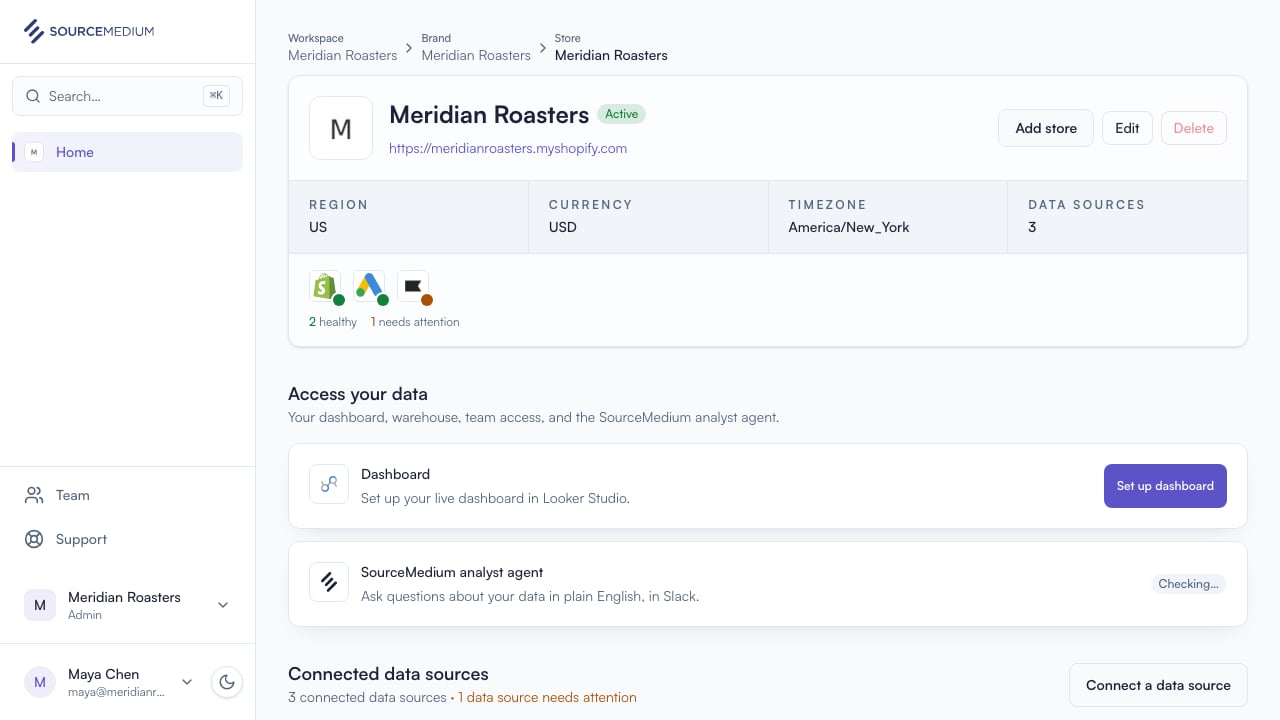
    Signing in lands on your dashboard. With one store, SourceMedium takes you straight into it.
    <img src="https://mintcdn.com/sourcemedium/vJWhKdrmNWXiJXVp/images/product-tours/workspace-overview/01-open-your-workspace.png?fit=max&auto=format&n=vJWhKdrmNWXiJXVp&q=85&s=4d1c537726c82bfef63b321c8bc68c1d" alt="Open your workspace" width="1280" height="720" data-path="images/product-tours/workspace-overview/01-open-your-workspace.png" />
  </Step>

  <Step title="See your brands and stores">
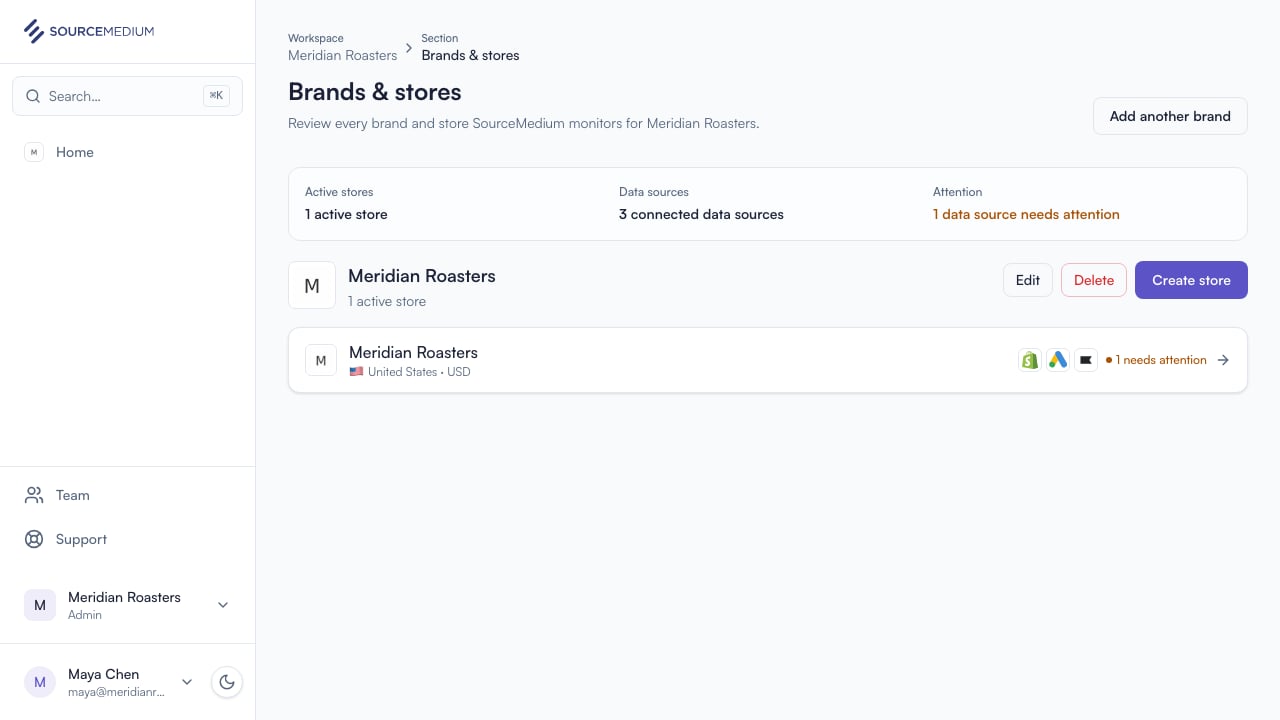
    Brands & stores shows everything SourceMedium is tracking for your organization.
    <img src="https://mintcdn.com/sourcemedium/vJWhKdrmNWXiJXVp/images/product-tours/workspace-overview/02-see-your-brands-and-stores.png?fit=max&auto=format&n=vJWhKdrmNWXiJXVp&q=85&s=3959ba8c5f65d63ef9bc5ddcad31c76f" alt="See your brands and stores" width="1280" height="720" data-path="images/product-tours/workspace-overview/02-see-your-brands-and-stores.png" />
  </Step>

  <Step title="Check your data sources">
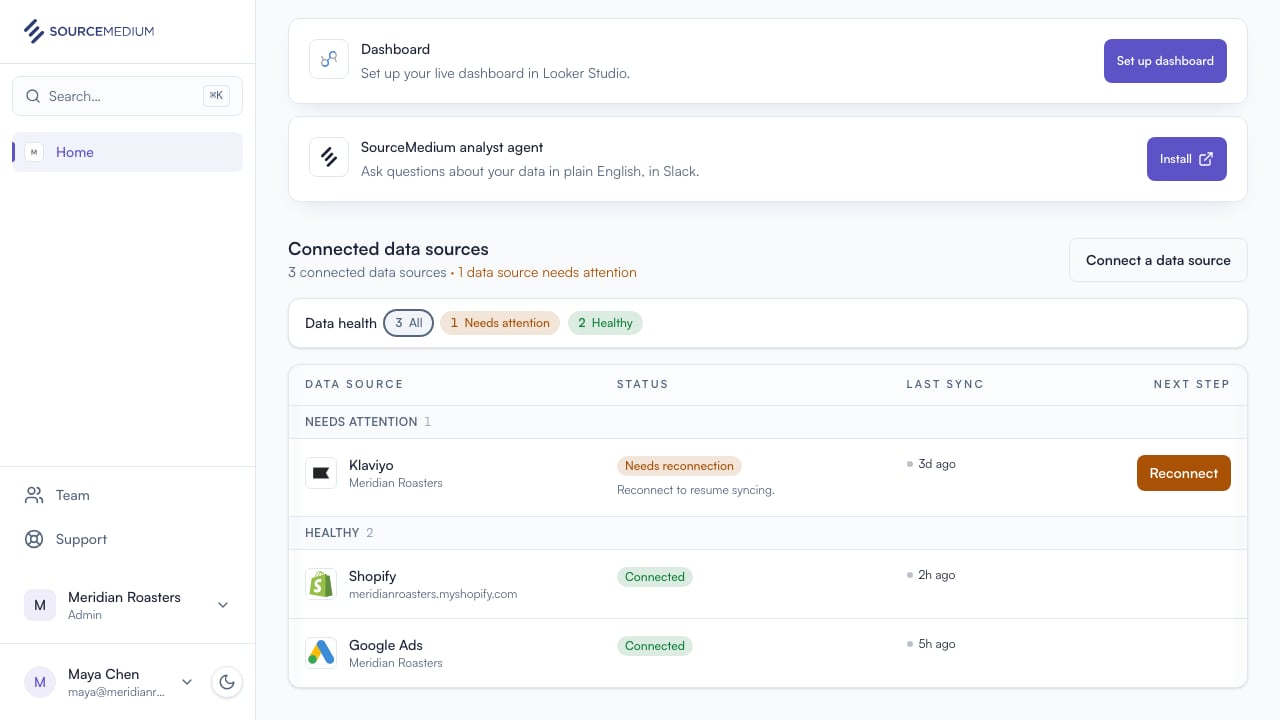
    Each store lists its connected data sources and status. Klaviyo's Needs reconnection status and Reconnect action show exactly what needs attention.
    <img src="https://mintcdn.com/sourcemedium/vJWhKdrmNWXiJXVp/images/product-tours/workspace-overview/03-check-your-data-sources.png?fit=max&auto=format&n=vJWhKdrmNWXiJXVp&q=85&s=9a5089a1b3de6d24d1bec3761b6834d5" alt="Check your data sources" width="1280" height="720" data-path="images/product-tours/workspace-overview/03-check-your-data-sources.png" />
  </Step>

  <Step title="Open the connection">
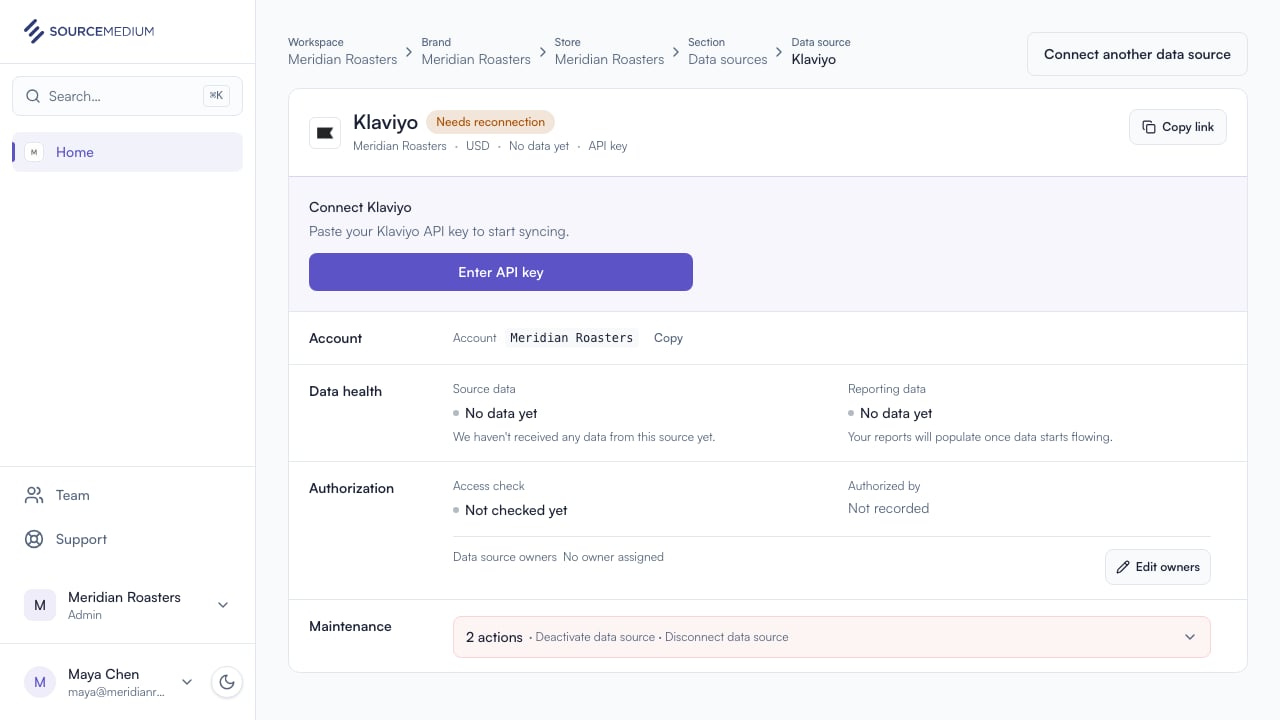
    The connection page has the full picture: sync history, status, and the reconnect action.
    <img src="https://mintcdn.com/sourcemedium/vJWhKdrmNWXiJXVp/images/product-tours/workspace-overview/04-open-the-connection.png?fit=max&auto=format&n=vJWhKdrmNWXiJXVp&q=85&s=0fd616b393af2e6768d1cf81d00d60c1" alt="Open the connection" width="1280" height="720" data-path="images/product-tours/workspace-overview/04-open-the-connection.png" />
  </Step>
</Steps>

## Related

* [Connection statuses](/product-tours/connection-statuses)
