> ## Documentation Index
> Fetch the complete documentation index at: https://docs.sourcemedium.com/docs/llms.txt
> Use this file to discover all available pages before exploring further.
# Connect a data source
> Authorize Shopify and connect it to your SourceMedium store.
You need the **Editor** role (or Admin) in your workspace for this. See
[Roles & permissions](/product-tours/roles-and-permissions).
Watch the short narrated walkthrough, or follow the written steps and
screenshots below.
Start from your store page, where your data sources live.
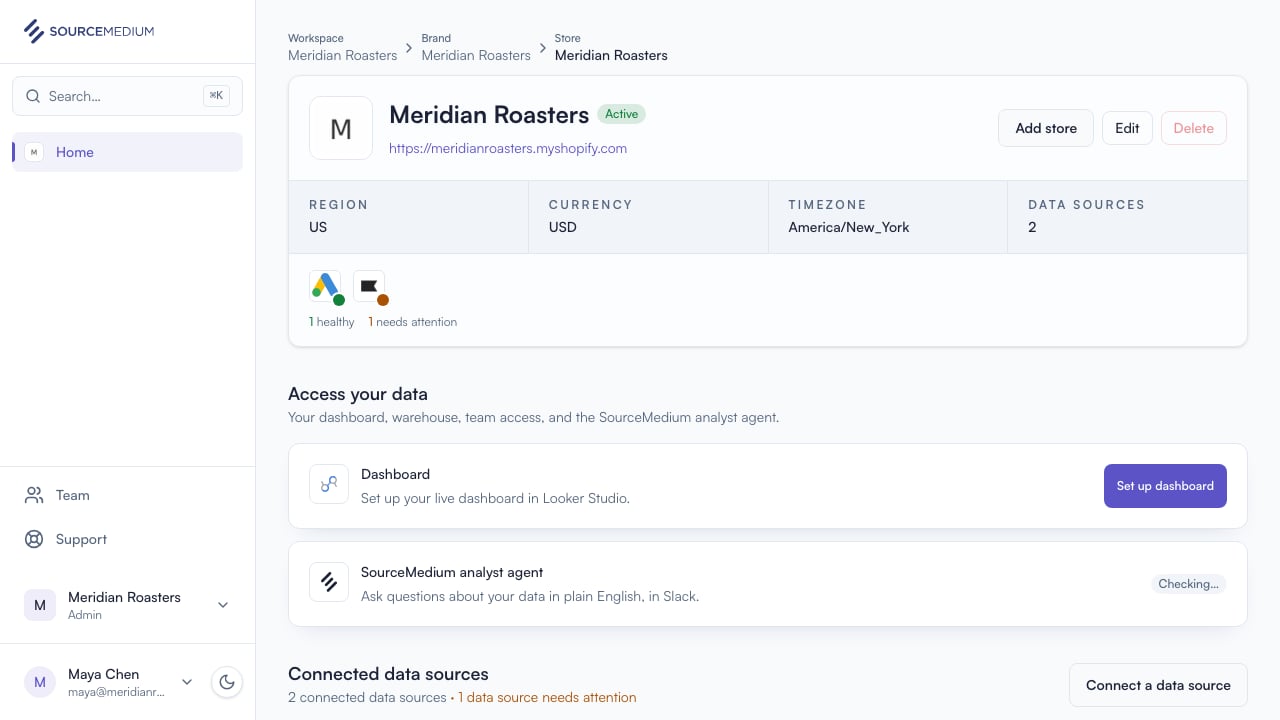 Connect a data source opens the list of sources available to connect.
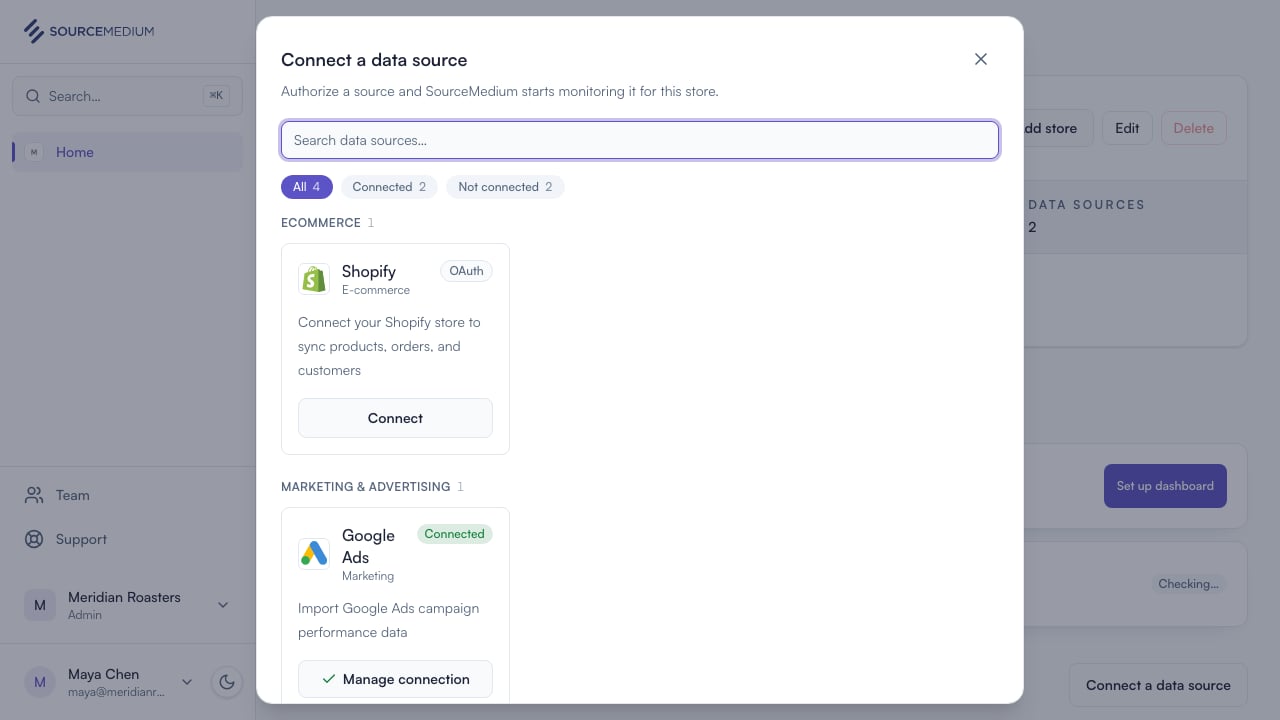 Pick Shopify and enter your store's domain.
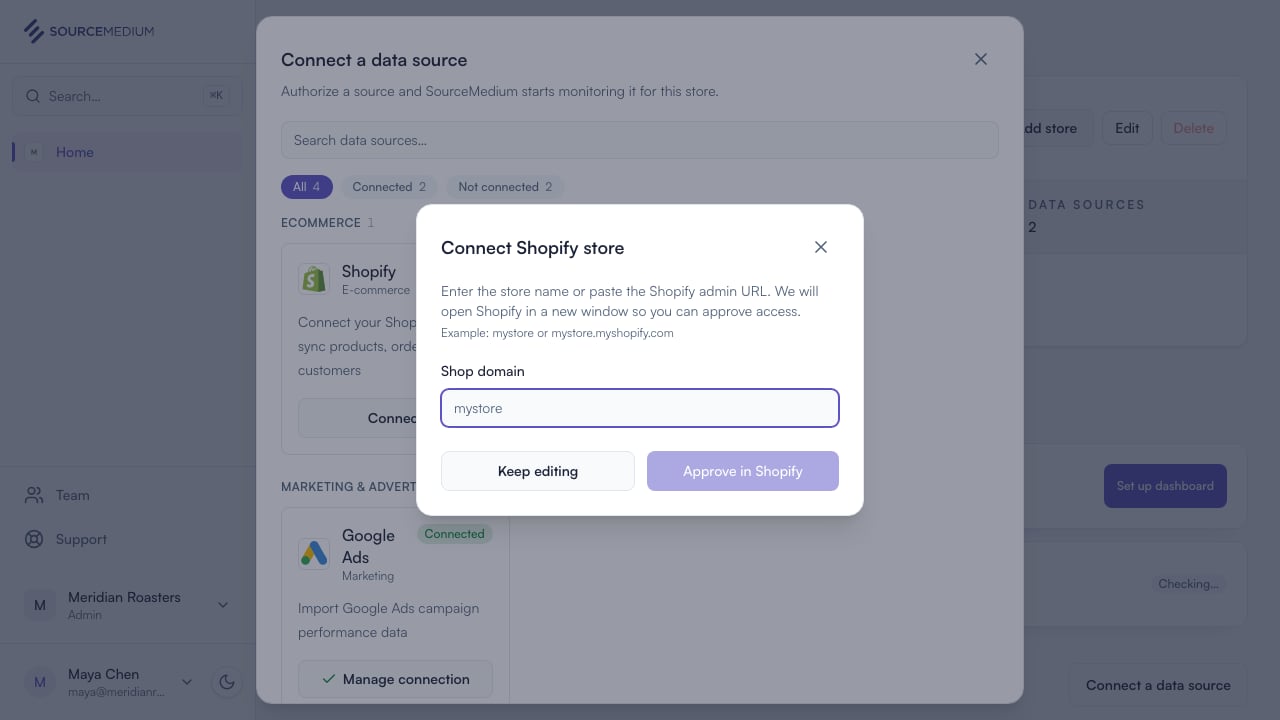 SourceMedium opens Shopify in a new window. Approve access there, and SourceMedium completes the connection.
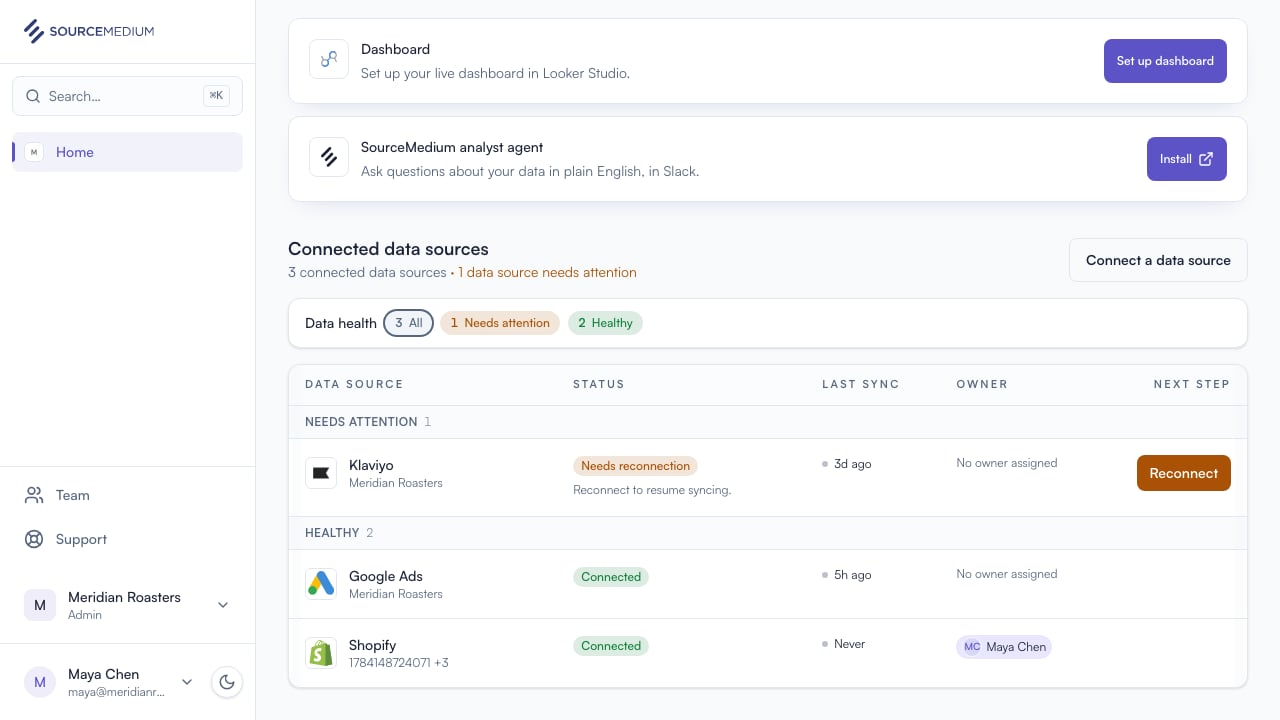
Shopify now shows Connected. SourceMedium is syncing your store.
SourceMedium opens Shopify in a new window. Approve access there, and SourceMedium completes the connection.
Shopify now shows Connected. SourceMedium is syncing your store.
 ## Related
* [Shopify integration guide](/data-inputs/platform-integration-instructions/shopify-integration)
* [Connect a data source with an API key](/product-tours/connect-with-api-key)
* [Reconnect a data source](/product-tours/reconnect-data-source)
* [Connection statuses](/product-tours/connection-statuses)
## Related
* [Shopify integration guide](/data-inputs/platform-integration-instructions/shopify-integration)
* [Connect a data source with an API key](/product-tours/connect-with-api-key)
* [Reconnect a data source](/product-tours/reconnect-data-source)
* [Connection statuses](/product-tours/connection-statuses)