> ## Documentation Index
> Fetch the complete documentation index at: https://docs.sourcemedium.com/docs/llms.txt
> Use this file to discover all available pages before exploring further.
# How to Manage User Access
> Follow this guide to learn the industry best practices for securing your data
## Introduction
Whether you're a brand marketing team or an agency servicing many brands, managing user access is a critical part of
harnessing SourceMedium's data infrastructure and reporting. Industry best practices dictate that access should be given
*only as needed*$~$ to achieve stalwart data security and reliable stability of custom analytics, tables, views, and pipelines
built upon SourceMedium's infrastructure. Find out how to protect the security of your data and the reliability of custom tools
you build on SourceMedium using the information below.
## $~$ Basic Access Types
$~$ **Responsibility Rating: Low**
**Description:**
Looker Studio View permissions allow users to look, but not touch. They will be able to see all analytics present
on your dashboard, but they won't be able to edit charts or view any underlying data, though they can still operate filters.
This is the safest permission to grant, suitable for anyone who can be trusted to look at your data.
**How to Set this Permission:**
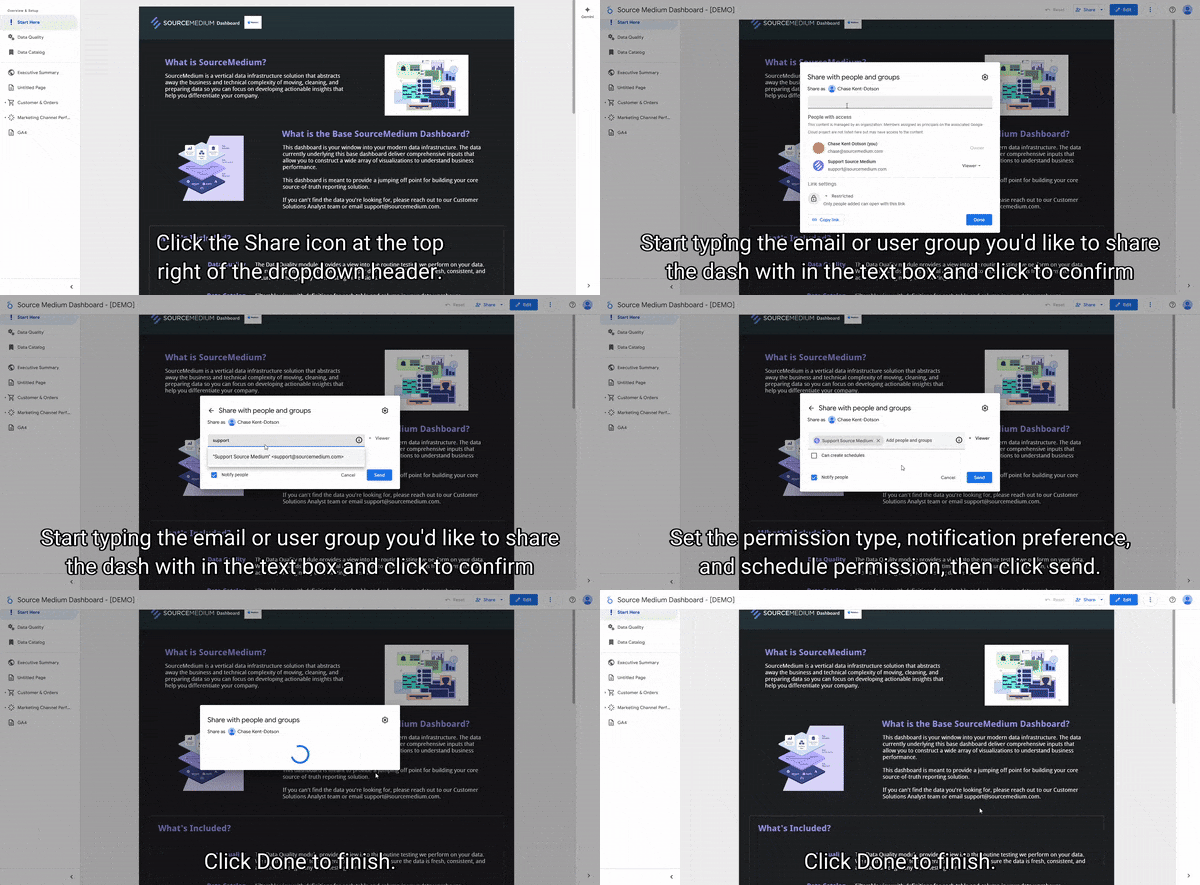
Set this permission on your SourceMedium Dashboard, which is always accessed from the link provided during your onboarding and
pinned to your shared slack channel, should you choose to have one, otherwise provided by email. Use the Share button at the top right
to add users by email as shown in the gif below.
 **Relevant Links:**
[Looker Studio Permissions from Google](https://support.google.com/looker-studio/answer/10403868?hl=en)
$~$ **Responsibility Rating: Moderate**
**Description:**
Looker Studio Edit permissions for dashboards allow users to create custom charts, swap or create metrics, and manage layouts.
This permission does not allow for editing of the underlying data or the creation of custom fields at the data source level.
**How to Set this Permission:**
Set this permission on your SourceMedium Dashboard, which is always accessed from the link provided during your onboarding and
pinned to your shared slack channel, should you choose to have one, otherwise provided by email. Use the Share button at the top right
to add users by email as shown in the gif below.
**Relevant Links:**
[Looker Studio Permissions from Google](https://support.google.com/looker-studio/answer/10403868?hl=en)
$~$ **Responsibility Rating: High**
**Description:**
Looker Studio data source editing permissions allow users to view, edit the connection of, and create custom data source level metrics in data sources
associated with Looker Studio dashboards.
**How to Set this Permission:**
This permission is set in multiple places. First, it is set on each data source in Looker Studio at the top of the edit screen with the heading
"Data credentials." For embedded data sources, the "Owner's Credentials" option from this menu will allow anyone with edit access to the report
to edit the data source. For reusable data sources, and when the data credentials are set to "Viewer's Credentials," the user must have edit access
to the data source on its original platform, e.g BigQuery, Google Analytics, in order to edit the data source.
![]() **Relevant Links:**
**Relevant Links:**
[Editing Data Sources from Google](https://support.google.com/looker-studio/answer/7178497?hl=en#zippy=%2Cin-this-article)
$~$ **Responsibility Rating: Moderate**
* Brief explanation of what the permission means/is capable of
* How to set the permission, including a screenshot
* Link to the relevant permission doc on google
(Looker Studio, BigQuery, and/or Google groups)
$~$ **Responsibility Rating: Very High**
* Brief explanation of what the permission means/is capable of
* How to set the permission, including a screenshot
* Link to the relevant permission doc on google
(Looker Studio, BigQuery, and/or Google groups)
## $~$ SourceMedium Recommended Access Group Setup
Hover over me
* **Permissions:**
*Looker Studio - View*
*BigQuery - None*
* **Who this is for:** Marketing team, Analysts, Client Team Members for Marketing Agencies—anyone who needs access to the data
but doesn’t want to overcomplicate the process with editing
* **Permissions:**
*Looker Studio - Edit Dashboards*
*BigQuery - None*
* **Who this is for:** Analysts, Data Team Members, and any tech savvy employees that not only need data access, but need to
create custom visualizations, use templates, and copy dashboards to answer their analytical questions on the fly
* **Permissions:**
*Looker Studio - Edit Dashboards & Data Sources*
*BigQuery - View Tables*
* **Who this is for:** Deep Analysts, Data Team Members, and the most tech knowledgeable employees looking to answer the most
complex analytical questions using the full power of Looker Studio and understanding the underlying data by observing BigQuery data frameworks
* **Permissions:**
*Looker Studio - Edit Dashboards & Data Sources*
*BigQuery - Edit Tables*
* **Who this is for:** Data Engineers, Data Team Managers, and data employees
who need to create and edit tables in the warehouse