> ## Documentation Index
> Fetch the complete documentation index at: https://docs.sourcemedium.com/docs/llms.txt
> Use this file to discover all available pages before exploring further.
# Google Groups for Access Control
> Use Google Groups as a single identity to manage access across Looker Studio dashboards, BigQuery, and Google Sheets
## Why Google Groups?
Google Groups acts as an **identity primitive** across Google's ecosystem. One group email grants access to:
* **Looker Studio dashboards** (viewer or editor)
* **BigQuery datasets** (query access)
* **Google Sheets** (config sheets, exports)
**One group email = unified access control.** Add a teammate to the group once, and they automatically get access to all shared resources.
***
## Quick Start: Create a Group
Navigate to [groups.google.com](https://groups.google.com) and sign in with your organization account.
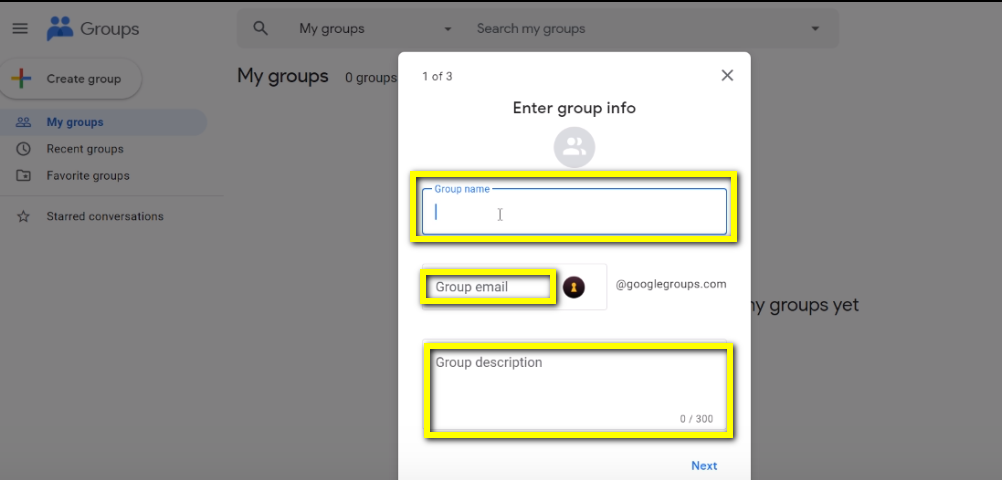
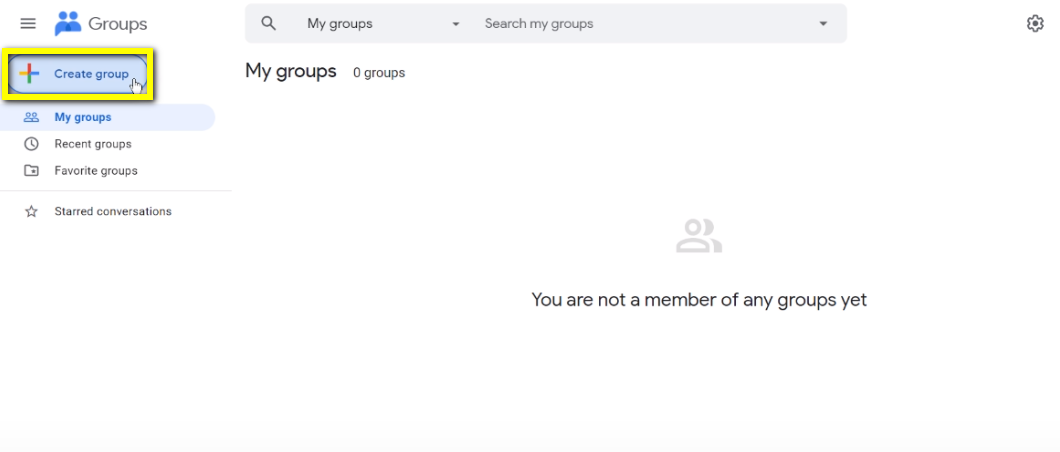 * **Group name**: Descriptive name (e.g., "Acme Analytics Team")
* **Group email**: `acme-analytics@googlegroups.com`
* **Description**: Who should be in this group and what they access
* **Group name**: Descriptive name (e.g., "Acme Analytics Team")
* **Group email**: `acme-analytics@googlegroups.com`
* **Description**: Who should be in this group and what they access
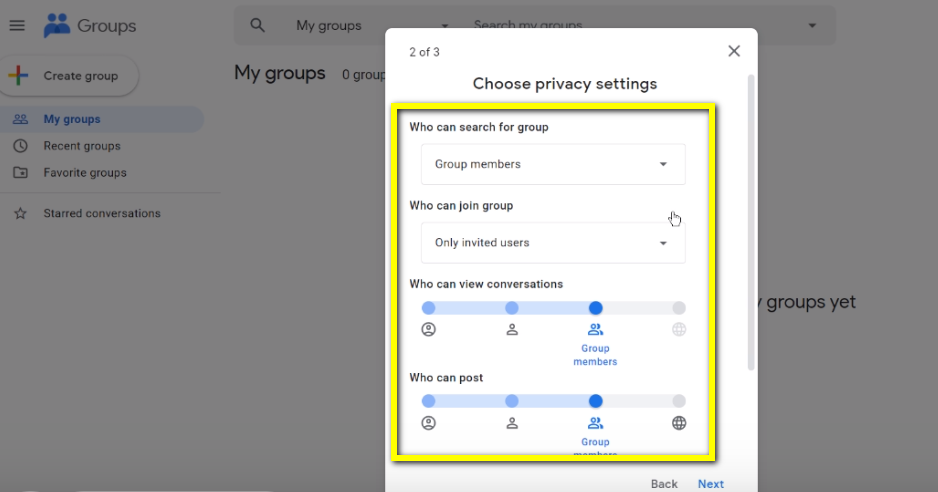
 Choose who can find and join the group. For internal teams, "Only invited users" is recommended.
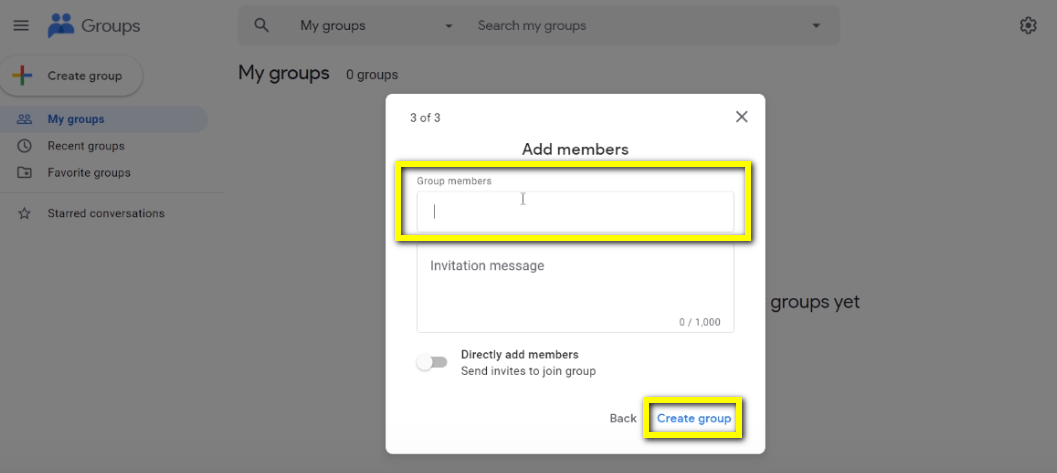
 Enter email addresses for initial members, then click **Create group**.
 ***
## Managing Group Members
### Add members
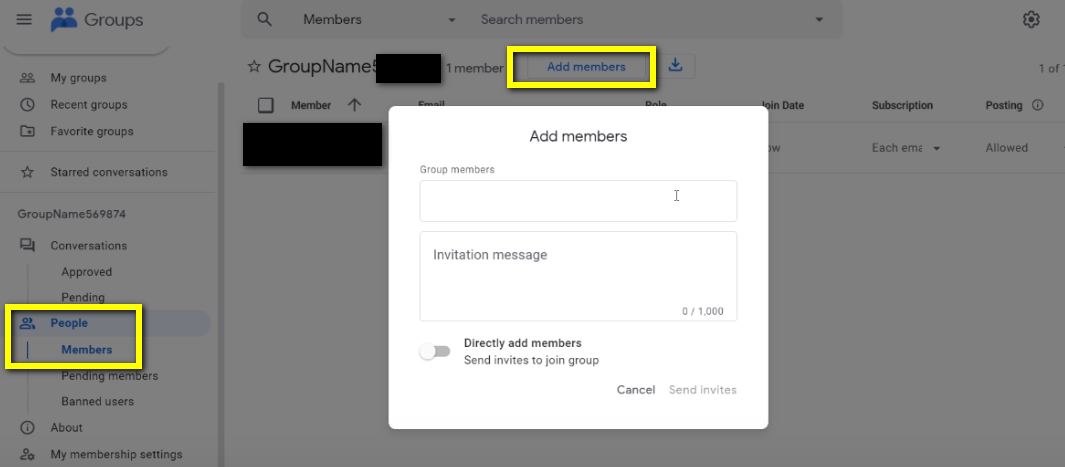
Click **Add Members** at the top of your group page.
***
## Managing Group Members
### Add members
Click **Add Members** at the top of your group page.
 ### Adjust permissions
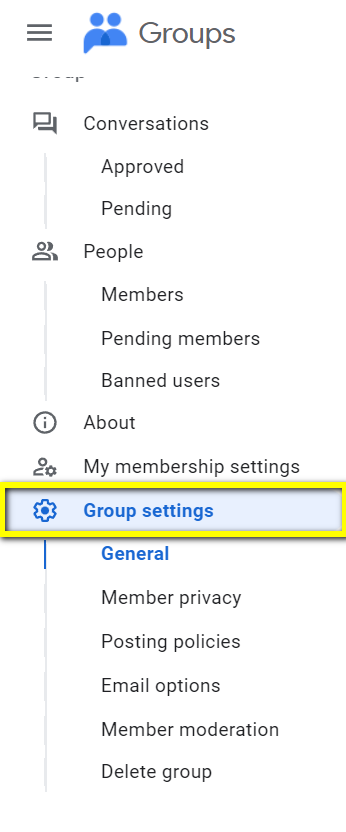
Go to **Group Settings** to modify who can post, view members, or join.
### Adjust permissions
Go to **Group Settings** to modify who can post, view members, or join.
 ### Allow external members
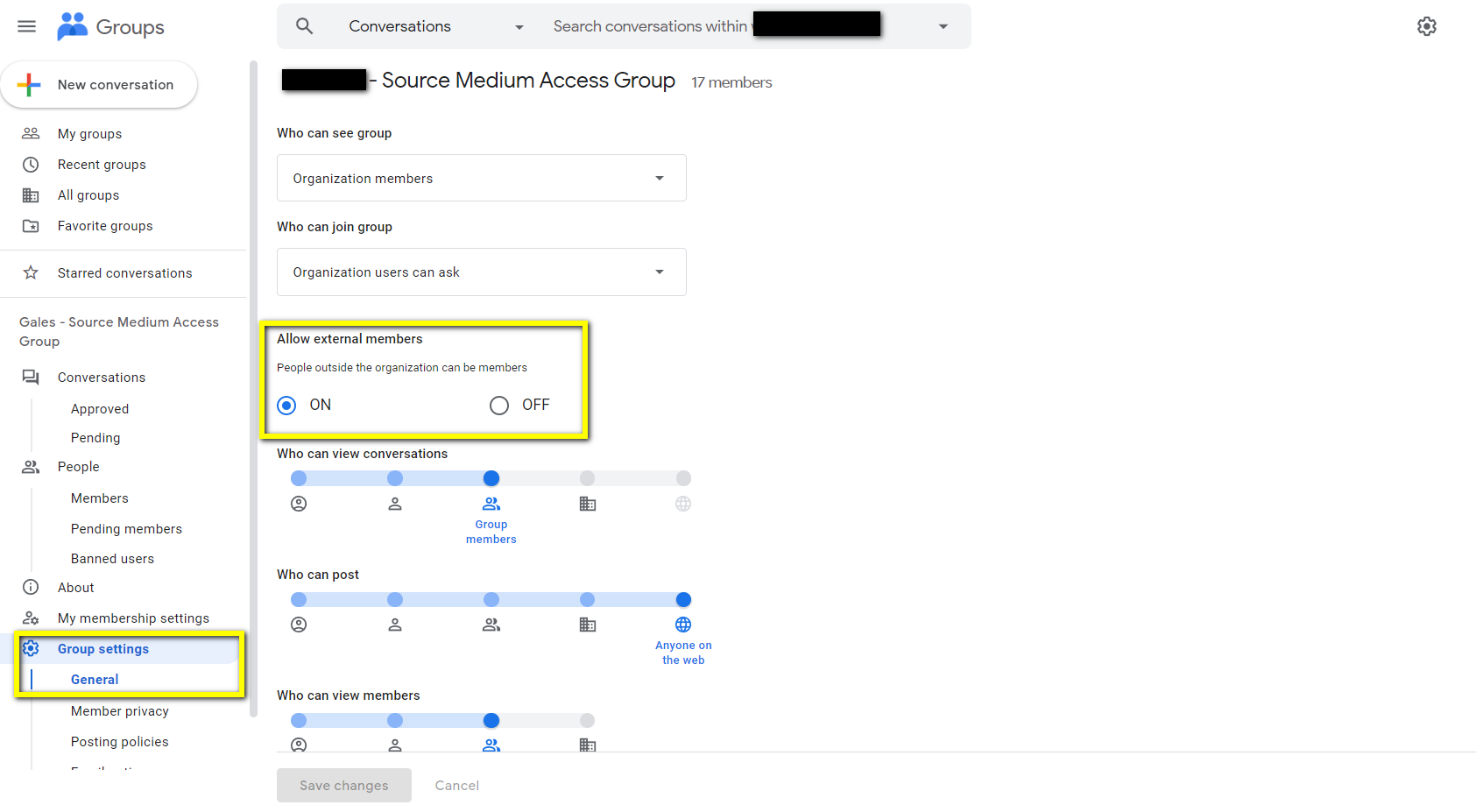
If you need to add people outside your organization, enable this in Group Settings:
### Allow external members
If you need to add people outside your organization, enable this in Group Settings:
 ***
## Sharing Resources with Your Group
Once your group exists, use the group email to grant access across Google products.
### Looker Studio Dashboards
1. Open your dashboard and click **Share** (top right)
2. Enter the group email address
3. Choose permission level:
* **Viewer**: Can view and interact with filters
* **Editor**: Can modify the dashboard
***
## Sharing Resources with Your Group
Once your group exists, use the group email to grant access across Google products.
### Looker Studio Dashboards
1. Open your dashboard and click **Share** (top right)
2. Enter the group email address
3. Choose permission level:
* **Viewer**: Can view and interact with filters
* **Editor**: Can modify the dashboard
 **Recommendation**: Grant **Viewer** access to most users. Editor access can lead to accidental changes that break dashboards.
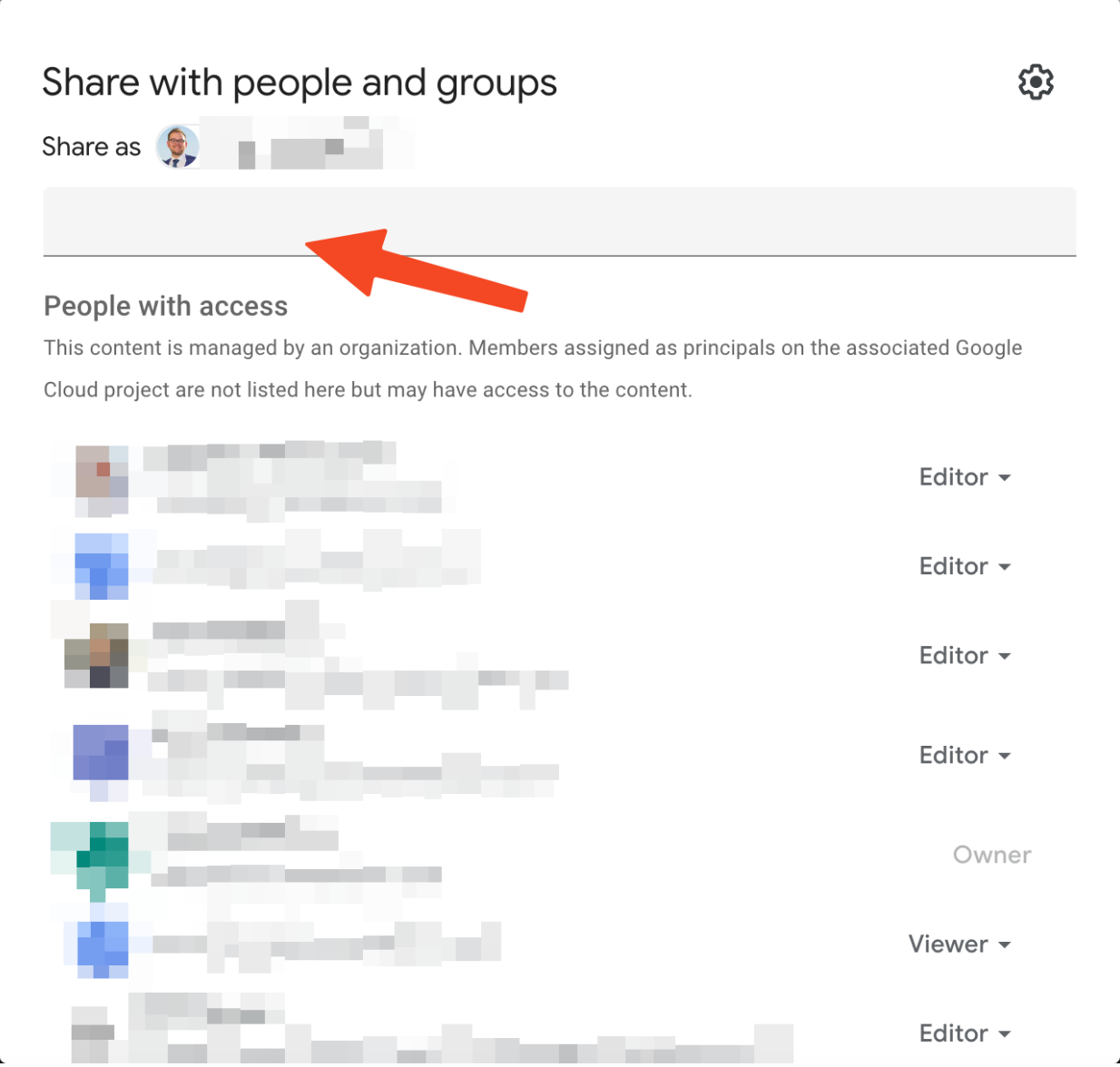
### Google Sheets (Config Sheets)
1. Open the sheet and click **Share**
2. Enter the group email
3. Choose permission level:
* **Viewer**: Read-only
* **Commenter**: Can add comments
* **Editor**: Can modify content
**Recommendation**: Grant **Viewer** access to most users. Editor access can lead to accidental changes that break dashboards.
### Google Sheets (Config Sheets)
1. Open the sheet and click **Share**
2. Enter the group email
3. Choose permission level:
* **Viewer**: Read-only
* **Commenter**: Can add comments
* **Editor**: Can modify content
 ### BigQuery Datasets
For BigQuery access, your SourceMedium team will configure IAM permissions using your group email. Contact support if you need to grant BigQuery access to additional team members.
***
## Recommended Group Structure
For most teams, we recommend two groups:
| Group | Purpose | Typical Access |
| -------------------- | -------------------------- | -------------------------------------------------- |
| `company-sm-viewers` | Day-to-day dashboard users | Dashboard: Viewer, Sheets: Viewer |
| `company-sm-admins` | Analytics leads, data team | Dashboard: Editor, Sheets: Editor, BigQuery: Query |
Start with one group for simplicity. Split into viewer/admin groups when you have 5+ users with different needs.
***
## Troubleshooting
### "You don't have access" error
Verify the user is actually in the group at [groups.google.com](https://groups.google.com).
Permission changes can take time to propagate across Google services. If you just added someone to the group or shared a resource, have the user sign out and back in, then try again.
Ensure the resource was shared with the **group email** (e.g., `team@googlegroups.com`), not an individual.
If adding external users, ensure "Allow members outside your organization" is enabled in Group Settings.
### Dashboard shows "No data"
This usually means the **data source** permissions are separate from dashboard permissions. Contact SourceMedium support to verify data source access.
***
## Related Resources
* [Google Groups Help Center](https://support.google.com/groups/)
* [Looker Studio sharing documentation](https://support.google.com/looker-studio/answer/10403868)
* [BigQuery IAM overview](https://cloud.google.com/bigquery/docs/access-control)
### BigQuery Datasets
For BigQuery access, your SourceMedium team will configure IAM permissions using your group email. Contact support if you need to grant BigQuery access to additional team members.
***
## Recommended Group Structure
For most teams, we recommend two groups:
| Group | Purpose | Typical Access |
| -------------------- | -------------------------- | -------------------------------------------------- |
| `company-sm-viewers` | Day-to-day dashboard users | Dashboard: Viewer, Sheets: Viewer |
| `company-sm-admins` | Analytics leads, data team | Dashboard: Editor, Sheets: Editor, BigQuery: Query |
Start with one group for simplicity. Split into viewer/admin groups when you have 5+ users with different needs.
***
## Troubleshooting
### "You don't have access" error
Verify the user is actually in the group at [groups.google.com](https://groups.google.com).
Permission changes can take time to propagate across Google services. If you just added someone to the group or shared a resource, have the user sign out and back in, then try again.
Ensure the resource was shared with the **group email** (e.g., `team@googlegroups.com`), not an individual.
If adding external users, ensure "Allow members outside your organization" is enabled in Group Settings.
### Dashboard shows "No data"
This usually means the **data source** permissions are separate from dashboard permissions. Contact SourceMedium support to verify data source access.
***
## Related Resources
* [Google Groups Help Center](https://support.google.com/groups/)
* [Looker Studio sharing documentation](https://support.google.com/looker-studio/answer/10403868)
* [BigQuery IAM overview](https://cloud.google.com/bigquery/docs/access-control)