> ## Documentation Index
> Fetch the complete documentation index at: https://docs.sourcemedium.com/docs/llms.txt
> Use this file to discover all available pages before exploring further.
# How does Amazon data show up in my dashboard?
> Connect Amazon Seller Central, Amazon Ads, and Amazon DSP, then use the Channel filter to see Amazon sales, LTV, product, and marketing data alongside your other channels.
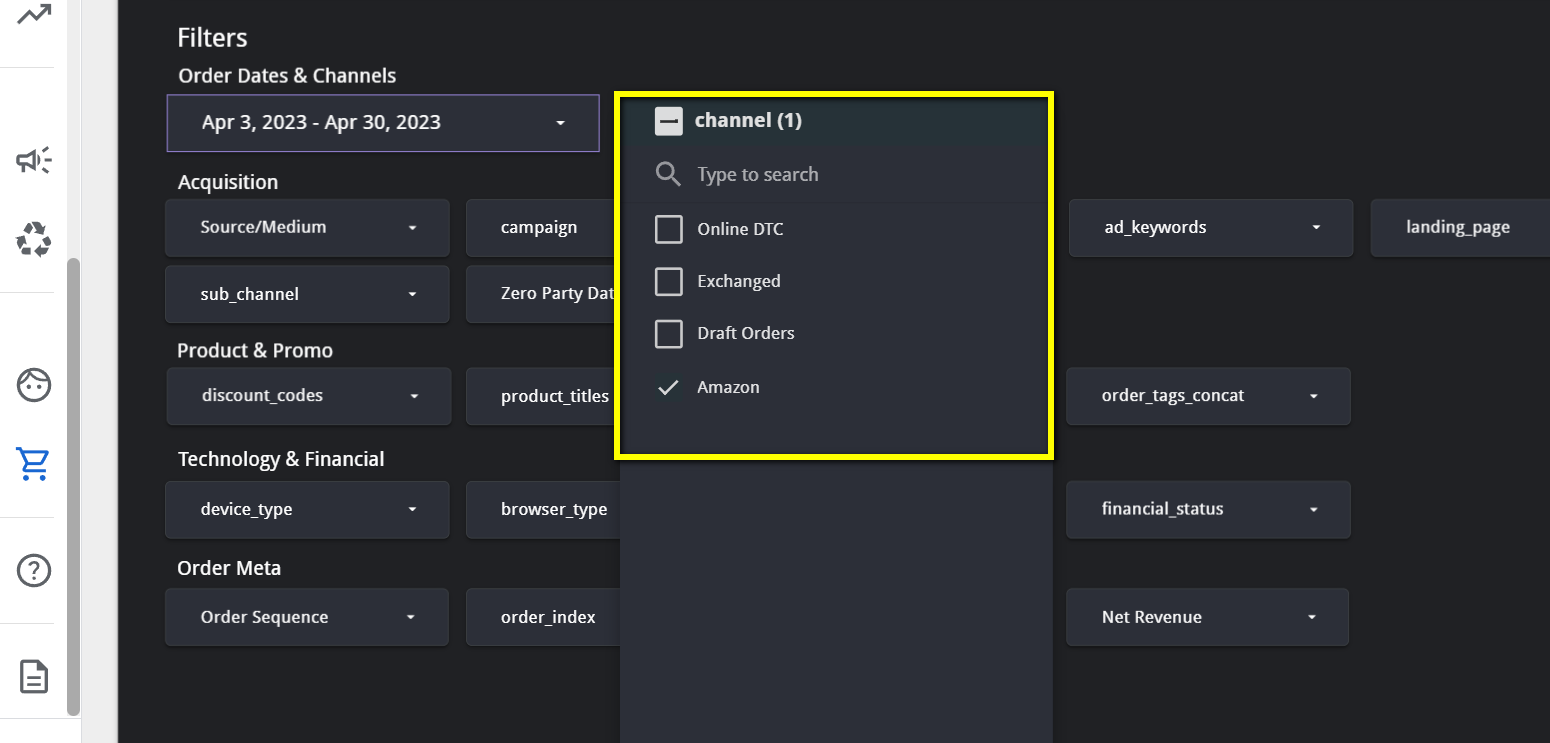
SourceMedium reports Amazon as a sales channel next to Online DTC and your other channels. Once Amazon is connected, it appears in the **Channel** filter and its data flows into the same dashboard modules you already use.
## Connect your Amazon accounts
| Account | What it adds | Guide |
| --------------------- | -------------------------------------------------- | ----------------------------------------------------------------------------------------------------- |
| Amazon Seller Central | Orders, revenue, refunds, product titles, and SKUs | [Connect Amazon Seller Central](/docs/data-inputs/platform-integration-instructions/amazon-sc-integration) |
| Amazon Ads | Sponsored campaign spend, conversions, and revenue | [Connect Amazon Ads](/docs/data-inputs/platform-integration-instructions/amazon-ads-integration) |
| Amazon DSP | Display campaign spend, conversions, and revenue | [Connect Amazon DSP](/docs/data-inputs/platform-integration-instructions/amazon-dsp-integration) |
Connect as early as you can. Amazon limits how far back its APIs reach: Seller Central sales history goes back up to 24 months, and Amazon Ads history goes back about 95 days. SourceMedium stores everything from the day you connect, so your history grows from there.
## Use the Channel filter
The **Channel** filter sits at the top of nearly every module and defaults to **Online DTC**.
* To see Amazon on its own, select only **Amazon**.
* To see Amazon next to Online DTC, select both.
* On **LTV & Retention** and **Product Performance**, select one channel at a time.
 Some metrics are defined differently for Amazon than for Shopify. Check the [metric definitions](/docs/onboarding/data-docs/metrics) before comparing channels. When you reconcile against the Shopify Sales Report, deselect Amazon first; see [Why don't the Executive Summary and Shopify's Sales Report match?](/docs/help-center/faq/data-faqs/why-dont-the-executive-summary-and-shopifys-sales-report-match).
## Where Amazon data appears
### Executive Summary and YoY Performance
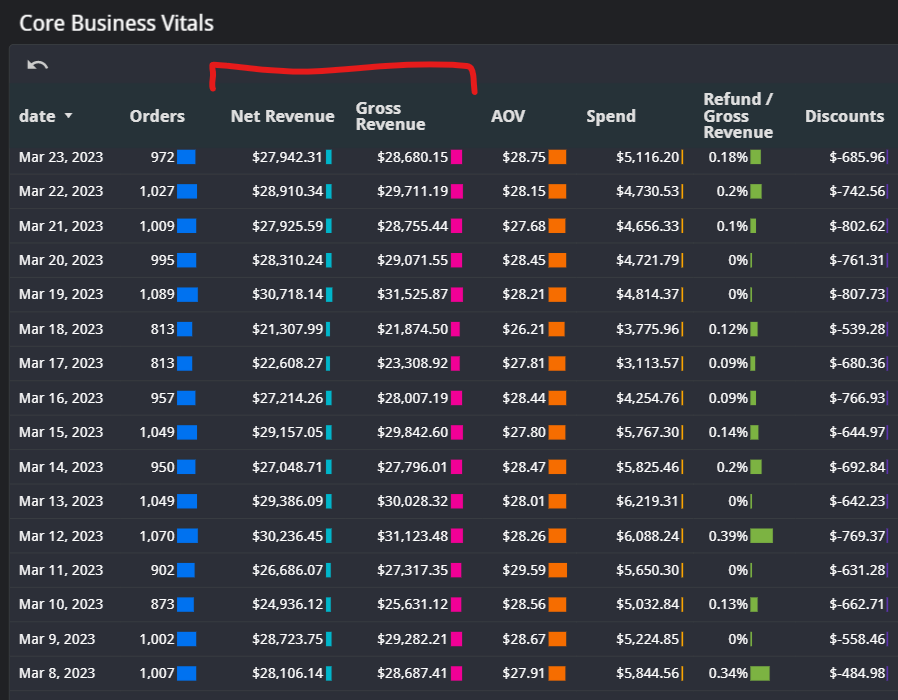
Net and gross revenue, orders, spend, ROAS, CPO, and new customers, with Amazon Ads and DSP spend included when those accounts are connected. Any extra Amazon spend you enter in the [Configuration Sheet cost tab](/docs/data-inputs/configuration-sheet/how-do-i-include-marketing-spend-through-the-cost-tab-of-the-configuration-sheet) is added too. See the [Executive Summary](/docs/data-activation/managed-bi-v1/modules/executive-summary-module) and [YoY Performance](/docs/data-activation/managed-bi-v1/modules/yoy-performance-module) module pages.
Some metrics are defined differently for Amazon than for Shopify. Check the [metric definitions](/docs/onboarding/data-docs/metrics) before comparing channels. When you reconcile against the Shopify Sales Report, deselect Amazon first; see [Why don't the Executive Summary and Shopify's Sales Report match?](/docs/help-center/faq/data-faqs/why-dont-the-executive-summary-and-shopifys-sales-report-match).
## Where Amazon data appears
### Executive Summary and YoY Performance
Net and gross revenue, orders, spend, ROAS, CPO, and new customers, with Amazon Ads and DSP spend included when those accounts are connected. Any extra Amazon spend you enter in the [Configuration Sheet cost tab](/docs/data-inputs/configuration-sheet/how-do-i-include-marketing-spend-through-the-cost-tab-of-the-configuration-sheet) is added too. See the [Executive Summary](/docs/data-activation/managed-bi-v1/modules/executive-summary-module) and [YoY Performance](/docs/data-activation/managed-bi-v1/modules/yoy-performance-module) module pages.
 ### LTV & Retention
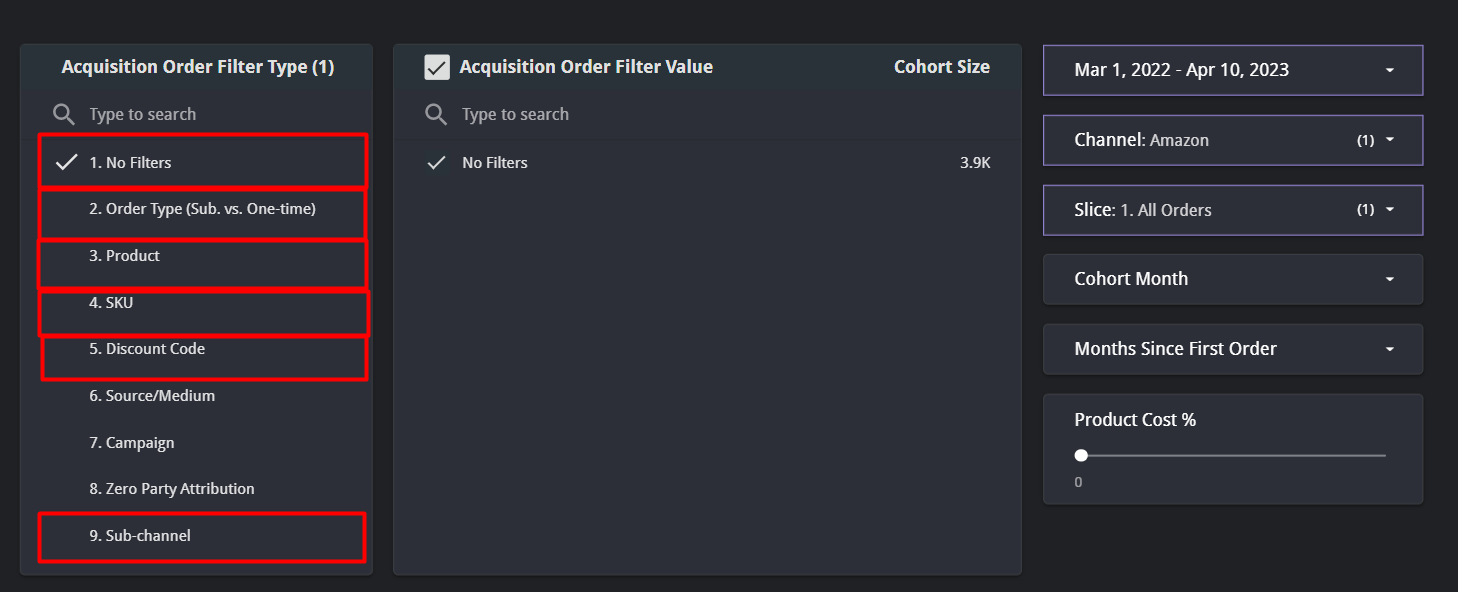
Select **Amazon** in the Channel filter to see cohorts built from Amazon acquisition orders. The **Acquisition Order Filter Type** lets you cut cohorts by:
* No filters
* Order type (subscription vs. one-time)
* Product (by Amazon listing title)
* SKU
* Sub-channel (FBA or FBM)
These filters use each customer's first order. Later orders may not match the same profile, for example a different product. See the [LTV & Retention module](/docs/data-activation/managed-bi-v1/modules/ltv-retention-module).
### LTV & Retention
Select **Amazon** in the Channel filter to see cohorts built from Amazon acquisition orders. The **Acquisition Order Filter Type** lets you cut cohorts by:
* No filters
* Order type (subscription vs. one-time)
* Product (by Amazon listing title)
* SKU
* Sub-channel (FBA or FBM)
These filters use each customer's first order. Later orders may not match the same profile, for example a different product. See the [LTV & Retention module](/docs/data-activation/managed-bi-v1/modules/ltv-retention-module).
 ### Orders Deep Dive
Order-level detail for Amazon, including the order latency chart and the order latency filter for comparing purchase intervals across segments. See the [Orders Deep Dive module](/docs/data-activation/managed-bi-v1/modules/orders-deep-dive-module).
### Product Performance
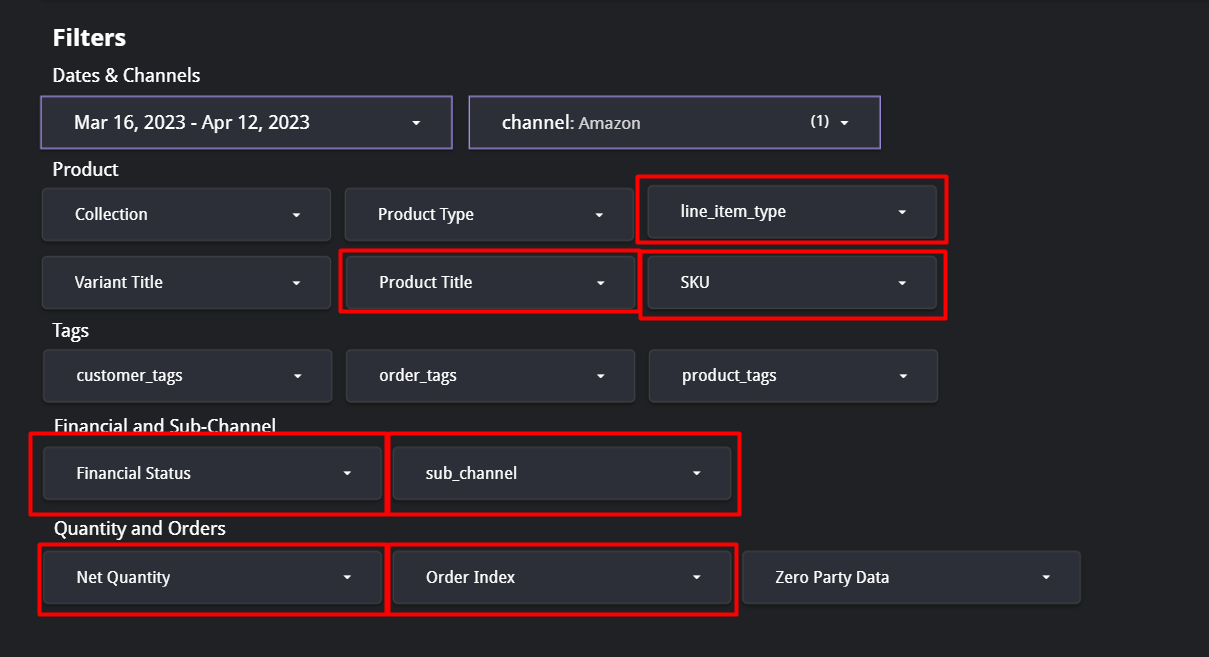
Amazon product results by product title and SKU. Filters include line item type (subscription vs. one-time), SKU, product title, financial status (paid, pending, refunded, voided), sub-channel (FBA or FBM), net quantity, and order index. SourceMedium reports Amazon by SKU; ASIN is not available. See the [Product Performance module](/docs/data-activation/managed-bi-v1/modules/product-performance-module).
### Orders Deep Dive
Order-level detail for Amazon, including the order latency chart and the order latency filter for comparing purchase intervals across segments. See the [Orders Deep Dive module](/docs/data-activation/managed-bi-v1/modules/orders-deep-dive-module).
### Product Performance
Amazon product results by product title and SKU. Filters include line item type (subscription vs. one-time), SKU, product title, financial status (paid, pending, refunded, voided), sub-channel (FBA or FBM), net quantity, and order index. SourceMedium reports Amazon by SKU; ASIN is not available. See the [Product Performance module](/docs/data-activation/managed-bi-v1/modules/product-performance-module).
 ### Marketing Overview
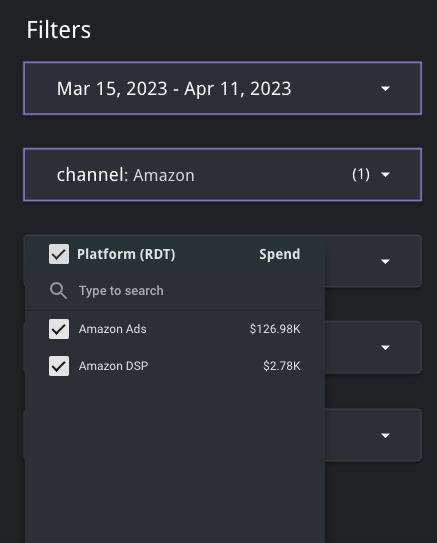
Amazon Ads and DSP spend, conversions, revenue, CPO, and ROAS by platform, campaign type, and campaign name. Use the **Platform** filter to switch between Amazon Ads and Amazon DSP; the **Campaign Type** and **Campaign Name** filters narrow further. The conversion counted for Amazon Ads is its 14-day attributed conversion; see [What is reported as a conversion?](/docs/help-center/faq/data-faqs/what-is-reported-as-a-conversion-within-the-marketing-overview) and the [Marketing Overview module](/docs/data-activation/managed-bi-v1/modules/marketing-overview-module).
### Marketing Overview
Amazon Ads and DSP spend, conversions, revenue, CPO, and ROAS by platform, campaign type, and campaign name. Use the **Platform** filter to switch between Amazon Ads and Amazon DSP; the **Campaign Type** and **Campaign Name** filters narrow further. The conversion counted for Amazon Ads is its 14-day attributed conversion; see [What is reported as a conversion?](/docs/help-center/faq/data-faqs/what-is-reported-as-a-conversion-within-the-marketing-overview) and the [Marketing Overview module](/docs/data-activation/managed-bi-v1/modules/marketing-overview-module).
 ## Limitations
Amazon does not share everything, so some charts stay empty for the Amazon channel. This is expected.
* **No customer identity.** Amazon provides no email addresses, customer IDs, discount codes, or source/medium. Acquisition-channel and discount-code charts are empty for Amazon.
* **Subscriptions are order-level only.** Subscribe & Save orders are classified as subscription orders when Amazon flags them, but there is no subscriber lifecycle data such as active subscriber counts or cancellation dates.
* **Recent days settle over time.** Order volume firms up within a few days; revenue, refunds, and customer counts settle later. Treat the last 1 to 3 days as directional.
* **Refunds arrive late.** FBA returns are reported only after Amazon receives the item, often 30 days or more after the return request.
* **Ads conversions restate.** Amazon Ads revises conversion counts at 1, 7, and 28 days after the conversion.
Full detail: [Amazon Seller Central data nuances and limitations](/docs/data-inputs/platform-supporting-resources/amazon-seller-central/amazon-sc-data-nuances-and-limitations) and [Amazon Ads data nuances and limitations](/docs/data-inputs/platform-supporting-resources/amazon-ads/amazon-ads-data-nuances-and-limitations).
## Related
* [Why has my Amazon data stopped showing up in my dashboard?](/docs/help-center/faq/account-management-faqs/why-has-my-amazon-data-stopped-showing-up-in-my-dashboard)
* [Open a support request](/docs/product-tours/get-support) if a chart you expect to see is empty.
## Limitations
Amazon does not share everything, so some charts stay empty for the Amazon channel. This is expected.
* **No customer identity.** Amazon provides no email addresses, customer IDs, discount codes, or source/medium. Acquisition-channel and discount-code charts are empty for Amazon.
* **Subscriptions are order-level only.** Subscribe & Save orders are classified as subscription orders when Amazon flags them, but there is no subscriber lifecycle data such as active subscriber counts or cancellation dates.
* **Recent days settle over time.** Order volume firms up within a few days; revenue, refunds, and customer counts settle later. Treat the last 1 to 3 days as directional.
* **Refunds arrive late.** FBA returns are reported only after Amazon receives the item, often 30 days or more after the return request.
* **Ads conversions restate.** Amazon Ads revises conversion counts at 1, 7, and 28 days after the conversion.
Full detail: [Amazon Seller Central data nuances and limitations](/docs/data-inputs/platform-supporting-resources/amazon-seller-central/amazon-sc-data-nuances-and-limitations) and [Amazon Ads data nuances and limitations](/docs/data-inputs/platform-supporting-resources/amazon-ads/amazon-ads-data-nuances-and-limitations).
## Related
* [Why has my Amazon data stopped showing up in my dashboard?](/docs/help-center/faq/account-management-faqs/why-has-my-amazon-data-stopped-showing-up-in-my-dashboard)
* [Open a support request](/docs/product-tours/get-support) if a chart you expect to see is empty.