> ## Documentation Index
> Fetch the complete documentation index at: https://docs.sourcemedium.com/docs/llms.txt
> Use this file to discover all available pages before exploring further.
# How to move your Slack report bot to another Slack channel
> Step-by-step guide to reinstalling the SourceMedium Slack Bot to a different channel in your workspace
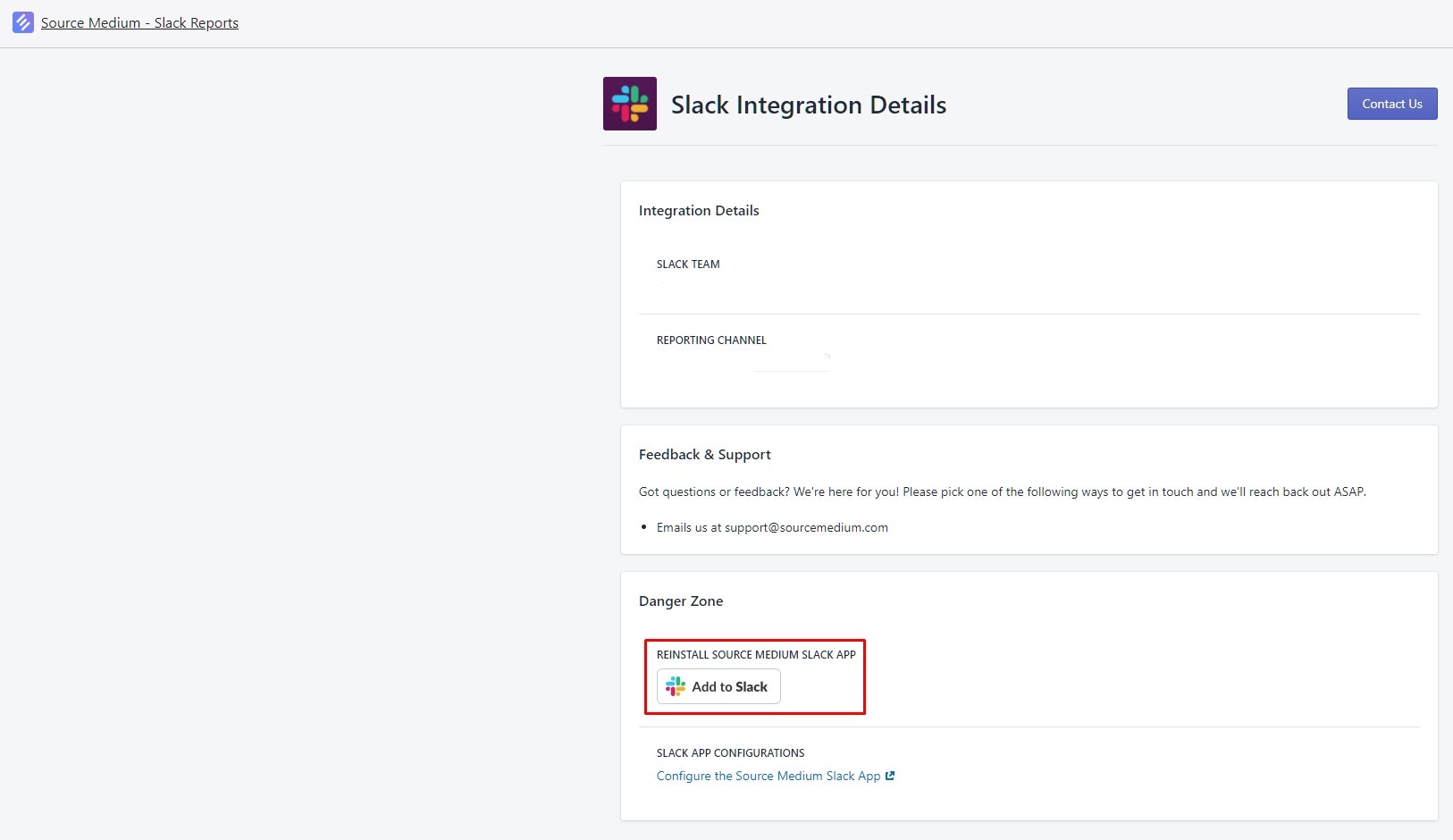
1. Visit the Apps section of your Shopify store and Select **SourceMedium - Slack Reports**.
 2. Select the **Add to Slack** button. This will allow you to re-install it into another channel within your Slack. We recommend installing in a channel dedicated to the report to decrease the noise and the traffic of any active discussion channel.