> ## Documentation Index
> Fetch the complete documentation index at: https://docs.sourcemedium.com/docs/llms.txt
> Use this file to discover all available pages before exploring further.
# How do I set up Post-Purchase Survey order tagging for KnoCommerce?
> Configure KnoCommerce to automatically tag Shopify orders with HDYHAU survey responses for zero-party attribution
## Requirements
KnoCommerce Shopify integration
## Steps
1. Visit your Survey Builder page
2. Scroll and select Advanced Settings for the question(s) that you would like to start tagging
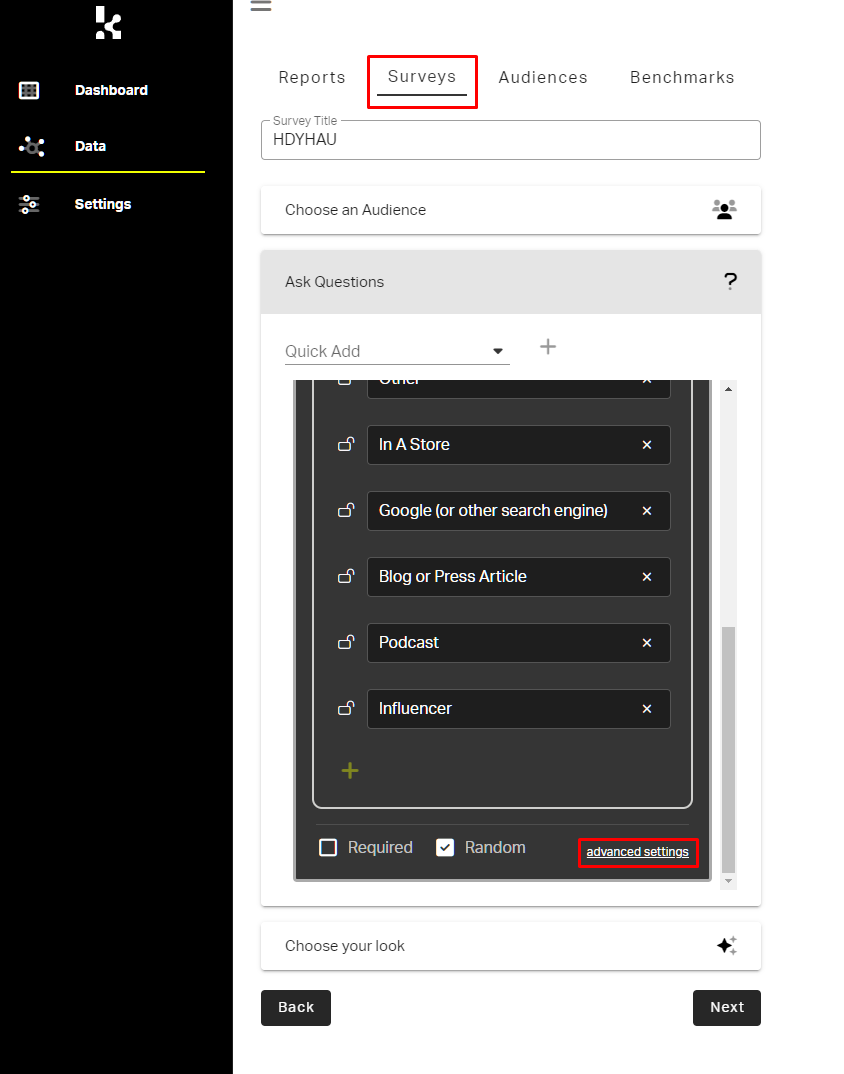 3. When the advanced settings open up:
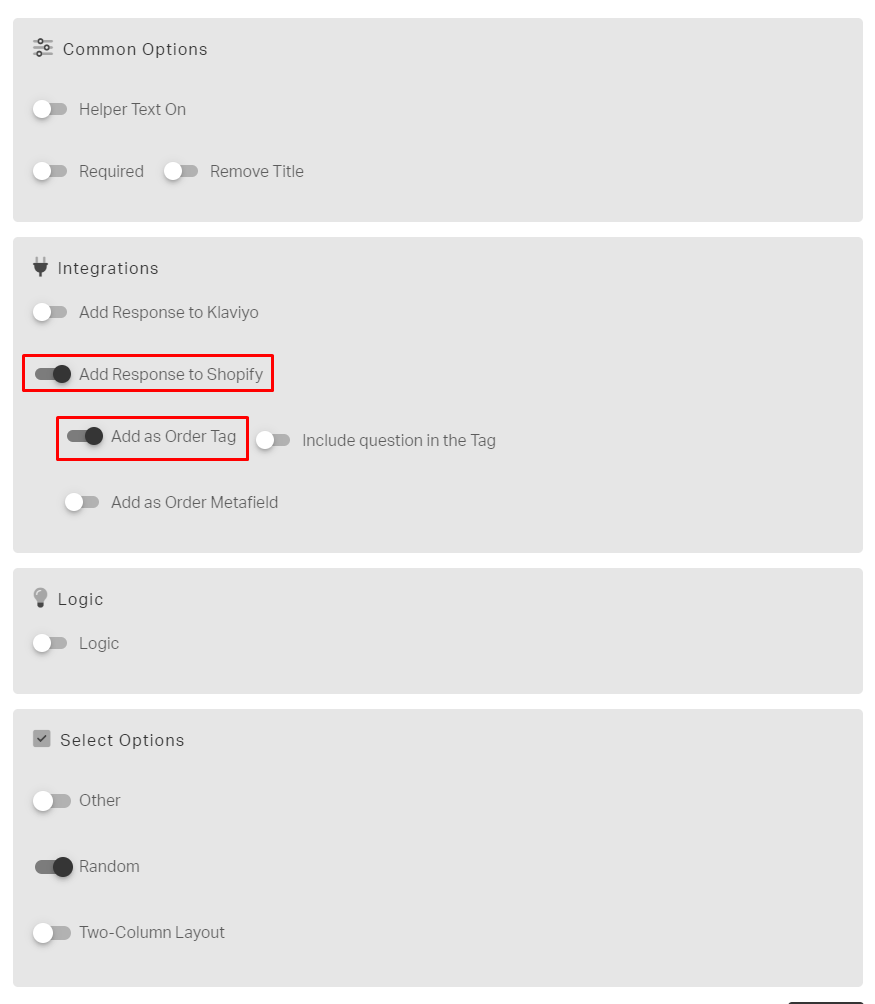
* Go to the Integrations section
* Use the button to turn on `Add Response to Shopify`
* Confirm that `Add as Orders Tag` is turned on
3. When the advanced settings open up:
* Go to the Integrations section
* Use the button to turn on `Add Response to Shopify`
* Confirm that `Add as Orders Tag` is turned on
 4. Click the `Save` (Floppy disk icon) button in the bottom right-hand corner of the page.
This will start tagging orders with responses to the Post Purchase Survey questions that you have set.
***
## Additional information and related articles
* [Video from Kno on how to set up tagging](https://www.loom.com/share/a8815bf809f5499090afb2dfdaff1d36)
4. Click the `Save` (Floppy disk icon) button in the bottom right-hand corner of the page.
This will start tagging orders with responses to the Post Purchase Survey questions that you have set.
***
## Additional information and related articles
* [Video from Kno on how to set up tagging](https://www.loom.com/share/a8815bf809f5499090afb2dfdaff1d36)