> ## Documentation Index
> Fetch the complete documentation index at: https://docs.sourcemedium.com/docs/llms.txt
> Use this file to discover all available pages before exploring further.
# How can I track influencer spend and performance?
> How to track influencer spend and performance using discount codes and the configuration sheet Cost tab.
## Requirements
Access to Configuration sheet to input custom marketing spend
**If this is your first time using the Cost tab:**
* Once all steps have been completed, reach out to the SourceMedium team in Slack (or [via email](mailto:support@sourcemedium.com)) letting us know you'd like to enable the custom costs feature
## Background
To get influencer data populated in the Sponsorships & Influencers page of your report, you'll need to add data to the Cost tab of your SM Configurations (CSD) sheet. To do this, you'll need:
* The **discount code** used by the influencer
* The amount spent for that influencer
* The dates you want to amortize that spend across
## Steps
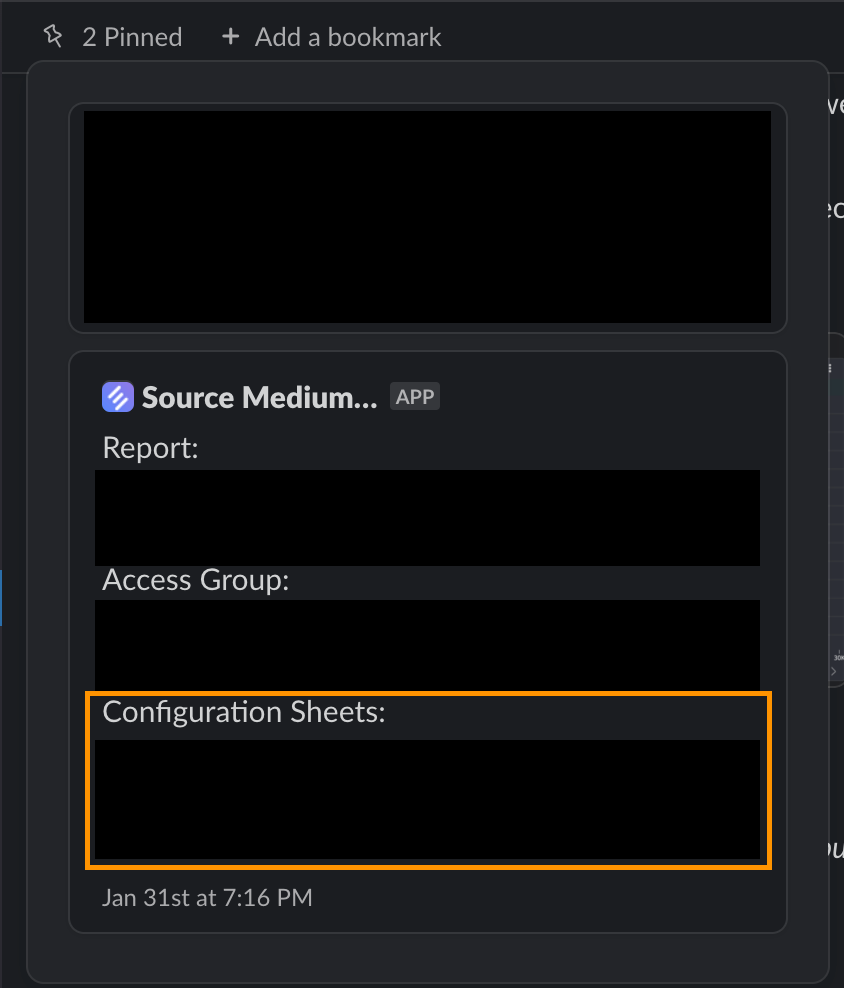
1. Open your Configuration Sheet:
* Check your onboarding email thread for the Google Sheets link
* Check your shared SourceMedium Slack channel for the Configuration Sheet link (often pinned)
* If you can’t find it, email [support@sourcemedium.com](mailto:support@sourcemedium.com)
 2. These settings should be set in the first 3 columns of your Cost tab: `category --> marketing`, `channel --> Online DTC`, `sub_channel --> influencers`
3. Under **vendor** column, enter the **discount codes** used by the influencer
* ***IMPORTANT:*** If this is the first time entering a specific discount code, add it under the vendor column of the `Configuration` tab first
4. Under **cost** column, enter the amount paid to the influencer
5. **date\_start** and **date\_end** will amortize the cost for that influencer across the range of date\_start to date\_end. e.g. \$3,000 spend from 6/1/2021 - 6/30/2021 would tack on \$100 spend for each day. If no date\_end is provided, all cost is attributed to date\_start.
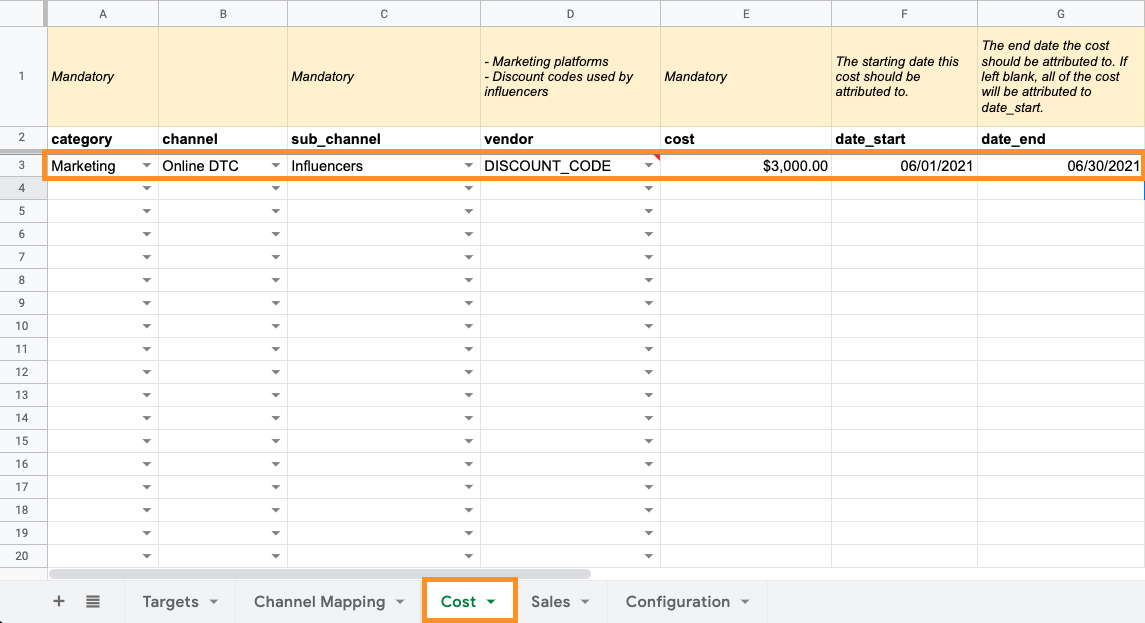
2. These settings should be set in the first 3 columns of your Cost tab: `category --> marketing`, `channel --> Online DTC`, `sub_channel --> influencers`
3. Under **vendor** column, enter the **discount codes** used by the influencer
* ***IMPORTANT:*** If this is the first time entering a specific discount code, add it under the vendor column of the `Configuration` tab first
4. Under **cost** column, enter the amount paid to the influencer
5. **date\_start** and **date\_end** will amortize the cost for that influencer across the range of date\_start to date\_end. e.g. \$3,000 spend from 6/1/2021 - 6/30/2021 would tack on \$100 spend for each day. If no date\_end is provided, all cost is attributed to date\_start.
 **If this is your first time using the Cost tab:**
* Once all steps have been completed, reach out to the SourceMedium team in Slack (or via email) letting us know you'd like to enable Influencer Tracking feature.
You will soon see your newly entered spend accounted for (for the designated dates) in your **Executive Summary's** spend metric, on the Marketing Performance dash, and you will see performance surfaced to your **Sponsorships & Influencers** page -- spend along with order counts, revenue, AOV, ROAS etc.
**If this is your first time using the Cost tab:**
* Once all steps have been completed, reach out to the SourceMedium team in Slack (or via email) letting us know you'd like to enable Influencer Tracking feature.
You will soon see your newly entered spend accounted for (for the designated dates) in your **Executive Summary's** spend metric, on the Marketing Performance dash, and you will see performance surfaced to your **Sponsorships & Influencers** page -- spend along with order counts, revenue, AOV, ROAS etc.