> ## Documentation Index
> Fetch the complete documentation index at: https://docs.sourcemedium.com/docs/llms.txt
> Use this file to discover all available pages before exploring further.
# How can I create order channels and sub-channels?
> How to create channel mapping rules in the configuration sheet to group orders into channels and sub-channels.
## Requirements
Channel mapping is available as part of the SourceMedium feature set.
## Background
SourceMedium has a unique feature called **channel mapping** which uses your **SourceMedium configuration sheet**. This feature essentially allows you to arbitrarily group orders. We can then use these arbitrary groupings (called **sub-channels**) to look at and gain insights into the performance of these specific subsets of orders.
## Steps
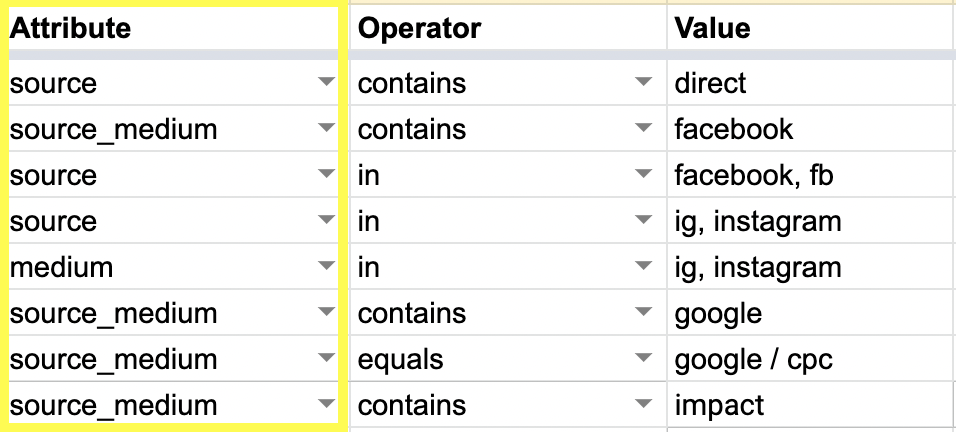
1. **Set Attribute.** This is the main source of attribution that you would like to track such as Source/ Medium (**Google/CPC**) or a marketing campaign through **discount codes.**
 2. **Set Operator.** This is the matching mechanism that determines how your **Value** will be picked up within your selected **Attribute**.
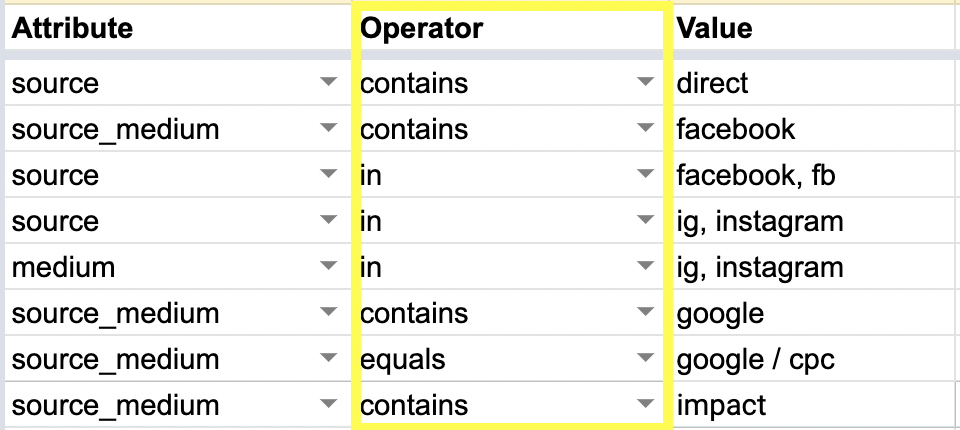 * **Equals** is a **1-to-1 match of the Value**, meaning SourceMedium will only search for what specifically is inserted in the **Value** column.
* **Contains** is a **partial match**, i.e. you have a set of discount codes that all have `influencer` in them but can be influencer50, influencer100, etc. This will match all that contain `influencer`.
* **In** allows you to **match against a comma-separated list of values**, i.e. there are 10 different podcasts that you would like to track under 1 podcast grouping
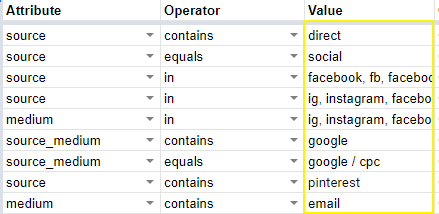
3. **Set Value.** This selects the **value** within the **Attribute.**
* What type of order are you looking to group?
* **Equals** is a **1-to-1 match of the Value**, meaning SourceMedium will only search for what specifically is inserted in the **Value** column.
* **Contains** is a **partial match**, i.e. you have a set of discount codes that all have `influencer` in them but can be influencer50, influencer100, etc. This will match all that contain `influencer`.
* **In** allows you to **match against a comma-separated list of values**, i.e. there are 10 different podcasts that you would like to track under 1 podcast grouping
3. **Set Value.** This selects the **value** within the **Attribute.**
* What type of order are you looking to group?
 4. **Set Channel.** This is where you can add a **sales channel** that you want specific orders (influenced by **Attribute and Value)** attributed to, such as wholesale, retail, Amazon or, in most cases, Online DTC.
5. **(Optional) Set Sub-Channel and Vendor**
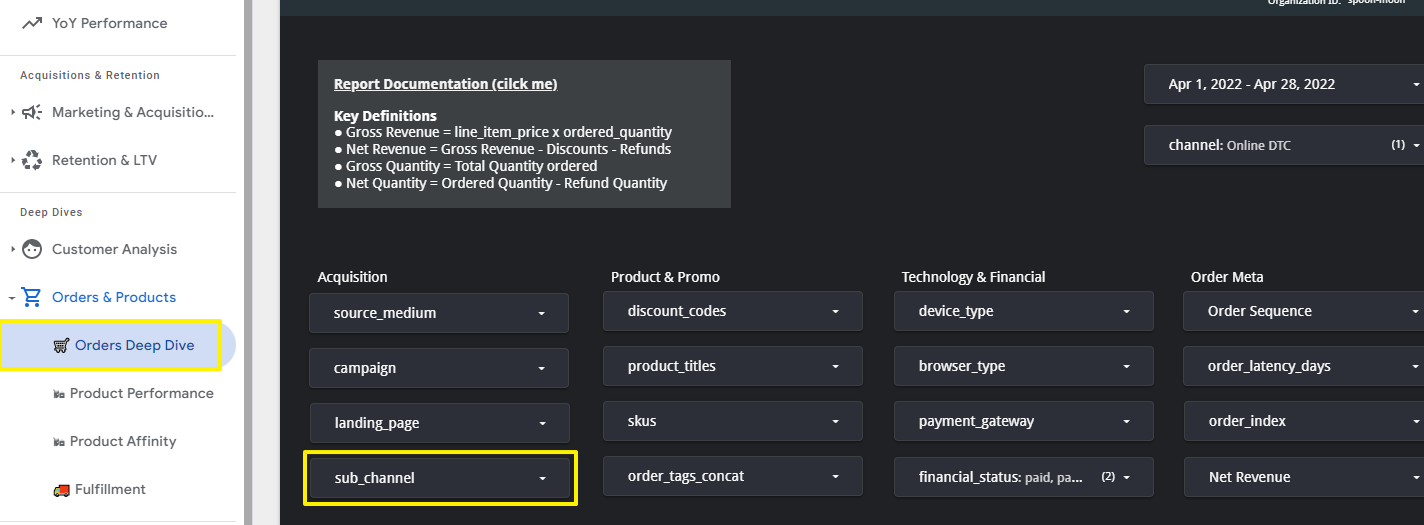
* **Sub-channel** is a value that you will see surfaced in your dashboard. It can be set using the Configuration tab and then selected from the dropdown box. When a Sub-channel is added in the Configurations tab, you will automatically see an option to use this naming as another way to segregate where orders will be attributed to.
* This dimension is available for use on the Retention & LTV modules, Orders Deep Dive, both Customer modules, and the Product Performance module.
* **Vendor** is another way to further segment your orders. We do not surface this filter by default as we've found most of the time sub-channels are more than enough although. This grouping can also be created in the Configuration tab. (Please reach out to customer support by email or slack to enable.)
4. **Set Channel.** This is where you can add a **sales channel** that you want specific orders (influenced by **Attribute and Value)** attributed to, such as wholesale, retail, Amazon or, in most cases, Online DTC.
5. **(Optional) Set Sub-Channel and Vendor**
* **Sub-channel** is a value that you will see surfaced in your dashboard. It can be set using the Configuration tab and then selected from the dropdown box. When a Sub-channel is added in the Configurations tab, you will automatically see an option to use this naming as another way to segregate where orders will be attributed to.
* This dimension is available for use on the Retention & LTV modules, Orders Deep Dive, both Customer modules, and the Product Performance module.
* **Vendor** is another way to further segment your orders. We do not surface this filter by default as we've found most of the time sub-channels are more than enough although. This grouping can also be created in the Configuration tab. (Please reach out to customer support by email or slack to enable.)
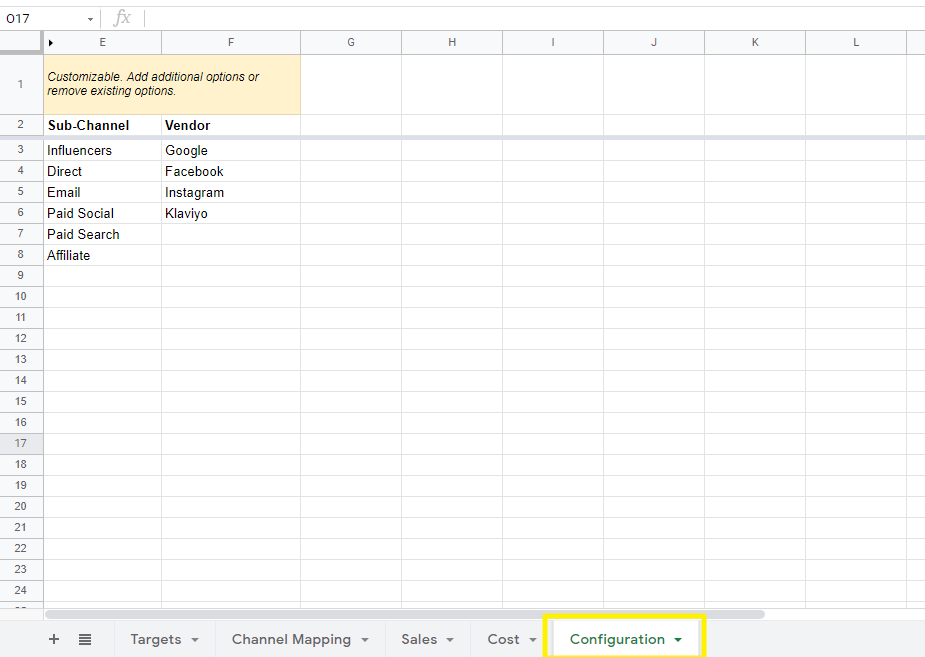 6. After the configuration sheet is integrated into your dashboard, your **sub-channels** will be available for filtering in your dashboard. Changes typically reflect within 24 hours.