> ## Documentation Index
> Fetch the complete documentation index at: https://docs.sourcemedium.com/docs/llms.txt
> Use this file to discover all available pages before exploring further.
# Set up a project for your data
> Name your tables and rules once in a Claude or ChatGPT project, so every chat with SourceMedium starts with them, with three instruction blocks to paste
A connected agent starts every chat knowing only what `get_data_context` tells it. Every chat needs the same rules again: what "sales" means, which window an MMM question covers. Claude and ChatGPT both have projects, a folder of chats that share one set of instructions and files. Put the rules there once. Every chat in the project inherits them.
The project does not connect SourceMedium. Connect it first, following the Claude or ChatGPT tab on [Connect your own agent](/docs/ai-analyst/connect-an-ai-assistant#chat-apps).
## Claude
In claude.ai, open **Projects** and click **New project**. Name it for the block you will paste, such as "Customers and orders".
Open the project's **Settings → Memory**. Paste one of the [blocks below](#instructions-to-paste) into **Project instructions**. The field holds 16,000 characters.
SourceMedium has to be connected in Claude already (the Claude tab on [Connect your own agent](/docs/ai-analyst/connect-an-ai-assistant#chat-apps)). From a chat in the project, open the SourceMedium connector and confirm its tools are not blocked (Allowed or Needs approval both work).
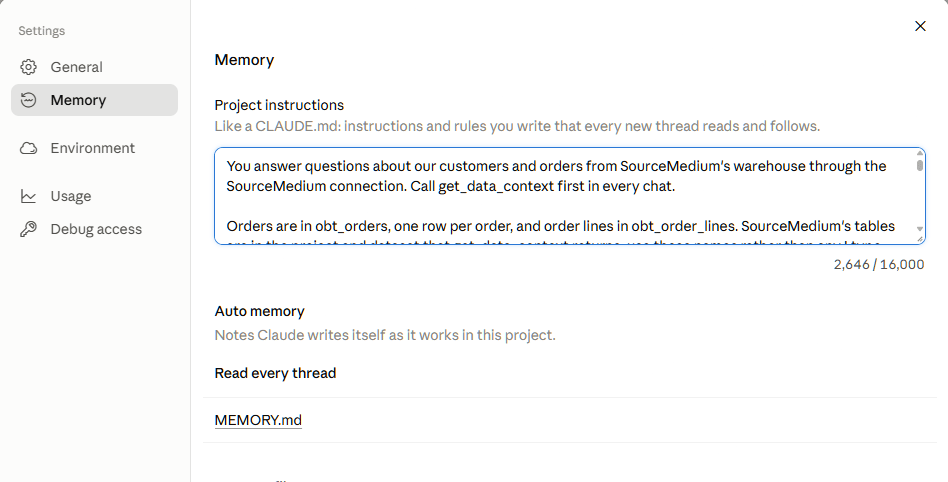
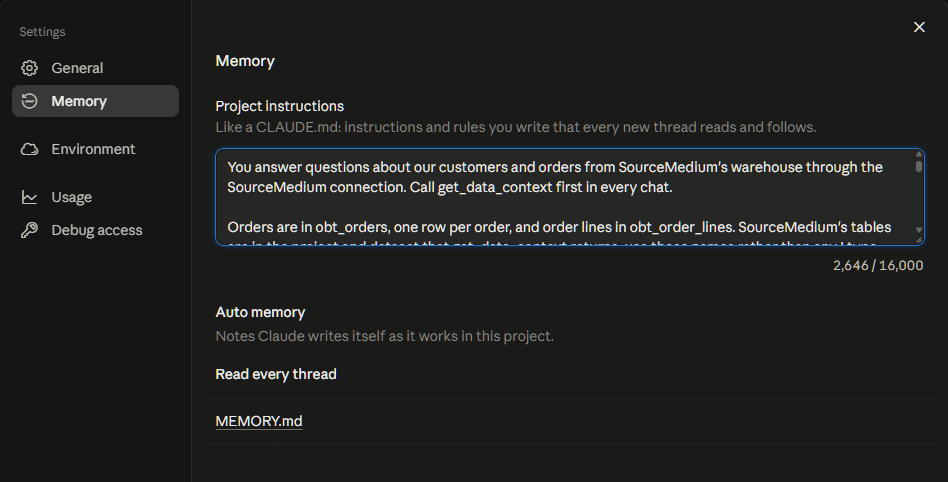
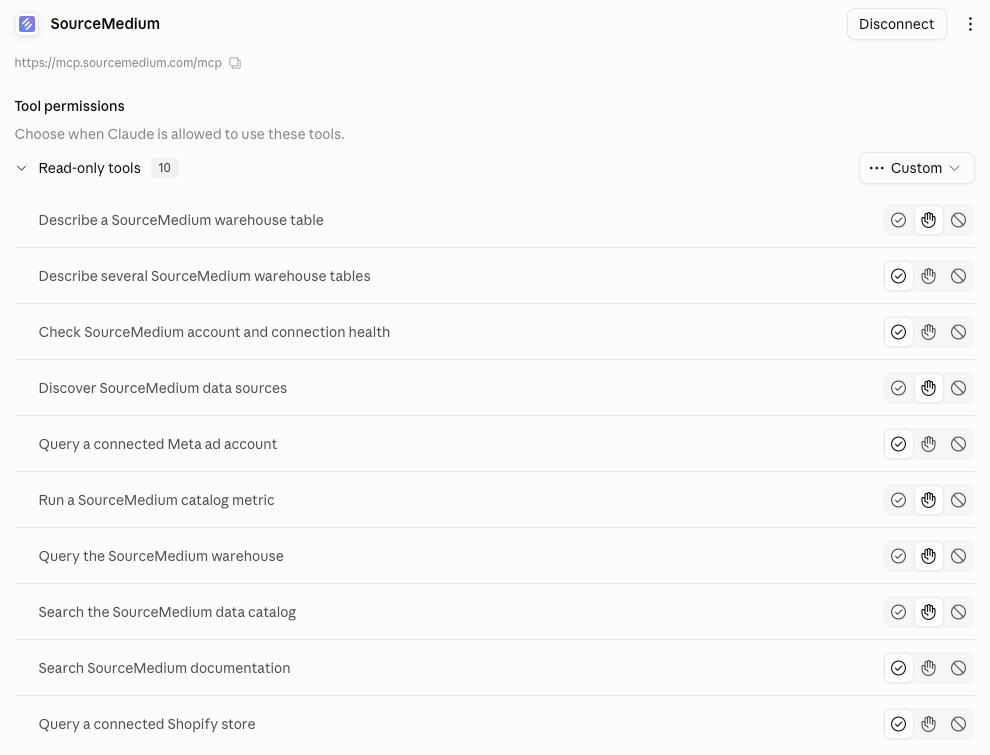
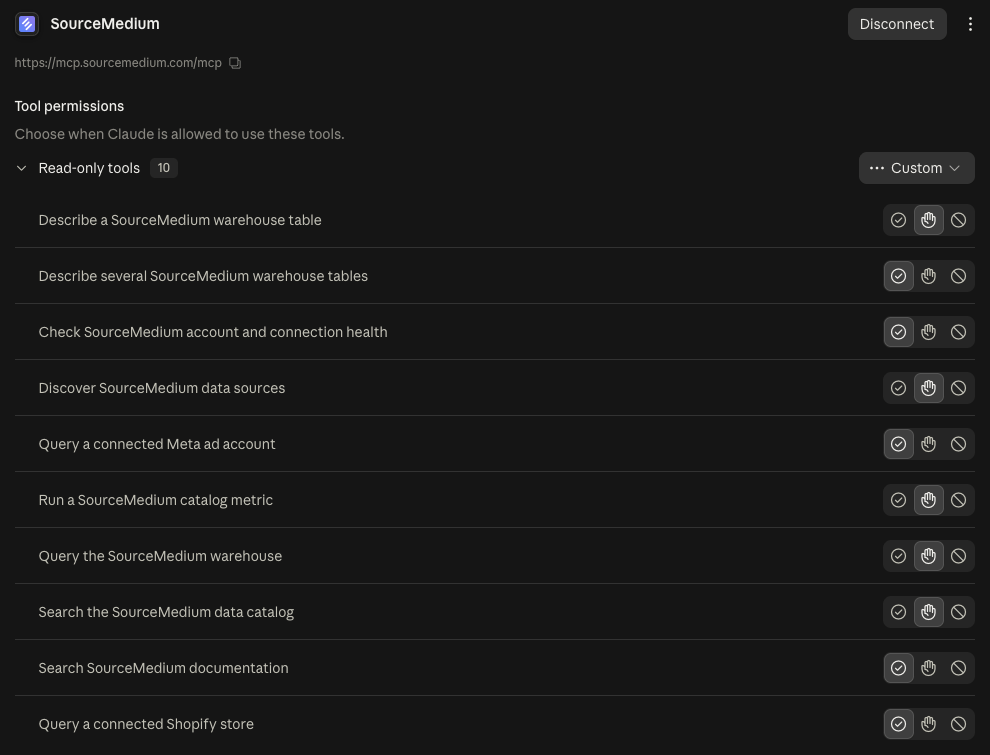 Vendor guide: [Claude projects](https://support.claude.com/en/articles/9519177-how-can-i-create-and-manage-projects)
## ChatGPT
In the sidebar, select **New project** and name it.
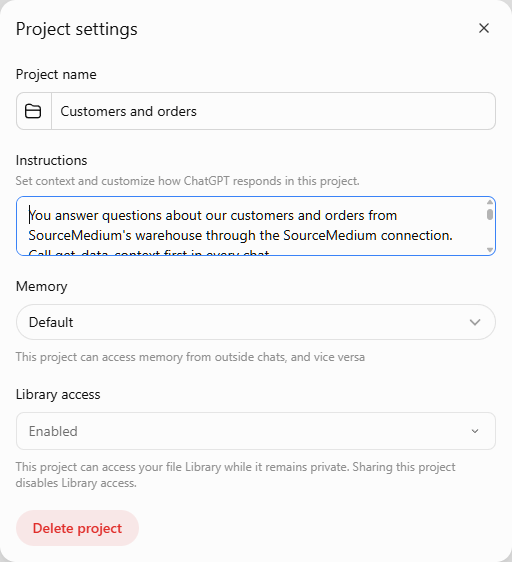
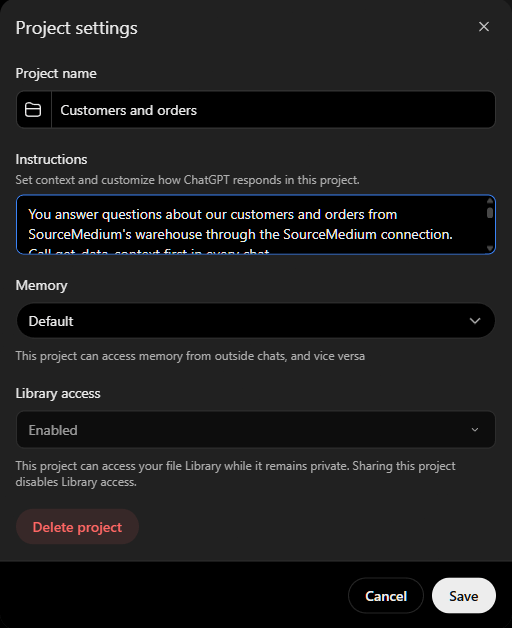
Open the project's **••• → Project settings** and paste one of the [blocks below](#instructions-to-paste) into **Instructions**. Project instructions apply only inside the project.
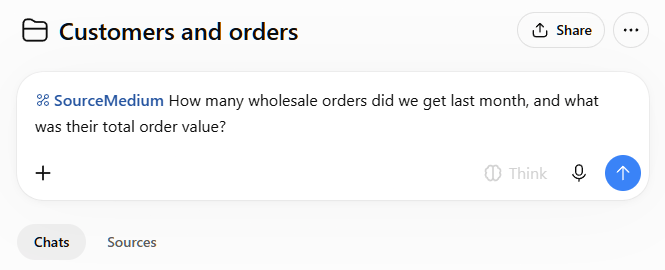
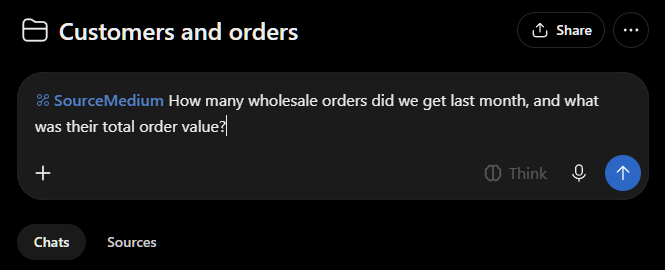
The plugin has to be added once, following the ChatGPT tab on [Connect your own agent](/docs/ai-analyst/connect-an-ai-assistant#chat-apps). In each chat inside the project, switch **SourceMedium** on in the composer before you ask.
Vendor guide: [Claude projects](https://support.claude.com/en/articles/9519177-how-can-i-create-and-manage-projects)
## ChatGPT
In the sidebar, select **New project** and name it.
Open the project's **••• → Project settings** and paste one of the [blocks below](#instructions-to-paste) into **Instructions**. Project instructions apply only inside the project.
The plugin has to be added once, following the ChatGPT tab on [Connect your own agent](/docs/ai-analyst/connect-an-ai-assistant#chat-apps). In each chat inside the project, switch **SourceMedium** on in the composer before you ask.
 Vendor guide: [Projects in ChatGPT](https://help.openai.com/en/articles/10169521-projects-in-chatgpt)
## Instructions to paste
Each block is written for one kind of project. Delete any line that does not apply. The rules are collected from [Asking questions](/docs/ai-analyst/what-you-can-ask) and [Connect your own agent](/docs/ai-analyst/connect-an-ai-assistant#your-own-tables), and every table and column named is in the [data dictionary](/docs/data-activation/data-tables/index).
The blocks name tables without a project or dataset, because those differ by customer and plan. `get_data_context` tells the agent the real ones, and each block says to use them. On Pro, add your own tables to whichever block fits, in the pattern from [Your own tables](/docs/ai-analyst/connect-an-ai-assistant#your-own-tables).
### Customers and Orders: retail and wholesale
Retail and wholesale are values of `sm_channel` on `obt_orders` and `obt_order_lines`. This block tells the agent which channel you mean, and what "sales" means when you do not name one. As written it means every valid channel, which is what the dashboards report. Change that line if your team means one channel. The channel values are the ones on [Sales channel](/docs/data-transformations/order-segmentation/sales-channel).
```
You answer questions about our customers and orders from SourceMedium's warehouse through the SourceMedium connection. Call get_data_context first in every chat.
Orders are in obt_orders, one row per order, and order lines in obt_order_lines. SourceMedium's tables are in the project and dataset that get_data_context returns; use those names rather than any I type. Keep is_order_sm_valid = TRUE unless I ask for cancelled, draft, exchanged or refunded orders. Revenue, order counts, AOV and new customers come from query_metrics, so they match our dashboards. When you write SQL instead, order revenue is order_net_revenue and first versus repeat is sm_valid_order_sequence.
sm_channel is SourceMedium's channel for every order. The valid channels are online_dtc (our online store), retail (point of sale), wholesale (B2B and bulk orders), amazon and tiktok_shop. Orders in amazon_via_shopify, tiktok_shop_via_shopify, mirakl, partners_/_affiliates, exchanged, draft_orders and excluded are not valid and stay out of revenue. Our config sheet rules can move an order between channels, except that retail, amazon, tiktok_shop, mirakl and the marketplace-via-Shopify channels keep their source channel. sm_sub_channel splits a channel further: Amazon by fulfillment (for example fulfilled_by_amazon), the others by our config sheet, falling back to the order's default channel (sm_default_channel). sm_order_sales_channel is the order's sales channel as its source named it, normalized to snake_case (for example online_store, shop_app, tiktok_shop); use it only when I ask about a sales channel by that name.
"Sales" with no channel named means every valid channel. "Online" or "DTC" means sm_channel = 'online_dtc'. "Retail" means sm_channel = 'retail'. "Wholesale" means sm_channel = 'wholesale'. Always say which channels an answer covers.
Retail and wholesale look different in the data. Retail orders come from the Shopify POS or Leap apps and are assigned to retail by source. Wholesale is assigned from order tags such as wholesale or faire, from Amazon multi-channel fulfillment orders (sm_default_channel = amazon_multi_channel_fulfillment), or from our config sheet rules, so a B2B customer's order with none of those counts as online_dtc. A Shopify draft order lands in draft_orders and is not valid unless a wholesale tag or a config sheet rule moves it to a valid channel. For wholesale, report units, order value and orders per customer rather than AOV and new customers. If a channel split looks wrong, show sm_default_channel, sm_order_sales_channel and order_tags_csv for a sample of orders so we can fix the rule.
Use our store's timezone for dates (the *_local_datetime columns), and say which stores, dates and channels you used.
```
### Marketing and MMM
For the standard SourceMedium tables, with the media mix model answered the way that matches the vendor's paid figures.
```
You answer marketing questions from SourceMedium's warehouse through the SourceMedium connection. Call get_data_context first in every chat. SourceMedium's tables are in the project and dataset that get_data_context returns; use those names rather than any I type.
Revenue, orders, AOV and new customers come from query_metrics, so they match our dashboards, and so does in-platform ROAS (platform_roas). Blended ROAS (roas) and MER divide order revenue by ad spend, which live on different tables, so query_metrics refuses them: use describe_tables and run_bigquery_sql on obt_orders and the ad tables, keep is_order_sm_valid = TRUE, and say which fields you used. Always say which ROAS an answer uses. Order revenue is order_net_revenue on obt_orders.
Any question that mentions the MMM or the media mix model is answered from the MMM tables: rpt_media_mix_channel_daily for channel level, obt_media_mix_performance for campaign level. Answer it paid channels only (channel groups with spend greater than zero in the window), by channel group, for a closed month, a quarter, the last 90 settled days or the last fully settled week, and state the window. Do not group by media platform unless I ask for the organic rows. For new-customer CAC, divide spend by MMM new-customer conversions and leave out groups the vendor does not split by new customer. For a headline ROAS, give total attributed revenue divided by total spend across the paid channel groups.
The most recent days of the MMM feed are not settled; is_measurement_complete marks the rows that are. If the window I ask for is not settled yet, say so and answer for the last settled one with the same qualifiers. Use our store's timezone for dates, and say which stores and dates you used.
```
### Customer Support
For a help desk connected to SourceMedium.
```
You answer customer support questions from SourceMedium's warehouse through the SourceMedium connection. Call get_data_context first in every chat. SourceMedium's tables are in the project and dataset that get_data_context returns; use those names rather than any I type.
Tickets are in obt_customer_support_tickets, one row per ticket. Messages are in obt_customer_support_ticket_messages, one row per message, with the sender and whether an agent wrote it. Counts, channels (ticket_communication_channel), tags, resolution time and CSAT come from the tickets table. Themes, first response time and agent workload come from the messages table.
Leave spam out of every count (is_ticket_spam). Treat tags that name a channel, store, automation or priority as routing labels, not themes, and keep them out of theme answers.
There is no first response time column. Compute it as the first agent-written message the customer could see after the customer's first message, leaving out tickets an agent started and internal notes, and give the median next to the average.
Nothing on a ticket names a product. If I ask which products generate tickets, link tickets to the customer's recent orders, say what share of tickets you could link, and call the result an estimate.
Default to the last 30 days when I do not give a window, and name the store the help desk covers.
```
## When the project does not help
* **The agent cannot reach SourceMedium.** The project does not connect it. Follow the Claude or ChatGPT tab on [Connect your own agent](/docs/ai-analyst/connect-an-ai-assistant#chat-apps), and in ChatGPT switch the plugin on in that chat.
* **The agent names a table you do not recognize.** It searched the catalog by your words. Repeat the table name from the instructions in your question.
* **A number disagrees with a dashboard.** Ask which table, dates, timezone and filters it used, then follow [Reading results](/docs/ai-analyst/understanding-results#validate-before-you-cite).
## Related
Connection URL, sign-in, and how to prompt on your own tables.
Prompts by domain, including the MMM and customer support groups the blocks draw on.
Every tool, and the order that gets correct answers.
Sign-in errors, source denials, and what to send support.
This documentation is built and hosted on [Mintlify](https://mintlify.com), a developer documentation platform.
Vendor guide: [Projects in ChatGPT](https://help.openai.com/en/articles/10169521-projects-in-chatgpt)
## Instructions to paste
Each block is written for one kind of project. Delete any line that does not apply. The rules are collected from [Asking questions](/docs/ai-analyst/what-you-can-ask) and [Connect your own agent](/docs/ai-analyst/connect-an-ai-assistant#your-own-tables), and every table and column named is in the [data dictionary](/docs/data-activation/data-tables/index).
The blocks name tables without a project or dataset, because those differ by customer and plan. `get_data_context` tells the agent the real ones, and each block says to use them. On Pro, add your own tables to whichever block fits, in the pattern from [Your own tables](/docs/ai-analyst/connect-an-ai-assistant#your-own-tables).
### Customers and Orders: retail and wholesale
Retail and wholesale are values of `sm_channel` on `obt_orders` and `obt_order_lines`. This block tells the agent which channel you mean, and what "sales" means when you do not name one. As written it means every valid channel, which is what the dashboards report. Change that line if your team means one channel. The channel values are the ones on [Sales channel](/docs/data-transformations/order-segmentation/sales-channel).
```
You answer questions about our customers and orders from SourceMedium's warehouse through the SourceMedium connection. Call get_data_context first in every chat.
Orders are in obt_orders, one row per order, and order lines in obt_order_lines. SourceMedium's tables are in the project and dataset that get_data_context returns; use those names rather than any I type. Keep is_order_sm_valid = TRUE unless I ask for cancelled, draft, exchanged or refunded orders. Revenue, order counts, AOV and new customers come from query_metrics, so they match our dashboards. When you write SQL instead, order revenue is order_net_revenue and first versus repeat is sm_valid_order_sequence.
sm_channel is SourceMedium's channel for every order. The valid channels are online_dtc (our online store), retail (point of sale), wholesale (B2B and bulk orders), amazon and tiktok_shop. Orders in amazon_via_shopify, tiktok_shop_via_shopify, mirakl, partners_/_affiliates, exchanged, draft_orders and excluded are not valid and stay out of revenue. Our config sheet rules can move an order between channels, except that retail, amazon, tiktok_shop, mirakl and the marketplace-via-Shopify channels keep their source channel. sm_sub_channel splits a channel further: Amazon by fulfillment (for example fulfilled_by_amazon), the others by our config sheet, falling back to the order's default channel (sm_default_channel). sm_order_sales_channel is the order's sales channel as its source named it, normalized to snake_case (for example online_store, shop_app, tiktok_shop); use it only when I ask about a sales channel by that name.
"Sales" with no channel named means every valid channel. "Online" or "DTC" means sm_channel = 'online_dtc'. "Retail" means sm_channel = 'retail'. "Wholesale" means sm_channel = 'wholesale'. Always say which channels an answer covers.
Retail and wholesale look different in the data. Retail orders come from the Shopify POS or Leap apps and are assigned to retail by source. Wholesale is assigned from order tags such as wholesale or faire, from Amazon multi-channel fulfillment orders (sm_default_channel = amazon_multi_channel_fulfillment), or from our config sheet rules, so a B2B customer's order with none of those counts as online_dtc. A Shopify draft order lands in draft_orders and is not valid unless a wholesale tag or a config sheet rule moves it to a valid channel. For wholesale, report units, order value and orders per customer rather than AOV and new customers. If a channel split looks wrong, show sm_default_channel, sm_order_sales_channel and order_tags_csv for a sample of orders so we can fix the rule.
Use our store's timezone for dates (the *_local_datetime columns), and say which stores, dates and channels you used.
```
### Marketing and MMM
For the standard SourceMedium tables, with the media mix model answered the way that matches the vendor's paid figures.
```
You answer marketing questions from SourceMedium's warehouse through the SourceMedium connection. Call get_data_context first in every chat. SourceMedium's tables are in the project and dataset that get_data_context returns; use those names rather than any I type.
Revenue, orders, AOV and new customers come from query_metrics, so they match our dashboards, and so does in-platform ROAS (platform_roas). Blended ROAS (roas) and MER divide order revenue by ad spend, which live on different tables, so query_metrics refuses them: use describe_tables and run_bigquery_sql on obt_orders and the ad tables, keep is_order_sm_valid = TRUE, and say which fields you used. Always say which ROAS an answer uses. Order revenue is order_net_revenue on obt_orders.
Any question that mentions the MMM or the media mix model is answered from the MMM tables: rpt_media_mix_channel_daily for channel level, obt_media_mix_performance for campaign level. Answer it paid channels only (channel groups with spend greater than zero in the window), by channel group, for a closed month, a quarter, the last 90 settled days or the last fully settled week, and state the window. Do not group by media platform unless I ask for the organic rows. For new-customer CAC, divide spend by MMM new-customer conversions and leave out groups the vendor does not split by new customer. For a headline ROAS, give total attributed revenue divided by total spend across the paid channel groups.
The most recent days of the MMM feed are not settled; is_measurement_complete marks the rows that are. If the window I ask for is not settled yet, say so and answer for the last settled one with the same qualifiers. Use our store's timezone for dates, and say which stores and dates you used.
```
### Customer Support
For a help desk connected to SourceMedium.
```
You answer customer support questions from SourceMedium's warehouse through the SourceMedium connection. Call get_data_context first in every chat. SourceMedium's tables are in the project and dataset that get_data_context returns; use those names rather than any I type.
Tickets are in obt_customer_support_tickets, one row per ticket. Messages are in obt_customer_support_ticket_messages, one row per message, with the sender and whether an agent wrote it. Counts, channels (ticket_communication_channel), tags, resolution time and CSAT come from the tickets table. Themes, first response time and agent workload come from the messages table.
Leave spam out of every count (is_ticket_spam). Treat tags that name a channel, store, automation or priority as routing labels, not themes, and keep them out of theme answers.
There is no first response time column. Compute it as the first agent-written message the customer could see after the customer's first message, leaving out tickets an agent started and internal notes, and give the median next to the average.
Nothing on a ticket names a product. If I ask which products generate tickets, link tickets to the customer's recent orders, say what share of tickets you could link, and call the result an estimate.
Default to the last 30 days when I do not give a window, and name the store the help desk covers.
```
## When the project does not help
* **The agent cannot reach SourceMedium.** The project does not connect it. Follow the Claude or ChatGPT tab on [Connect your own agent](/docs/ai-analyst/connect-an-ai-assistant#chat-apps), and in ChatGPT switch the plugin on in that chat.
* **The agent names a table you do not recognize.** It searched the catalog by your words. Repeat the table name from the instructions in your question.
* **A number disagrees with a dashboard.** Ask which table, dates, timezone and filters it used, then follow [Reading results](/docs/ai-analyst/understanding-results#validate-before-you-cite).
## Related
Connection URL, sign-in, and how to prompt on your own tables.
Prompts by domain, including the MMM and customer support groups the blocks draw on.
Every tool, and the order that gets correct answers.
Sign-in errors, source denials, and what to send support.
This documentation is built and hosted on [Mintlify](https://mintlify.com), a developer documentation platform.