> ## Documentation Index
> Fetch the complete documentation index at: https://docs.sourcemedium.com/docs/llms.txt
> Use this file to discover all available pages before exploring further.
# Connect an AI assistant
> Step-by-step setup for Claude, ChatGPT, Claude Code, Codex, Cursor, and any other MCP-capable assistant, plus what a connected assistant can reach.
If an assistant can add a **remote MCP server**, it can reach your SourceMedium reporting data. ChatGPT, Claude, and Grok are the usual examples. Anything else that speaks MCP uses the same URL and the same SourceMedium sign-in.
You never paste BigQuery, Shopify, or Meta credentials into the assistant. SourceMedium holds those and answers read-only.
This is a different product from the [Slack AI Analyst](/docs/ai-analyst/index). In Slack, SourceMedium's own analyst writes the SQL and answers for you. Here, the assistant you already use asks SourceMedium.
Workspace members can connect. Admins, Editors, and Viewers all get a read-only session scoped to what they can already reach in SourceMedium. Use the email associated with your membership. Your first MCP sign-in can link an existing SourceMedium account, so you do not need to sign in through the SourceMedium browser app first.
## The connection URL
```
https://mcp.sourcemedium.com/mcp
```
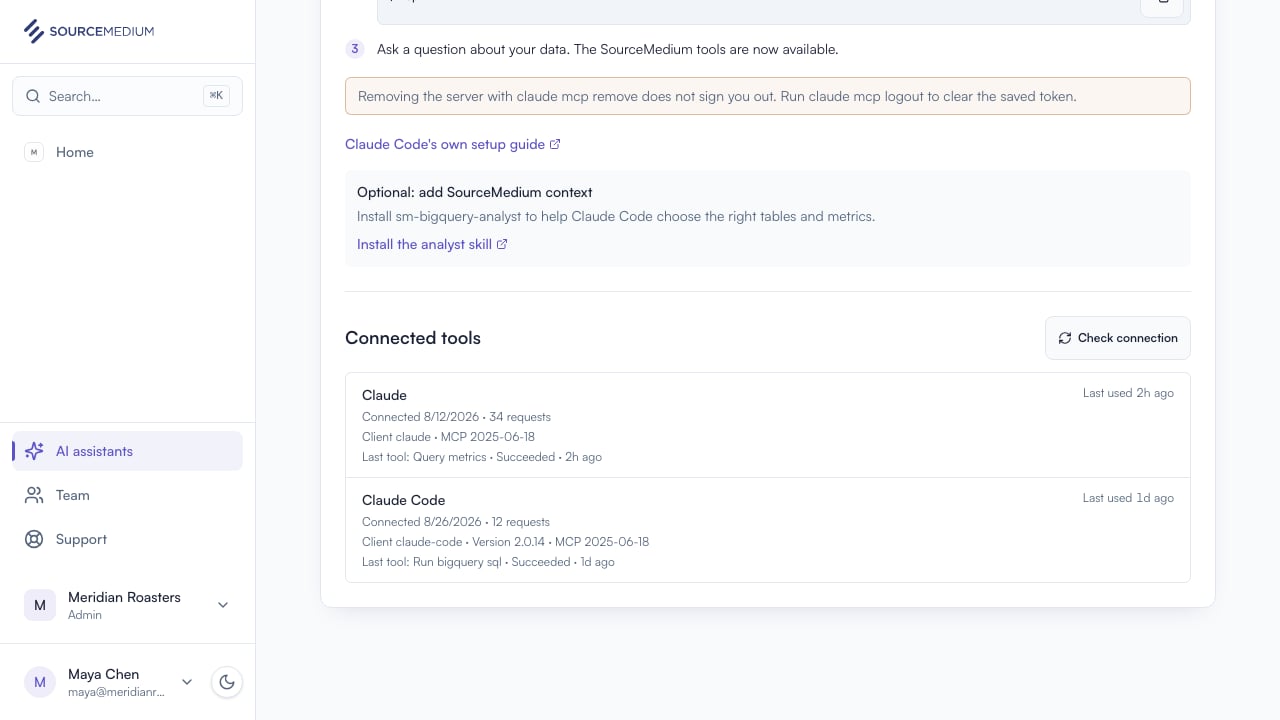
The path `/mcp` is required. The **AI assistants** page in your SourceMedium workspace shows these same setup steps with the URL ready to copy, and lists your connected tools once one works. Here is the whole flow in two minutes:
When you connect SourceMedium to an AI service, queries and the resulting data may be sent to the AI provider you choose. Access remains limited by your existing SourceMedium organization membership and connected-source permissions. This connection does not provide semantic PII detection or field-level masking. Do not request customer contact, address, or other direct personal data unless it is necessary and authorized for your use case.
## Chat apps
On Team or Enterprise plans, an Owner must first add SourceMedium under **Organization settings → Connectors → Add → Custom → Web**. Each member then connects it under **Customize → Connectors**.
In claude.ai, go to **Customize → Connectors**.
On Free, Pro, or Max, click **+** and choose **Add custom connector**. On Team or Enterprise, find the connector your Owner added, click **Connect**, and skip the next step.
Paste `https://mcp.sourcemedium.com/mcp` into the connector URL field, click **Add**, then click **Connect**.
Sign in with your usual SourceMedium account and approve the connection.
Click **+** in the lower left of a chat, open **Connectors**, switch SourceMedium on, and ask a question about your data.
On Claude's Free plan only one custom connector is allowed.
Vendor guide: [Claude custom connectors](https://support.claude.com/en/articles/11175166-get-started-with-custom-connectors-using-remote-mcp)
Developer mode availability depends on your ChatGPT account and workspace policy. If the toggle or plugin page is unavailable, ask your workspace admin.
Open ChatGPT **Settings → Security and login**, then turn on **Developer mode**.
Open the ChatGPT Plugins page and click the **+** button. Enter **SourceMedium** as the name and paste `https://mcp.sourcemedium.com/mcp` under Connection.
Create the connection, review the discovered tools, then complete the SourceMedium sign-in when prompted.
In a new chat, enable the SourceMedium plugin and ask a question about your data.
Workspace policy can hide Developer mode or prevent you from creating plugins even when your account would otherwise support them.
Vendor guide: [Connect to ChatGPT](https://developers.openai.com/plugins/deploy/connect-chatgpt)
## Coding agents
A terminal or IDE agent uses the same URL. These are the ones we keep verified instructions for; any other MCP-capable agent follows the same pattern.
```bash theme={null}
claude mcp add --transport http sourcemedium https://mcp.sourcemedium.com/mcp
```
Start Claude Code and run `/mcp`, pick **sourcemedium**, and complete the browser sign-in with your SourceMedium account.
Ask a question about your data. The SourceMedium tools are now available.
Removing the server with `claude mcp remove` does not sign you out. Run `claude mcp logout` to clear the saved token.
Vendor guide: [Claude Code MCP](https://code.claude.com/docs/en/mcp)
```bash theme={null}
codex mcp add sourcemedium --url https://mcp.sourcemedium.com/mcp
```
```bash theme={null}
codex mcp login sourcemedium
```
Sign in with your SourceMedium account when the browser opens.
Restart Codex and ask a question about your data. Prefer config files? This in `~/.codex/config.toml` does the same as the add command:
```toml theme={null}
[mcp_servers.sourcemedium]
url = "https://mcp.sourcemedium.com/mcp"
```
Add SourceMedium to `~/.cursor/mcp.json` (in Cursor: **Customize → MCPs → Add New MCP Server** edits this file):
```json theme={null}
{
"mcpServers": {
"sourcemedium": {
"url": "https://mcp.sourcemedium.com/mcp"
}
}
}
```
In Cursor's MCP settings, click **Login** next to sourcemedium and complete the SourceMedium sign-in in your browser.
Ask Cursor's agent a question about your data.
Vendor guide: [Cursor MCP](https://cursor.com/docs/mcp)
```bash theme={null}
grok mcp add --transport http sourcemedium https://mcp.sourcemedium.com/mcp
```
Complete the browser sign-in with your SourceMedium account when it opens.
Ask a question about your data. The SourceMedium tools are now available.
Configuration lives in `~/.grok/config.toml` if you prefer to edit it directly.
Vendor guide: [Grok MCP servers](https://docs.x.ai/build/features/mcp-servers)
```bash theme={null}
hermes mcp add sourcemedium --url https://mcp.sourcemedium.com/mcp --auth oauth
```
Sign in with your SourceMedium account when prompted, then check the connection:
```bash theme={null}
hermes mcp test sourcemedium
```
Ask a question about your data. The SourceMedium tools are now available.
Hermes supports connectors through the Hermes Agent CLI only; the Hermes chat apps have no connector settings. Configuration lives in `~/.hermes/config.yaml`.
Vendor guide: [Hermes Agent MCP](https://hermes-agent.nousresearch.com/docs/user-guide/features/mcp)
Coding agents that load skills can also install SourceMedium's optional [agent skills](/docs/ai-analyst/agent-skills/index). Chat products do not need them; the MCP tools already describe how to query.
## After you connect
One connection is one organization. If you belong to several SourceMedium workspaces, the sign-in asks you to pick one; reconnect to switch later.
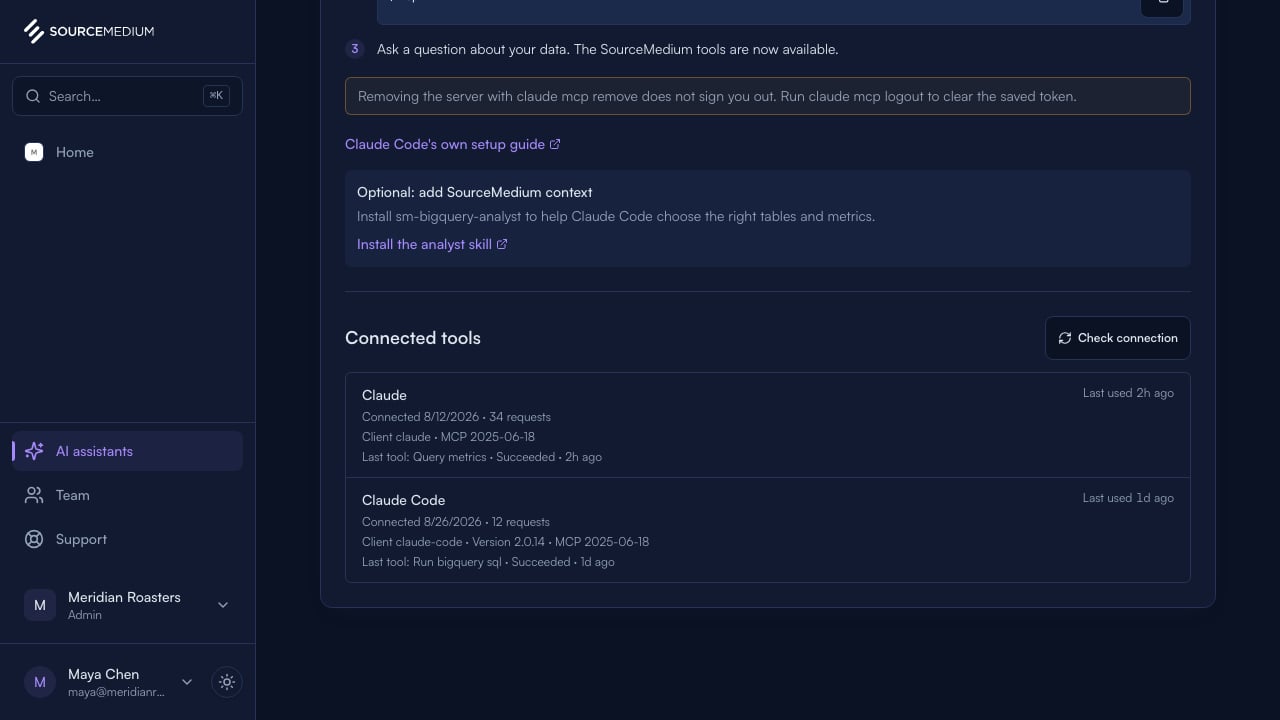
To confirm it worked, ask a first question. A successful request adds the tool under **Connected tools** on the **AI assistants** page, with its request count and when it was last used:
 ## What the assistant can reach
| Surface | When it answers |
| ------------------------------------------------------------------- | ----------------------------------------------------- |
| SourceMedium reporting data (`sm_transformed_v2` and `sm_metadata`) | Every active organization, always |
| SourceMedium documentation search | Every active organization, always |
| Shopify | As soon as a store is connected to SourceMedium |
| Meta Ads | As soon as an ad account is connected to SourceMedium |
There is no separate approval step for Shopify or Meta. If the source is connected in your workspace, the assistant can read it; if it is not, the tool answers `SOURCE_UNAVAILABLE` and warehouse questions still work.
Agency partners with a live grant can connect too. An organization-level grant sees the whole org. A brand- or store-scoped grant is narrowed to those stores, and cannot run raw SQL (`run_bigquery_sql`).
## How to ask
Ask in plain language. The assistant's instructions tell it to look every table, column, and metric name up before writing SQL, and to use SourceMedium's own metric definitions so its numbers match your dashboards. When a number matters, say the metric's name and ask the assistant to use `query_metrics`.
Two questions it answers directly: "are my connections working?" (live connection health and data freshness) and "what does this metric mean?" (searched from this documentation).
The [MCP tool reference](/docs/ai-analyst/mcp-tools) covers each tool, the call order that produces correct numbers, and how to tell a good answer from a guessed one.
## Limits
| Limit | Value |
| --------------------- | ---------------------------------------- |
| Rows returned | 500, then the result is marked truncated |
| BigQuery billed bytes | 10 GiB per query |
| Query wall time | 60 seconds |
| Response size | 256 KiB |
All tools are read-only. Writes, exports, and other projects are refused.
## Related
Every tool, the order that gets correct answers, and the column name assistants guess wrong.
Sign-in errors, source denials, and what to send support.
Ask in Slack when you want SourceMedium to write the SQL and charts for you.
## What the assistant can reach
| Surface | When it answers |
| ------------------------------------------------------------------- | ----------------------------------------------------- |
| SourceMedium reporting data (`sm_transformed_v2` and `sm_metadata`) | Every active organization, always |
| SourceMedium documentation search | Every active organization, always |
| Shopify | As soon as a store is connected to SourceMedium |
| Meta Ads | As soon as an ad account is connected to SourceMedium |
There is no separate approval step for Shopify or Meta. If the source is connected in your workspace, the assistant can read it; if it is not, the tool answers `SOURCE_UNAVAILABLE` and warehouse questions still work.
Agency partners with a live grant can connect too. An organization-level grant sees the whole org. A brand- or store-scoped grant is narrowed to those stores, and cannot run raw SQL (`run_bigquery_sql`).
## How to ask
Ask in plain language. The assistant's instructions tell it to look every table, column, and metric name up before writing SQL, and to use SourceMedium's own metric definitions so its numbers match your dashboards. When a number matters, say the metric's name and ask the assistant to use `query_metrics`.
Two questions it answers directly: "are my connections working?" (live connection health and data freshness) and "what does this metric mean?" (searched from this documentation).
The [MCP tool reference](/docs/ai-analyst/mcp-tools) covers each tool, the call order that produces correct numbers, and how to tell a good answer from a guessed one.
## Limits
| Limit | Value |
| --------------------- | ---------------------------------------- |
| Rows returned | 500, then the result is marked truncated |
| BigQuery billed bytes | 10 GiB per query |
| Query wall time | 60 seconds |
| Response size | 256 KiB |
All tools are read-only. Writes, exports, and other projects are refused.
## Related
Every tool, the order that gets correct answers, and the column name assistants guess wrong.
Sign-in errors, source denials, and what to send support.
Ask in Slack when you want SourceMedium to write the SQL and charts for you.